
Create a Medical Device Certificate of Exportability 801(e)(1) / 802 Application
April 2025
Table of Contents
- Create a Medical Device Certificate of Exportability 801(e)(1) / 802 Application
- Section 1 Requestor Information
- Section 2 Manufacturer Information
- Section 3 Product Information
- Section 4 List country(ies) for which the Certificates are requested
- Section 5 Indicate what product information should appear on the certificate
- Section 6 Should the country destination be listed on the certificate?
- Section 7 Are you exporting pursuant to section 801(e) or section 802 of the Act?
- Section 8 Exporter's Certification Statement
- Final Review Screen
Create a Medical Device Certificate of Exportability Application
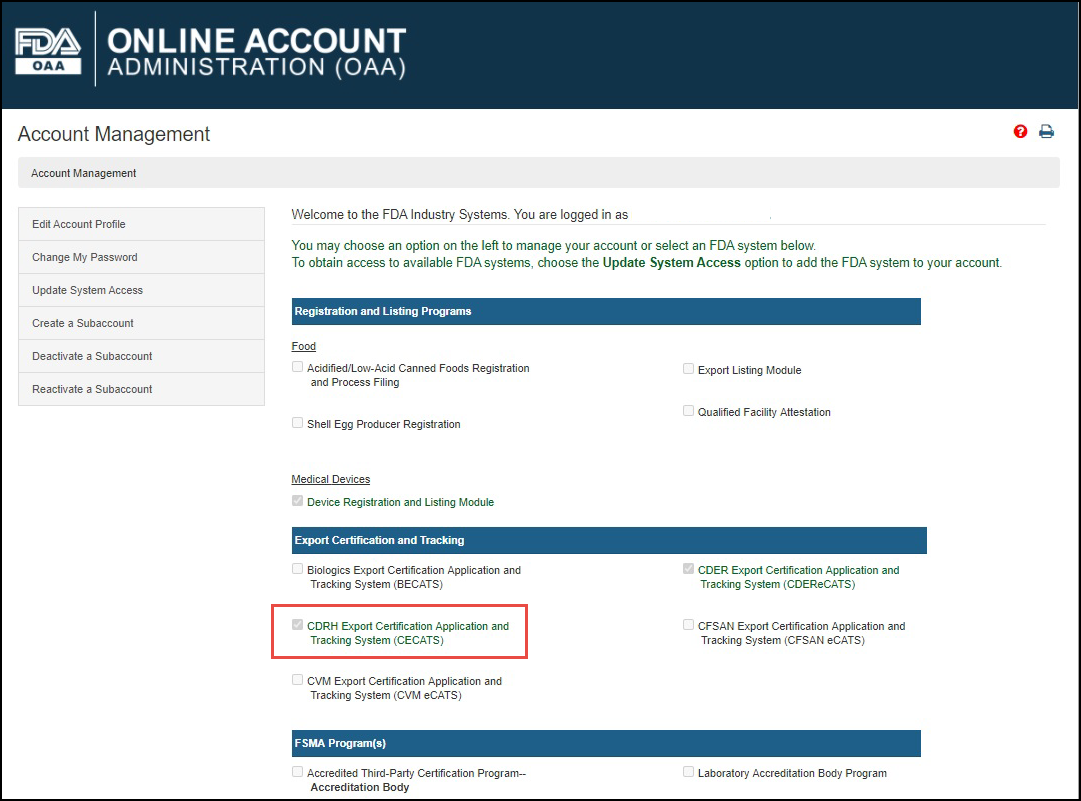
Log into the FDA Industry Systems (FIS) https://www.access.fda.gov and select "CDRH Export Certification Application & Tracking System" (CECATS) from the list of systems available on the FURLS Home Page as shown in Figure 1.
Figure 1: FDA Industry Systems Page
Select “Yes” in response to the question “Will the devices be exported from the United States?”
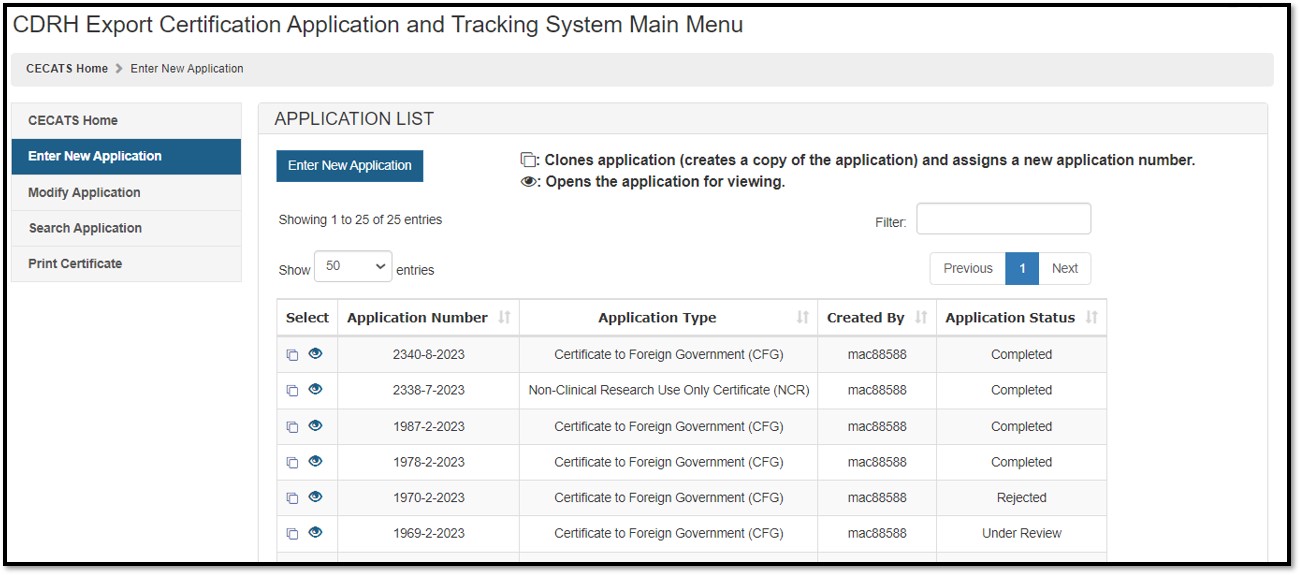
Select “Continue” and the system will open the CECATS Home Page. The CECATS Main Menu page will be displayed as shown in Figure 2 below.
Figure
2: CECATS Main Menu

To create a new application, click "Enter New Application". All applications that you have saved or submitted will be displayed as shown in Figure 3 below. Applications that are saved, but not submitted will be in "Draft" status until you submit them.
- To create a new application, click "Enter New Application" from the main Menu Page and then Click on "Enter New Application" again.
- To continue working on a draft
application,
click on Pencil icon
 (Edit
icon) associated to the desired application.
(Edit
icon) associated to the desired application. - To clone a previous
application,
click on the double book icon
 (Clone
icon) associated to the desired application.
(Clone
icon) associated to the desired application. - Verify the information on each page is still correct and continue through all screens.
Click Modify Application to make changes to a submitted, but not yet in “Under Review” status application or cancel an application that has been submitted and/or under review.
The following options are available:
- Modify application based on a notification received
- Change the number of certificates
- Cancel application
To search using the application number, click "Search Application". This option may be used to continue working on a draft application, to clone a previous application, or to make corrections to an application that is in "Return for Action" status.
NOTE: "Return for Action" status indicates that upon review of the application by the FDA, additional information or clarification was required. CECATS will send an email to the requestor with comments from the reviewer and will provide a 48-hour window for modifications. If modifications cannot be made within 48 hours, the status will automatically change to "Incomplete". Please clone, modify, and submit the application when it is ready. A new application number will be assigned. No charges are incurred for an application unless certificates are issued.
NOTE: For all applications in a "Draft" status, if you do not perform any activity within 30 days, the status will automatically change to "Not Submitted". Please clone to continue the application.
Figure
3: Submitted and Draft Application View
The Center for Devices and Radiological Health (CDRH) issues several types of Export documents. Select the Certificate of Exportability Section 801(e)(1) or the 802 from the dropdown list as shown in Figure 4.
Figure
4: Application Type
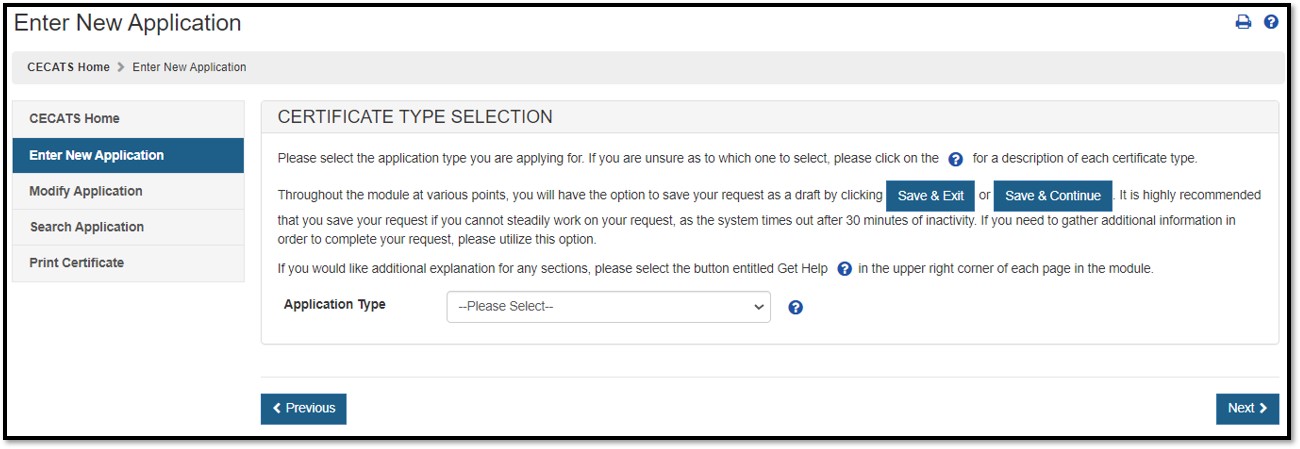
Description of the Certificate of Exportability Section 801(e)(1) or the 802:
For a description of each application type, select the question mark icon located next to the Application Type dropdown list shown in Figure 4 above.
Certificate of Exportability 801(e)(1)
Medical devices that are not FDA approved or cleared for marketing legally in the U.S. may be exported under section 801(e)(1) of the FD&C Act, provided that they are intended for export only. Although such devices do not meet the requirements of the FD&C Act to be sold in the U.S., they may be exported legally and without FDA permission per section 801(e)(1) if they are class I or class II devices and they are:
- In accordance with the specifications of the foreign purchaser;
- Not in conflict with the laws of the country to which they are intended for export;
- Labeled on the outside of the shipping package that they are intended for export; and
- Not sold or distributed in the U.S.
In addition, the U.S. Exporter must comply with the laws of the importing country.
Certificate of Exportability Section 802
The Certificate of Exportability Section 802 is for the export of products not approved for marketing in the United States that meet the requirements of Section 801(e)(1) and Section 802 of the Federal Food, Drug, and Cosmetic Act. Among the requirements to be met prior to the issuance of this certificate are the following:
- Class II and III devices, and class I devices associated with class III.
- Devices are not approved or cleared by FDA for marketing in the U.S.,
- Manufacturing establishments meet Good Manufacturing Practices (GMP) regulations and
- The manufacturer must be registered with FDA.
- The manufacturing facility must be in compliance with the registration requirements.
- The device must be in compliance with the listing requirements.
- The device must meet the requirements of Section 801(e):
- Adheres to the specifications of the foreign purchaser.
- Is not in conflict with the laws of the country to which it is intended for export.
- Is labeled on the outside of the shipping package that it is intended for export.
- Is not sold or offered for sale in domestic commerce.
In addition, the U.S. Exporter must comply with the laws of the importing country.
Navigation
A status bar at the top of every page will track your progress through each step of the application process and identify the application type as shown in Figure 5 below.
Figure 5:
Navigation Bar

A "Get Help" icon, located at the top right of each page, will provide page specific help. For an overview of all help files available, please refer to the FDA Industry Systems Index of Help Pages at https://www.access.fda.gov/cecats/help/template.html.
Also located at the top right corner of each page is a "FURLS HOME" link that will take you to the FURLS Home Page. The "CECATS HOME" link will navigate you to the CECATS Home Page, as shown in Figure 2. To log out of the system, select "FURLS HOME" and click "Logout".
At the top and bottom of each screen are navigation buttons as shown in Figure 6 below.
Figure 6: Navigation Buttons

- Previous -Navigates back one screen or back one step. Information entered on the current screen will NOT be saved if you select the "Previous" button.
- Save & Exit– Information entered up to this point will be saved. Your application will be set to a "Draft" status until you complete and submit the application. If you do not perform any activity for 30 days, the system will automatically change the status to "Not Submitted" and may delete the application. When you log into the CECATS system, all applications in a "Draft" status will be displayed after selecting the "Enter New Application" option from the main menu.
- Save & Continue– Information entered up to this point will be saved in "Draft" status. An application number will be assigned when you click on the 'Save and continue' button the first time and this number shall be visible on the top of the screen until the application is submitted. Please keep the Application number for your records and for any communications with FDA regarding this application. Your application will be set to a "Draft" status until you complete and submit the application. If you do not perform any activity for 30 days, the system will automatically change the status to "Not Submitted" and may delete the application.
- Next - All information on the current screen will be saved and the beginning of the next step will be displayed. However, exiting CECATS without using the "Save & Exit" button will cause the loss of the entire request.
NOTE: All Fields are mandatory fields except those marked as "Optional" in parenthesis. You will NOT be able to proceed to the next step or Save & Exit until all mandatory fields have been properly entered on the current screen.
Section 1 - Requestor Information
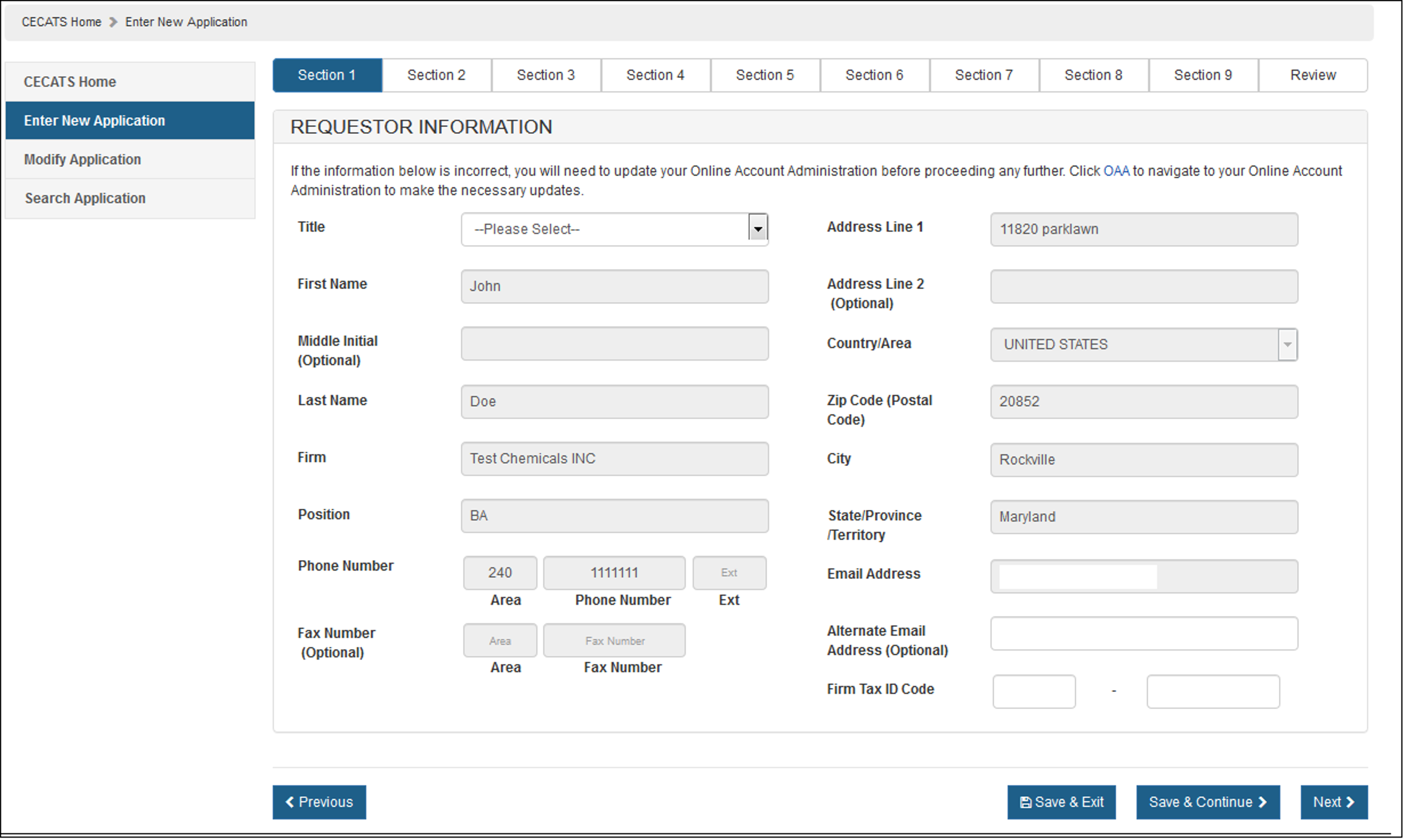
The system auto-populates specific information from your Online Account Administration (OAA) into section 1 (Requestor Information) of the application. These fields cannot be edited in CECATS.
If the information is incorrect, click the 'FURLS Home' link as shown in Figure 6. Then click "Edit Account Profile" on the left-hand side and update your account profile accordingly.
The following two fields are required in section 1:
- Title
- Firm Tax ID Code (also referred to as the Employer Identification Number or EIN (a nine-digit numeric value). This number is assigned by the Internal Revenue Service (IRS).
Click "Next". See Figure 7 below.
Figure 7: Section 1 - Requestor
Information
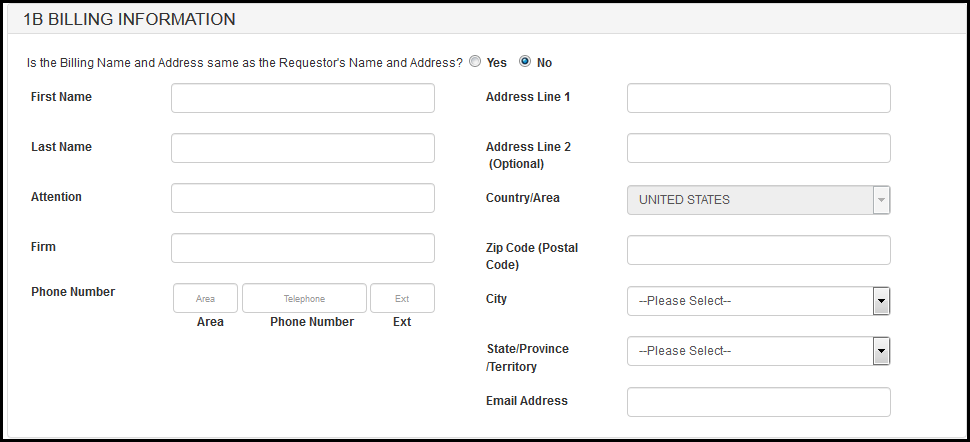
Section 1B: "Is the Billing Name and Address same as the Requestor's Name and Address?".
If you select "Yes", you have the option to enter an alternate addressee in the "Attention" field. If you select "No", you may enter an alternate billing address in the fields provided. See Figures 8 and 9.
Figure 8: Section 1B - Billing Information

Figure 9: Section 1B - Billing Information
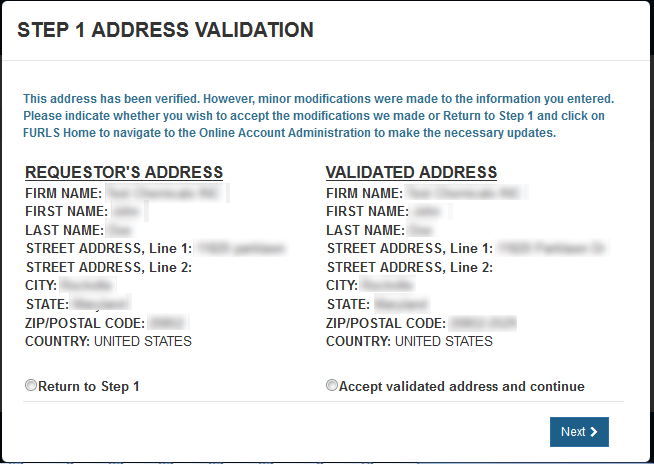
Address Validation screen: Click "Accept validated address and continue"
to indicate that you (the requestor) are still located at the location identified. You will later identify
the manufacturing facility's address. Click "Next" to proceed. See Figure 10
below.
Figure 10: Address Validation
Section 2 - Manufacturer Information
The FDA requires that all facilities manufacturing medical devices must be registered in the FDA Device, Registration and Listing Module (DRLM). Once a manufacturer is registered in DRLM, the FDA immediately provides an Owner Operator Number to the requesting firm, and later provides a registration number. Until a facility is assigned a registration number they will have the status "Active Awaiting Registration Number Assignment". If you have not registered your manufacturer in DRLM, return to the FURLS home page and complete your facility’s registration.
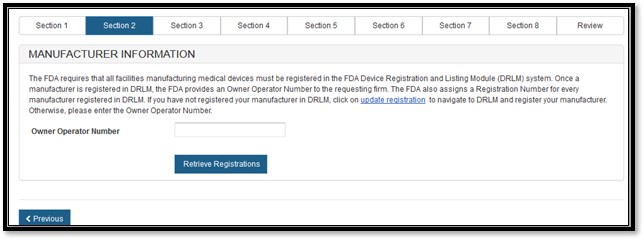
For an 801(e)(1) or 802 application, enter the Owner Operator Number (OON) and click "Retrieve Registration". See Figure 11 or Figure 12.
Figure 11: Owner
Operator Number (OON) for Manufacturer for 801 (e)(1)
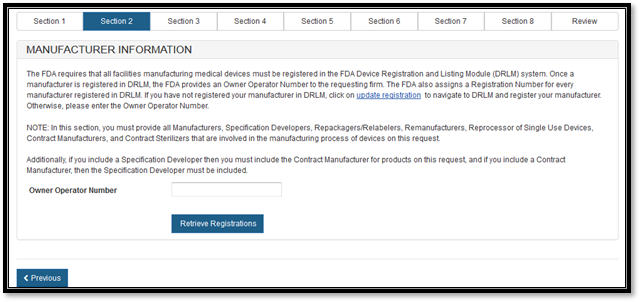
Figure 12: Owner
Operator Number (OON) for Manufacturer for 802
Owner
Operator number (OON) entered:
As long as the OON is active, a list of all facilities associated to the OON
will be displayed. Select one or more facilities (if applicable) from the list
of manufacturers that are in active status as shown in Figure 13 below.
Figure 13: List
of Manufacturers
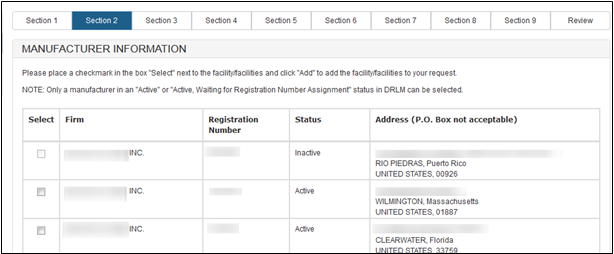
- The system will not allow you to select any facility in an inactive status. The inactive facility or facilities will be grayed out.
- The system will not allow the user to select a facility that has already been selected for the same application.
After selecting the manufacturer(s), the system will provide a review page for all manufacturers selected as shown in Figure 14 for 801(e)(1) applications and Figure 15 for 802(e)(1) applications
Figure 14:
Review Manufacturer List (801)
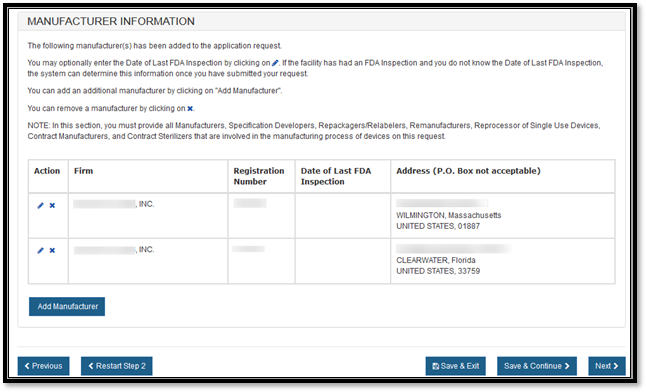
Figure 15:
Review Manufacturer List (802)
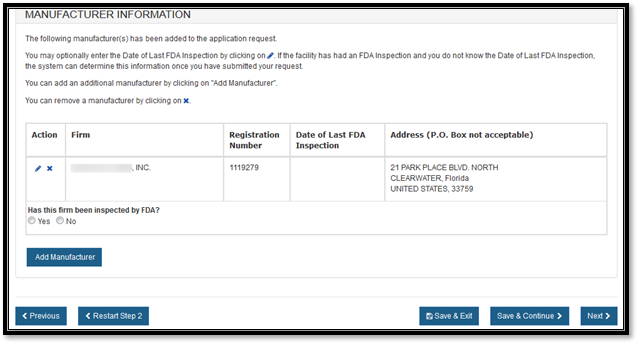
For 802 applications, select the radio button to answer the question, "Has this firm been inspected by FDA? (NOTE: If the facility participates in the Medical Device Single Audit Program (MDSAP) and has been audited, please answer “Yes”.)"
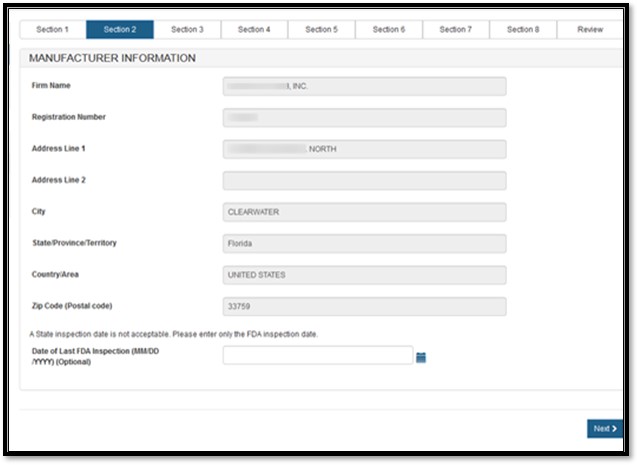
Optional: To enter the date of the last FDA inspection for each manufacturer for 801 (e)(1) applications, select the facility. Click on the Pencil icon associated with the firm and enter the “Date of Last FDA inspection”.See Figure 16 below.
Figure 16:
Manufacturer Information
Identify additional manufacturers by clicking on the "Add Manufacturer" button and entering the appropriate OON.
To remove a manufacturer from the list, select the facility, click on "X" button, and verify this removal by selecting the "OK" button.
NOTE: At least one manufacturer must be a domestic firm in order to proceed to the next step.
Adding Contract Manufacturers
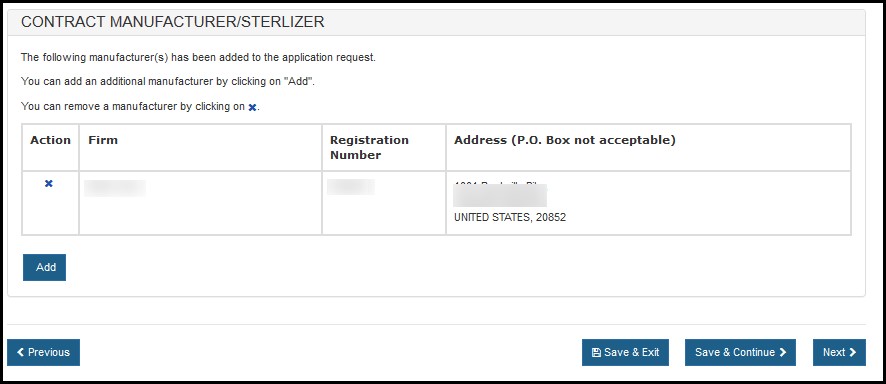
This step only applies to 802 applications.The system will prompt whether you have a contract manufacturer as shown in Figures 17 - 19 below. Proceed to navigate through the screens to identify the contract manufacturer in the same manner as the manufacturer.
Figure 17:
Contract Manufacturer Information
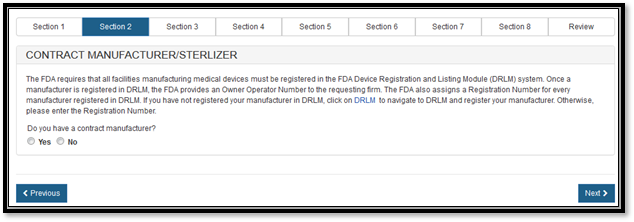
Figure 18:
Contract Manufacturer Information
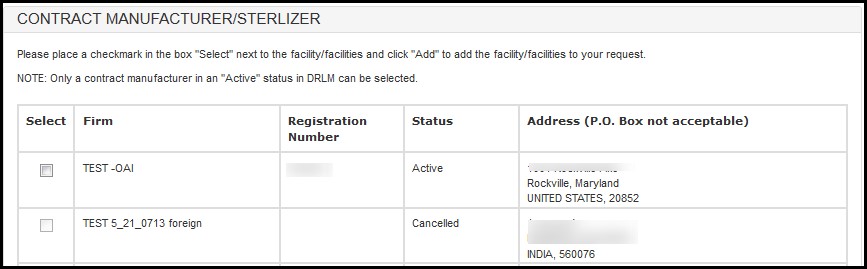
Figure 19:
Contract Manufacturer Information
NOTE: It is allowable to include contract manufacturers that are not owned by the same Owner Operator as manufacturers on the request, however, contract manufacturers not owned by the same facility as the manufacturers may not be included on the certificate.
Otherwise, select "No" and click "Next".
Section 3 - Product Information
In this section, add one or more products from each manufacturer.
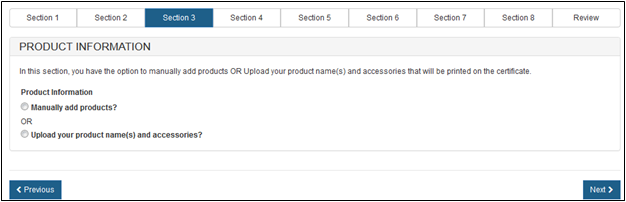
You will be given the option to manually enter the products, or to upload your products as shown in Figure 20.
Figure 20:
Product Information
Manually Enter Products
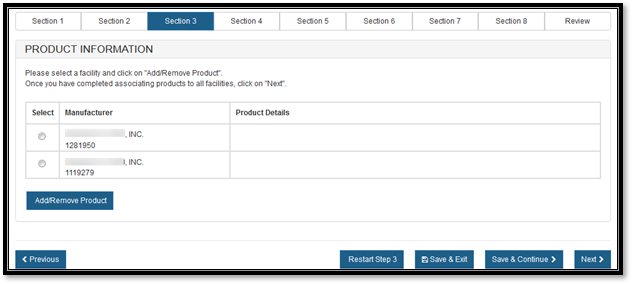
Select a facility and click "Add/Remove Product" as shown in Figure 21.
Figure 21:
Select Facility
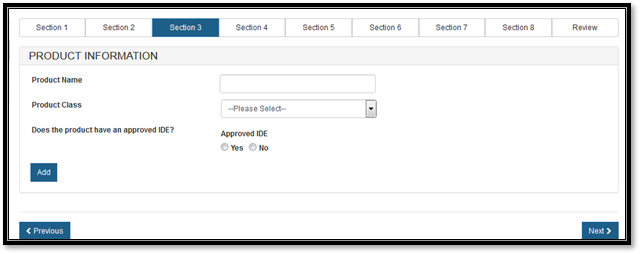
Enter the "Product Name" and "Product Class" as shown in Figure 22 and answer the Investigational Device Exemption (IDE) question. If the product has an IDE, enter the IDE Number. Click "Add".
Figure 22: Enter
Products
Continue to add additional products in the same manner as above. When finished, click "Next".
For 802 certificate types, you must add at least one Class II or Class III device.
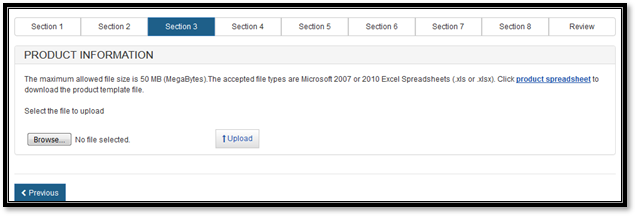
To upload your product list (File), click "product spreadsheet" hyperlink as shown in Figure 23 to download a template which is in a format that must be used to upload your products.
Figure 23: Upload
Hyperlink and Browse
Enter or copy your product list onto the template. Tips for uploading products can be referenced below.
Tips for uploading products
Enter or copy your product list onto the template. You should adhere to the following rules or the system will not accept the upload:
- Rows 1 and 2 must not be deleted. NOTE:Product names entered in rows 1 and 2 will not appear on the certificate.
- Do not separate products with any blank rows. CECATS will automatically delete these blank rows on the certificate. Grouping of products can be achieved by entering a dot or dash on the line in between the group. This dot or dash will appear on the certificate.
- Do not exceed the maximum character limit of 150 per cell.
- Once loaded into CECATS, the characters are displayed on certificates in Arial font with a size of 8.
- There is a single cell available for each product name with CECATS allowing each cell to be up to 150 characters. If you would like the appearance of columns within the one column format, a process called concatenation can be utilized. This can be accomplished using spreadsheet software such as (Microsoft Excel or Libre Office Calc) by concatenating multiple fields into a single field. Information on how to do this in Excel can be found in the Excel help. Basic concatenation instructions are provided below. For additional assistance, please contact FDA at cdrhcecats@fda.hhs.gov.
Concatenation– creating the appearance of multiple columns within a one column format.
For example, a company may store product information in a spreadsheet like this:
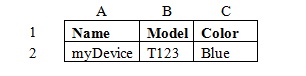
Using concatenation
functions a company might use a function in another column such as
=A2&" - "&B2&" - "&C2
This takes the values found in the cells A2, B2, and C2 and puts them together
in a single cell with dashes (which can be changed to any type of separating text
desired). The quotes around the dashes indicate that the text (and spaces)
between the quotes are actual text to be displayed rather than a reference to a
cell or function in the spreadsheet. This is the result of adding the function
to cell D2:

Now that the cells with various product information have been concatenated, the concatenated information needs to be moved into a spreadsheet conforming to the CECATS template spreadsheet which is a single cell.
NOTE:Though the concatenation function displays the concatenated text, if this cell is copied to another spreadsheet the result will likely be an error displayed in the cell. This error occurs because the displayed concatenated text is still a function which requires the cells referenced in it to exist in the proper locations. Once the function is moved to a location where those referenced cells no longer exist, the function will not behave as expected.
To copy the displayed concatenated text to the CECATS template spreadsheet, copy the text but when pasting the text, the option to past only values should be used. In Microsoft Excel, the option to paste only the values that are a result of a function is found in the Paste or Paste Special options. Pasting only values will allow concatenated text to appear correctly in the CECATS template spreadsheet:

When the product list is ready and saved to your computer, click "Browse…" and navigate to the location of your file and click "Upload". The uploaded products and accessories will be ready for grouping.
NOTE: The order of the products displayed on the certificate will be the same order of the products entered in the product template upload file.
The system should display the product list will be displayed as shown in Figure 24.
Figure 24:
Product Information Listing
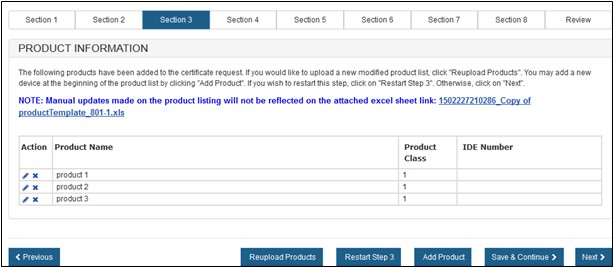
You can add a new device at the beginning of the product list by clicking "Add product".
Once all products have been added, click "Next".
Section 4 - List Country(ies) for which the Certificates are requested
Select one or more countries to indicate the product destination, click "Add" and repeat for additional countries as shown in Figure 25.
NOTE: Another method to select a country (other than scrolling down the list) is to first click on a country from the country list and then type in the first few letters of the desired country name. The system will jump to the country that begins with the letters typed (e.g., “ALB” > “Albania”).
Figure 25 List
of Countries
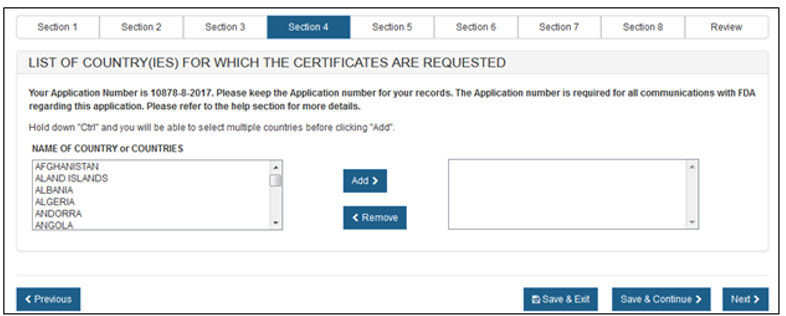
NOTE: The standard format of the electronic certificate will not display an individual country name, but will state "foreign countries". To display a specific country on the certificate, select only one country in section 4 AND indicate that country destination should be listed on the certificate in section 6.
Click "Next".
Section 5 - Indicate what product information should appear on the certificate.
Selecting the
Facility or Facilities to appear on the certificate
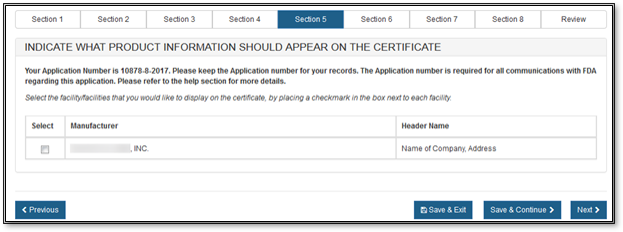
All facilities that are identified in section 2 will be displayed. Select the
facilities that are to be displayed on the certificate, as shown in Figure 26.
Then, click "Next".
NOTE: At least one domestic facility must be selected to appear on the certificate.
Figure 26:
Select Facility
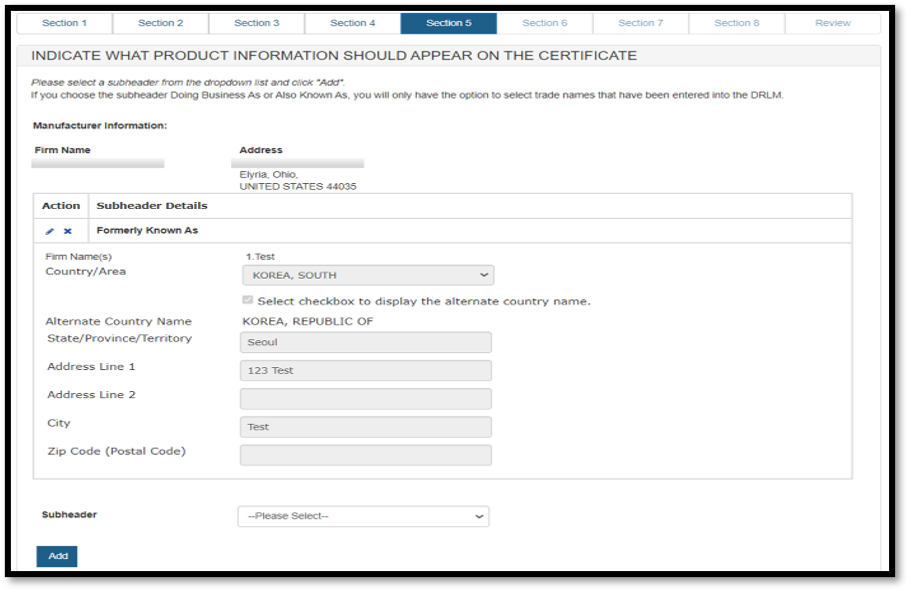
You also have the option to add a subheader for the manufacturers. See Figure 27.
Figure 27:
Subheader Information
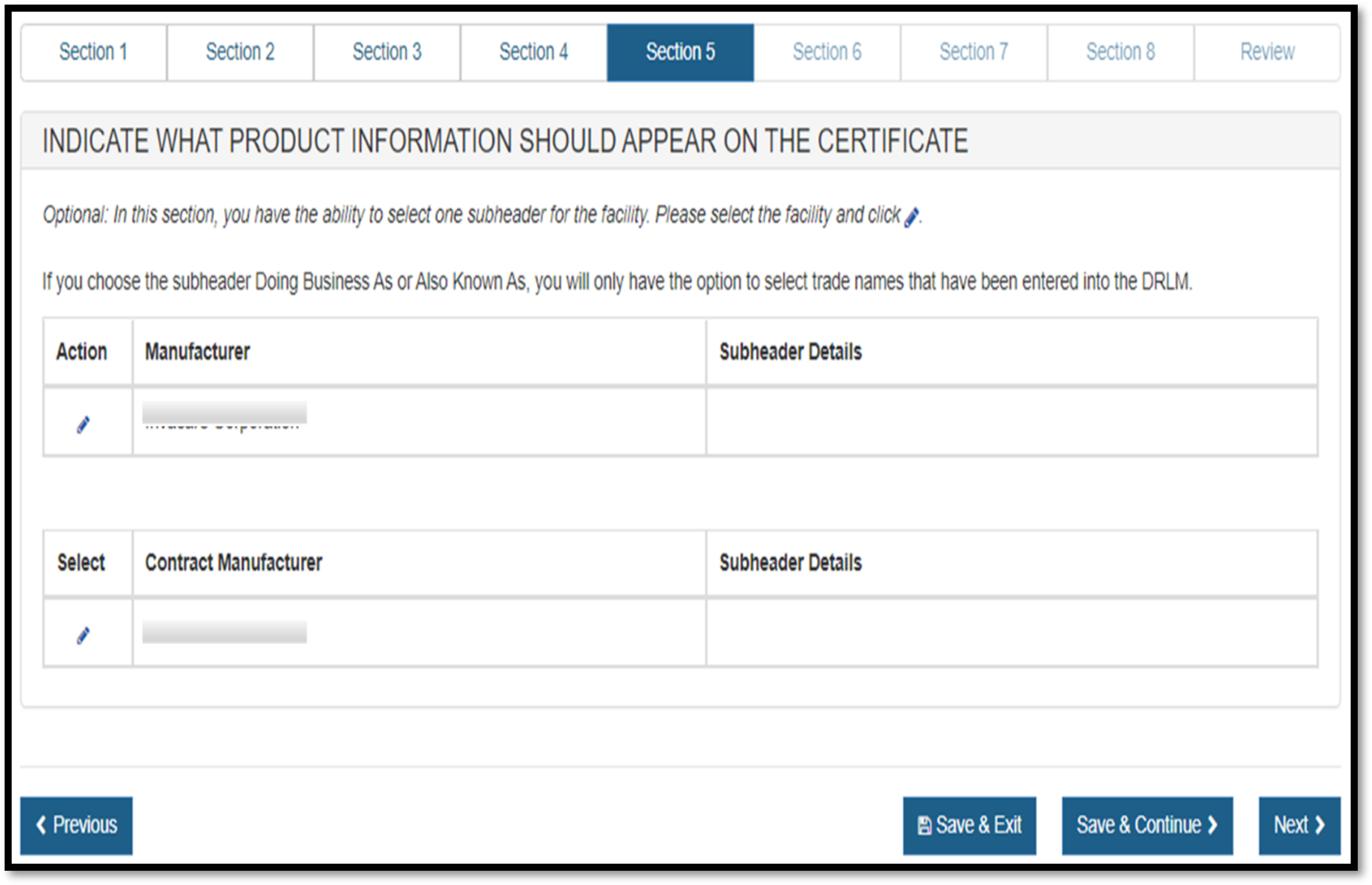
To add a subheader, click on the Pencil icon in the “Action” column.The system will display the screen to enter the subheader. Based on your selection of a subheader, the system will provide you the fields to record the information. See Figure 28.
If a foreign address is entered, a checkbox is displayed: “Select checkbox to display the alternate country name.” If this checkbox is selected, the “Alternate Country Name” is displayed.
Figure 28:
Add Subheader
Grouping a
Product(s) to a Facility(ies)
Products can be grouped to one, some or all of the facilities to be displayed on
the certificate.
**NOTE: The associations you create will impact the format of your certificate.
NOTE: There is a checkbox located at the top-left section of the Products table. If this box is checked, all products will be selected for that particular page.
"Group All Products to All Facilities" provides a quick and easy way to group all products to all facilities with a single click.
"Group"
Select one or multiple products from the list of products. Next, select one or more facilities located to the right of the product listing.
When finished, click on the “Group” button. The system will display the grouping created.
The system continues to display the product listing (below the grouping). Products that have been "grouped" will now be grayed out. Continue grouping the remaining products until all products on the page have been grouped. See Figure 29 below.
Figure 29: Group Products to Establishments
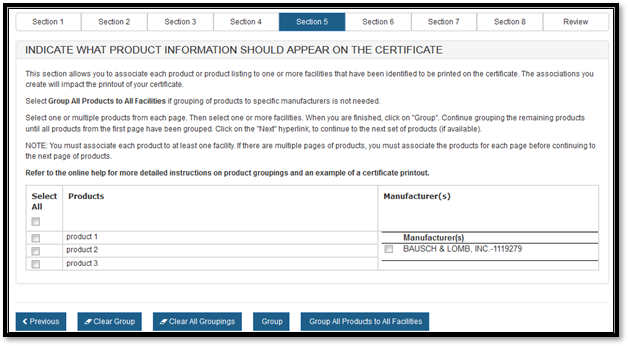
NOTE: Only 30 products will be displayed per page. If the product list contains more than 30 products, you must group the 30 products before moving onto the next set of products.
Once all products on that page have been grouped, click on the "Next" button to continue grouping additional products. Continue until all products on all pages have been grouped.
"Clear Group" If an error was made when grouping, select "Clear Group" to restart grouping for that particular page.
NOTE: The "Clear Group" button will NOT affect any other pages (if more than 30 products).
"Clear All Groupings" "Clear All Groupings" will remove ALL groupings from all pages. A warning message will appear prior to clearing all groupings. Once confirmed, you will have to re-start the grouping process.
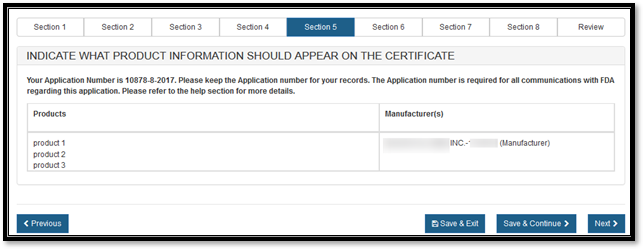
Once all products have been grouped to a facility, the system displays a final review of the grouping as shown in Figure 30.
Figure 30:
Grouping Review Page
Click "Next".
Section 6 - Should the country destination be listed on the certificate?
Unless otherwise indicated in this section, the certificate will be state "into foreign countries". Sometimes a specific destination country name is desired. To have a specific country appear:
- Identify only the specific country in section 6.
- Select "Yes" to the "Should the country destination be listed on the certificate" in section 8.
NOTE: If this option is grayed out and cannot be chose, most often it is because more than one country was selected in section 6.
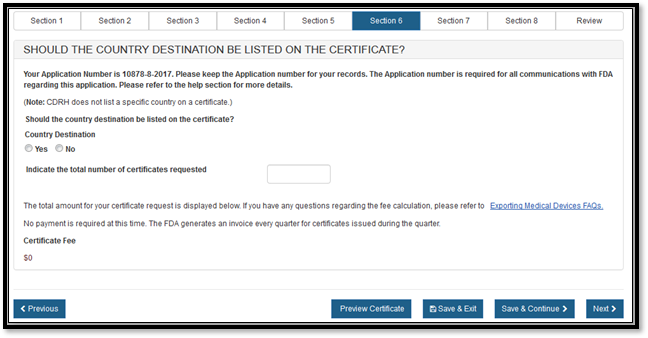
Enter the total number of certificates requested. See Figure 31 below.
Figure 31:
Number of Certificates Requested
Click "Next".
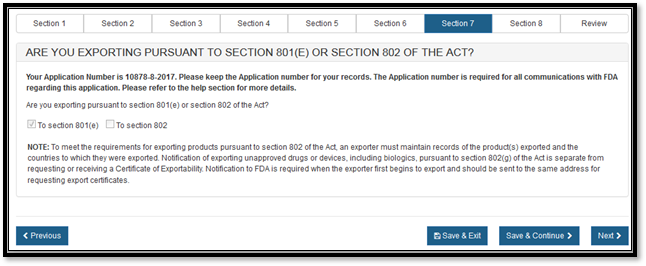
Section 7 – Are you exporting pursuant to Section 801(e) or Section 802 of the Act?
The system automatically selects the appropriate checkbox based on the application type as shown in Figure 32.
Figure 32:
801(e) (1) or 802 certificate types
Click "Next".
Section 8 – Exporter's Certification Statement (ECS)
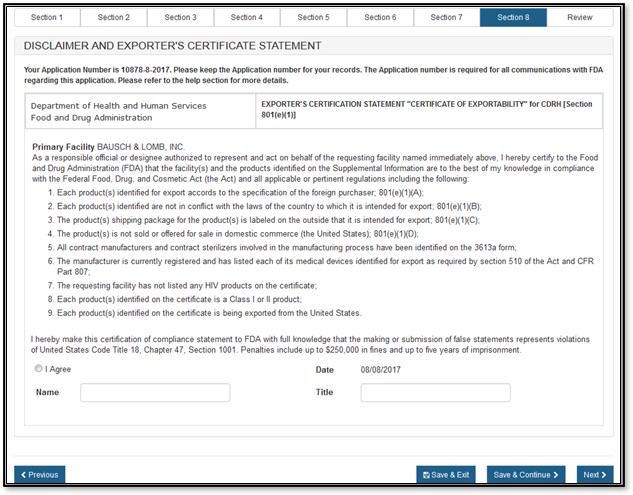
The Exporter's Certification Statement (ECS) acknowledges that you, the responsible official or designee, certify that the facility(s) and the products identified on the Supplemental Information are to the best of your knowledge in substantial compliance with the Federal Food, Drug, and Cosmetic Act (the Act) and all applicable or pertinent regulations
In this section, the primary facility field will be auto-populated based on the selection you made in section 6. Select the "I Agree" button located at the bottom of this section and enter your name and title. You will not be able to continue with the application until these fields have been completed. See Figure 33 and Figure 34 below:
Figure 33: ECS -
801
Once these fields are completed, click "Next".
Figure 34: ECS -
802

Supporting Documentation
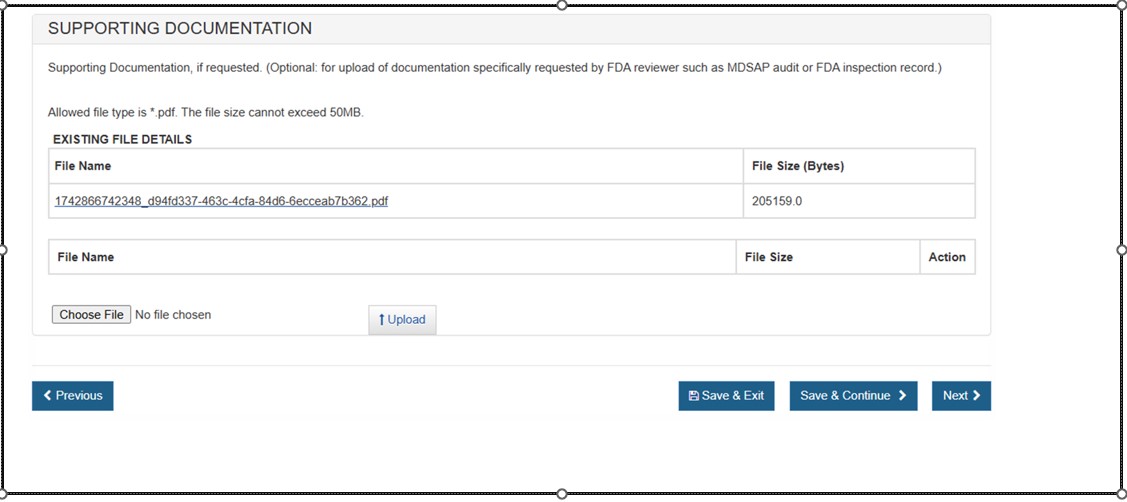
Use this section to upload any documents specifically requested by an FDA reviewer (e.g. MDSAP audit or FDA inspection record). See Figure 35 below.
NOTE: This section is not required. Only PDF files less than 50MB will be accepted.Figure 35: Supporting Documentation
Final Review Screen
The entire application will be displayed (broken out by section), as shown in Figure 36 and Figure 37 below. To modify a section, select the "Edit" next to the section to be updated. The system will display the data entry screen corresponding to the chosen section.You will be able to make changes, as needed.
Figure 36: Final
review page - 801
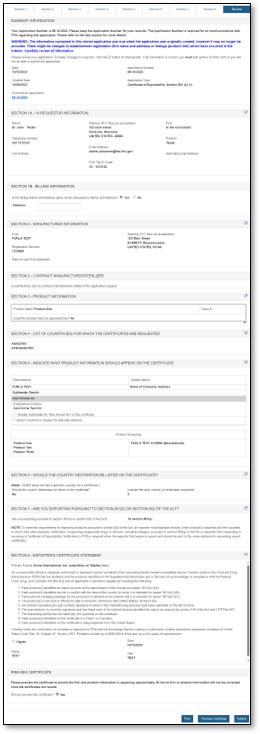
Figure 37: Final
review page - 802

NOTE: The system
displays one entry in each section. If you entered multiple entries in a
section, (i.e. multiple manufacturers or distributors in section 2), click
 to expand the list for that section.
Click "Preview Certificate" to ensure that your product information and the manufacturer/distributor information is displayed to your satisfaction on the certificate and attachment pages.
NOTE:This will be your final opportunity to make edits to some sections, so please review your completed application carefully.Your submission is not complete until you click “Submit”.
You may choose to print your application prior to submission. Select "Print Application" located at the bottom of the review page. A new browser window will open which will allow you to print the application. When you are finished, close the browser window in order to return to the CECATS application.
NOTE: If you have not previously saved the application, the application number will not appear on the printed application. You might want to wait until you Save or Submit the application so you have the application number for reference.
When your application is ready for submission, click "Submit" also located at the bottom of the review page. The system will display a message that your application was successfully submitted as shown in Figure 38 below.
An application number will be displayed and the opportunity to print a copy of the application is available. NOTE: Please save the application number for future reference. The application number will be required to check the status of your application. You will also receive an email confirmation that your application has been successfully received, along with the application number.
Figure 38:
Submission Success Page
