Create a Medical Device Certificate for Device Not Exported from the United States (CDNE) Application
June 2022
Return to Online Registration1
Table of Contents
- Create a CDNE Application
- Navigation
- Section 1 Requestor Information
- Section 2 Manufacturer Information
- Section 3 Device Information
- Section 4 Country for Which the Certificates are Requested
- Section 5 Indicate What Device Information Should Appear on the Certificate
- Section 6 Number of Certificates and Country of Destination
- Section 7 Shipper's Certification Statement
- Final Review Screen
1 Create a CDNE Application
Log into the FDA Industry Systems (FIS) https://www.access.fda.gov and select "CDRH Export Certification Application and Tracking System" from the list of available systems on the FURLS "Home" page (Figure 1).
Figure
1: FDA Industry Systems Page

Select "No" in response to the question "Will the devices be exported from the United States?", as shown in Figure 2 below. Select "Continue" and the system will open the CDNE "Home" page. The CDNE Home page is shown in Figure 3 below.
Figure 2: Will the devices be exported from the U.S?
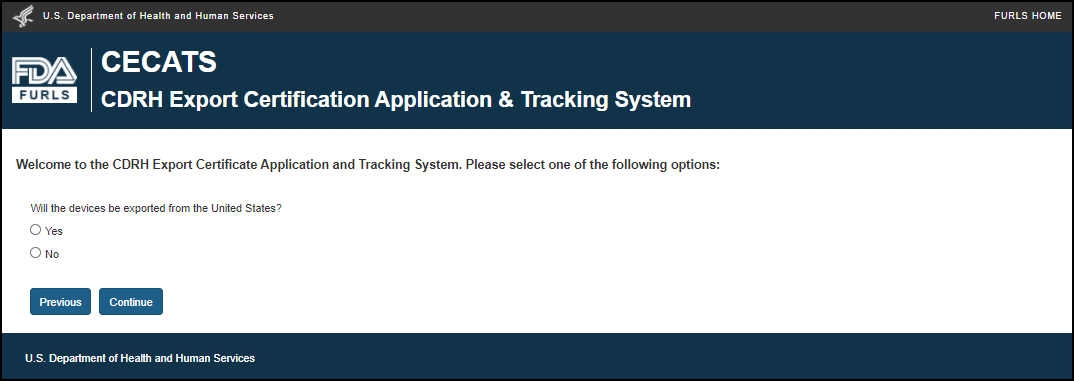
Figure 3: CDNE Home Page
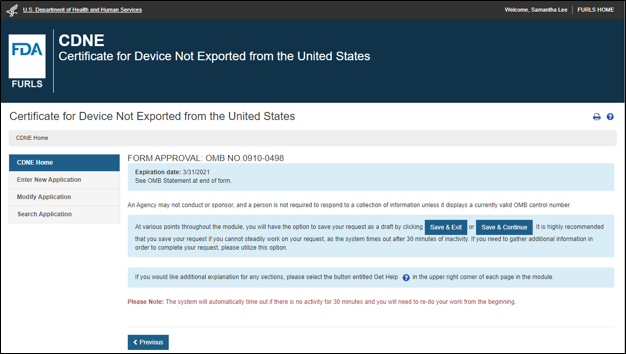
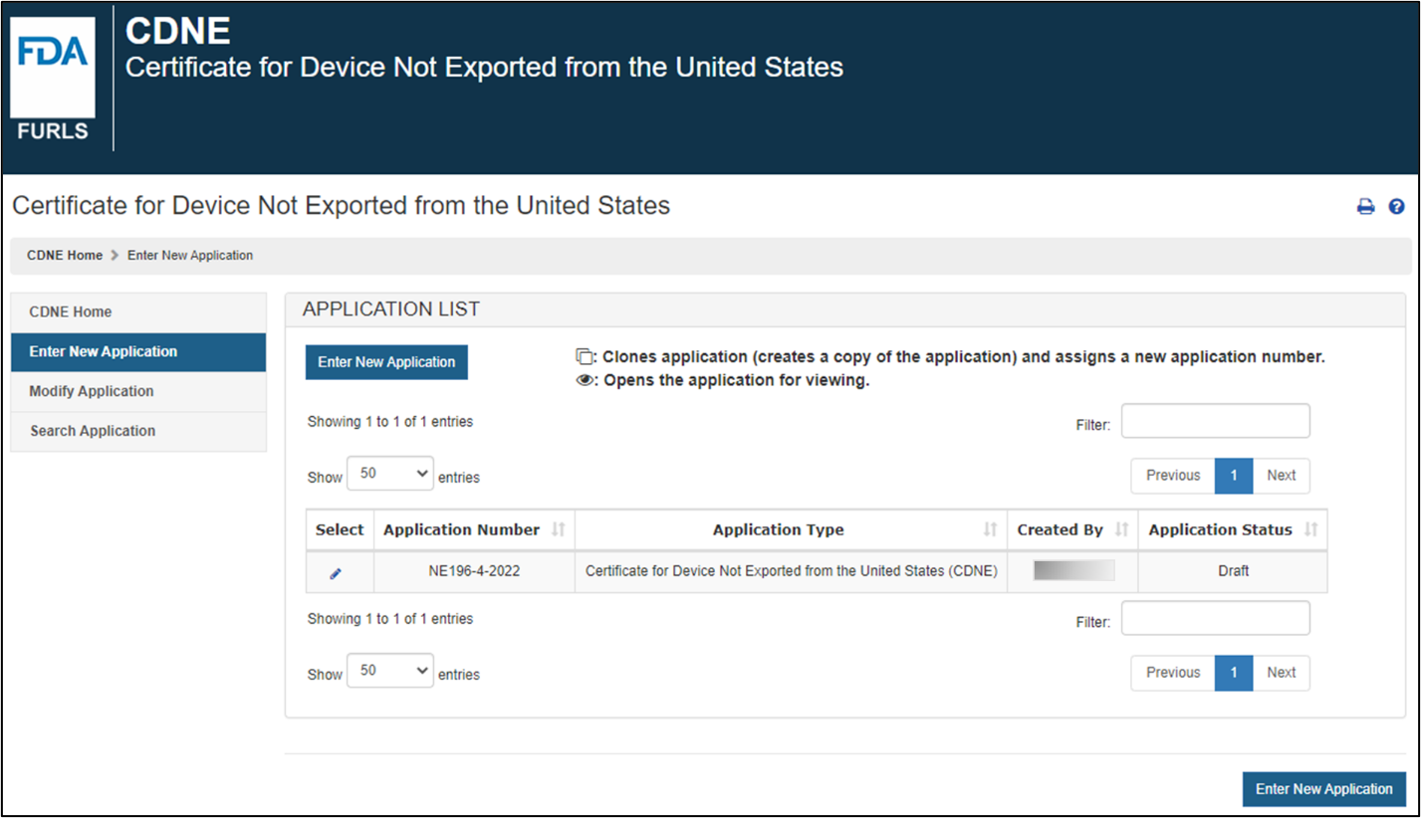
To create a new application, click "Enter New Application". All applications you have saved or submitted will be displayed (Figure 4). Applications that are saved, but not submitted, will be in "Draft" status until you submit them.
- To create a new application, click "Enter New Application" again.
- To continue working on a draft
application,
click the "Edit" icon (
 ) associated with the desired application.
 - To clone a
previous application, click the "Clone" icon (
 ) associated with the
desired application.
) associated with the
desired application. - Verify the information on each page is correct and continue through each of the screens.
Click "Modify Application" to make changes to a submitted application that is not in "Under Review" status yet. The following options are available:
- Modify application based on a notification received
- Change the number of certificates
- Cancel request
To search using the application number, click "Search Application". This option may be used to continue working on a draft application, clone a previous application, or make corrections to an application in "Return for Action" status.
NOTE: "Return for Action" status indicates that upon review of the application by FDA, additional information or clarification was required. An email will be sent to the requestor with comments from the reviewer; there will then be a 48-hour window for any modifications. If modifications cannot be made within 48 hours the status will automatically change to "Incomplete". An application in "Incomplete" status may be cloned when you are ready to modify and submit it. A new application number will be assigned. No charges are incurred for an application unless certificates are issued.
NOTE: If you do not perform any activity for applications in "Draft" status within 30 days, the status will automatically change to "Not Submitted". Please clone the application to continue.
Figure
4: Submitted and Draft Application View
Certificate for Device Not Exported from the United States (CDNE)
A Certificate for Device Not Exported from the United States is issued for devices which:
- Are cleared/approved/granted
- Have received Humanitarian Device Exemption
- Were in commercial distribution before May 28,1976
- Are exempt from section 510(k) of the FD&C Act
- Are not exported from the United States
- Are identical to the FDA authorized device with no modifications to the technology, intended use, indications for use, or labeling
Acceptable CDNE Marketing Statuses: 510(k), PMA, Preamendment, Enforcement Discretion, Humanitarian Device Exemption (HDE), De Novo, or Exempt from 510(k).
2 Navigation
A status bar at the top of every page will track your progress through each step of the application process (Figure 5).
Figure 5: Navigation Bar

A "Get Help" ( ) icon – located at the top right of each page – will provide page-specific help (Figure 5). For an overview of all available help files, refer to the FDA Industry Systems Index of Help Pages at https://www.access.fda.gov/cecats/help/cdneTemplate.html.
Located in the top right corner of each page is a "FURLS HOME" link (Figure 6) that will take you to the FURLS "Home" page (Figure 2). To log out of the system, select "FURLS HOME" and click to logout. The "CDNE HOME" link will take you to the CDNE "Home" page (Figure 3).
Figure 6: FURLS Home Link
At the bottom of each screen are navigation buttons (Figure 7).
Figure 7: FURLS Home
"Previous" – This button navigates you back one screen or back one step. Information entered on the current screen will NOT be saved if you select the "Previous" button.
"Save & Exit" – Information entered up to this point will be saved. Your application will be set to a "Draft" status until you complete and submit the application. If you do not perform any activity for 30 days, the system will automatically change the status to "Not Submitted" and may delete the application. When you log into the CDNE system, all applications in a "Draft" status will be displayed after selecting the "Enter New Application" option from the main menu.
"Save & Continue" – Information entered up to this point will be saved in "Draft" status. An application number will be assigned when you click on the "Save & Continue" button the first time. This number will be visible on the top of the screen until the application is submitted. Please keep the application number for your records as well as any communication with FDA regarding this application. Your application will be set to "Draft" status until you complete and submit the application. If you do not perform any activity for 30 days, the system will automatically change the status to "Not Submitted" and may delete the application.
"Next" – All information is saved on the current screen and navigates to the beginning of the next step. However, exiting the CDNE system without using the "Save & Exit" button will cause the loss of the entire request.
NOTE: All Fields are mandatory except those marked as "Optional" in parenthesis. You will NOT be able to proceed to the next step ("Save & Exit") until all mandatory fields have been properly entered on the current screen.
3 Section 1 - Requestor Information
Representatives of the foreign manufacturer may submit a CDNE application regardless of whether or not they are located in the U.S
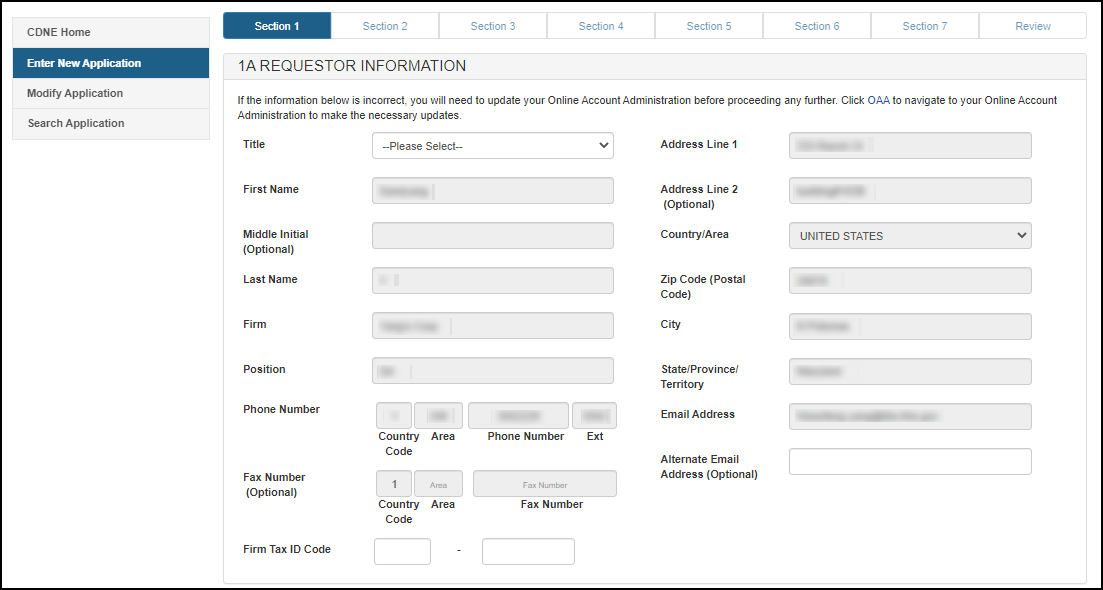
The system auto-populates specific information from your Online Account Administration (OAA) into Section 1A - Requestor Information, as shown below in Figure 8.
If the information is incorrect, click the "FURLS Home" link (Figure 6)
Click "Edit Account Profile" on the left side of the screen and update your account profile accordingly.
The following two fields are required in section 1:
- Title
- U.S. Requestor: Firm
Tax ID Code (also referred to as the Employer Identification Number or EIN (a
nine-digit numeric value). This number is assigned by the Internal Revenue
Service (IRS)
OR - Foreign Requestor: DUNS number
Figure 8: Section 1A - Requestor Information
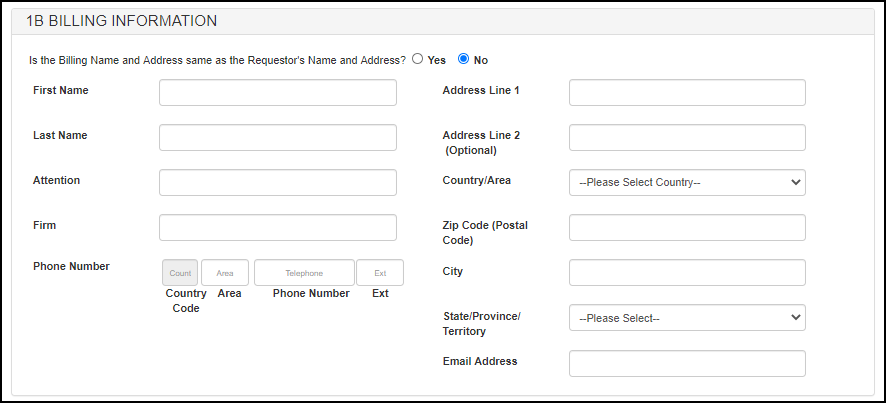
In section 1B: "Is the Billing Name and Address same as the Requestor's Name and Address?" If you select "Yes", you have the option to enter an alternate addressee in the "Attention" field, (Figure 9). If you select "No", you may enter an alternate billing address in the fields provided, (Figure 10).
Figure 9: Section 1B - Billing Information (Yes)

Figure 10: Section 1B - Billing Information (No)
Per Section 1C: "Delivery Information" The upload of a return shipping label will be performed in Section 7, (Figure 11).
Figure 11: Section 1C - Delivery Information

Click "Next" to proceed.
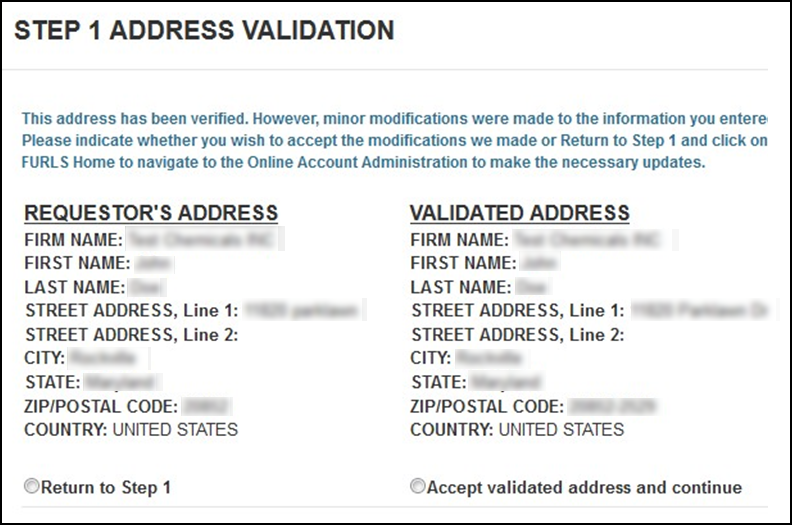
On the "Address Validation" screen, please click "Accept validated address and continue" to indicate that you (the requestor) are still located at the address identified (Figure 12). Later, you will identify the manufacturing facility's address.
Figure 12: Address Validation
4 Section 2 - Manufacturer Information
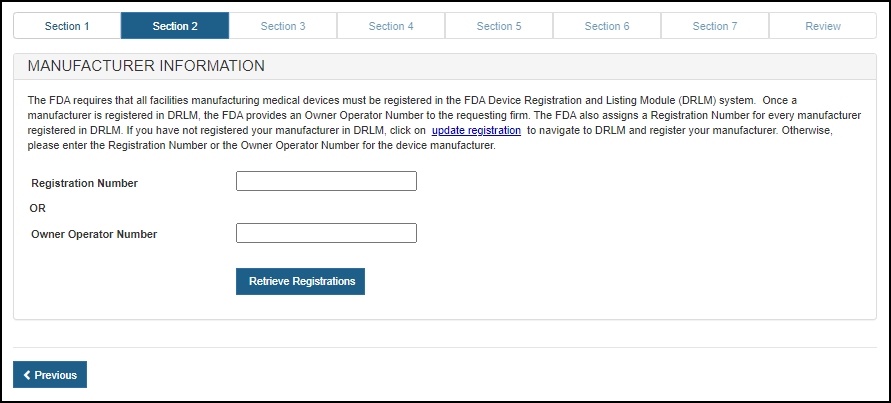
FDA requires that all facilities manufacturing medical devices be registered in the FDA Device Registration and Listing Module (DRLM). Once a manufacturer is registered in DRLM, FDA provides an Owner Operator Number to the requesting firm. FDA also assigns a Registration Number for every manufacturer registered in DRLM. If you have not registered your manufacturer in DRLM, return to the FURLS home page and register your manufacturer.
NOTE: In this section, you must identify the manufacturer involved in the manufacturing process of devices on this request.
Enter the Registration Number or the Owner Operator Number (OON) and click on the "Retrieve Registration" button (Figure 13).
Figure 13: Registration Number or OON for
Manufacturer
Owner Operator number (OON) entered:
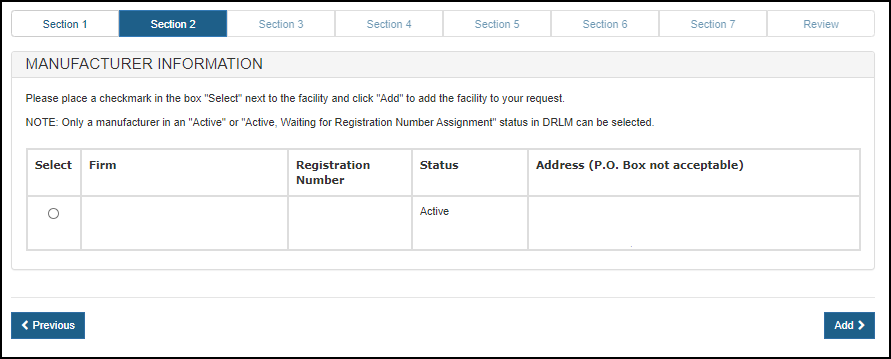
As long as the OON is active, all facilities associated with the OON will be displayed. Select one facility from the list of manufacturers that are in active status (Figure 14). Inactive facilities will be grayed out and cannot be selected.
Registration number entered:
Only the single facility associated with that number will be displayed.
Figure 14: List of Manufacturers
After selecting the manufacturer, a review page for the manufacturer selected will be displayed (Figure 15).
Figure 15: Review Manufacturers List
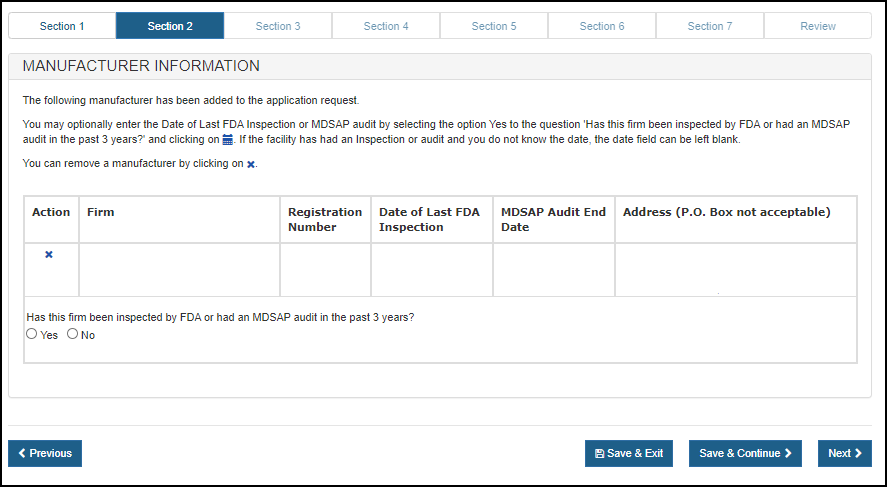
To remove a manufacturer, click on the "X" ( ) icon and verify by selecting "OK".
Select the radio button in response to the question "Has this firm been inspected by FDA or had an MDSAP audit in the past 3 years?"
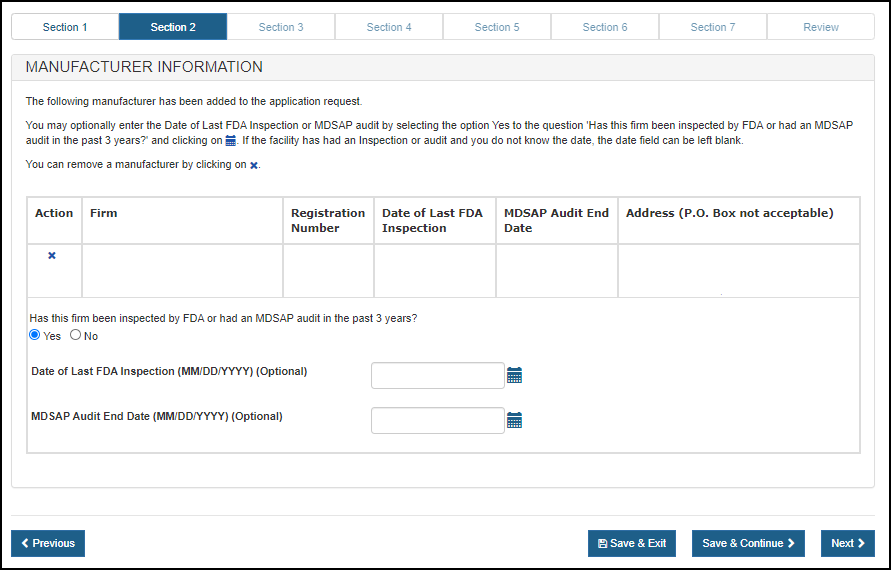
Optional: If you select "Yes" for the question "Has this firm been inspected by FDA or had an MDSAP audit in the past 3 years?", you may enter the "Date of Last FDA inspection" or the "MDSAP Audit End Date" (Figure 16).
Figure 16: Manufacturer Information
Click "Next" to proceed.
5 Section 3 – Device Information
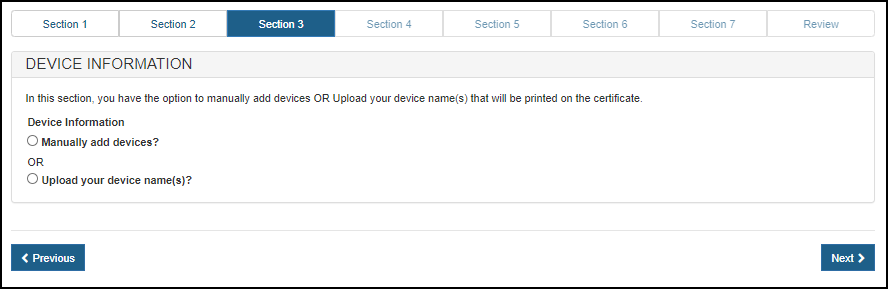
In this section, you will be given the option to manually add devices, or to upload your device name (Figure 17).
Figure 17: Device Information
To Manually Add Devices:
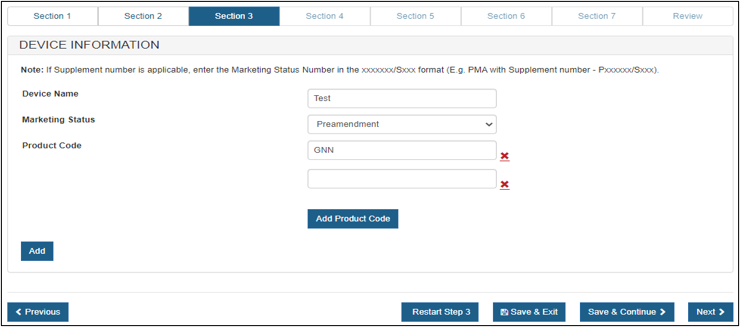
Enter the device name and select the marketing status from the dropdown menu.
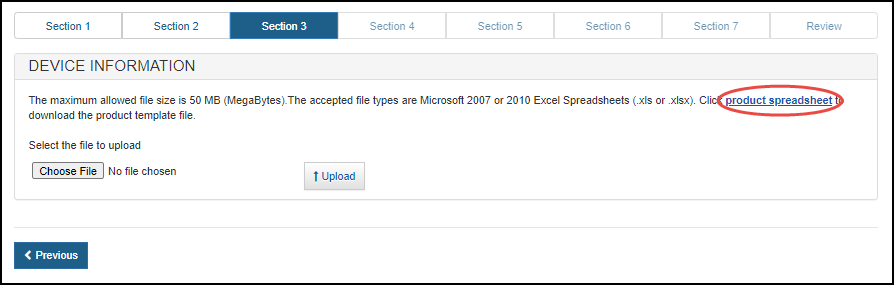
For PMA, 510(k), De Novo, and HDE authorizations, enter the following additional information: For 510(k), Enforcement Discretion, and Preamendment authorizations, enter the Product Code. Click the “Add Product Code” button to enter multiple Product Codes. Once all the information has been added, click “Add” to add the device (Figure 18). Figure 18: Manually Add Devices Continue to add additional devices in the same manner as above. When finished, click "Next". To Upload Your Device Names: Click "product spreadsheet" hyperlink (Figure 19) to download a template
which is in a format that must be used to upload your products. Figure 19: Upload Hyperlink and Browse Enter or copy your product list onto the template. Please read the Tips below first. Please adhere to the following rules or the system will not accept the upload: For example, a company may store product information in a spreadsheet like this: Using concatenation functions a company
might use a function in another column such as Now that the cells with various product information have been concatenated, the concatenated information needs to be copied
into column A of the CDNE template spreadsheet. Though the concatenation function displays the concatenated text, if this cell is copied to another spreadsheet the result will likely display as an error in the cell. This error occurs because the concatenated text is still a function, which requires the cells referenced in it to exist in the proper locations. Once the function is moved to a location where those referenced cells no longer exist, the function will not behave as expected. To copy the displayed concatenated text to the CDNE template spreadsheet, copy and paste the text. When pasting the text, the option to only paste values should be used. In Microsoft Excel, the option to only paste values is found in the "Paste" or "Paste Special" options. Only pasting values will allow concatenated text to appear correctly in the CDNE template spreadsheet. When the product list is ready and saved to your computer, click "Browse…" and navigate to the location of your file and click
"Upload". The uploaded products and accessories will be ready for grouping. NOTE: The order of the products printed on the certificate will be the same order of the products entered in the product template upload file. The system should display the product list (Figure 20). Figure 20: : Product Information Listing "Add Product" button: You may add a new device at the beginning of the device list by clicking "Add Product", entering the "Device Name", and selecting "Next". The new device will be displayed at the beginning of the device list.
Tips for uploading products:

=A2&" - "&B2&" - "&C2
This takes the values found in the cells A2, B2, and C2 and combines
in a single cell with dashes (which can be changed to any type of separating
text). The quotes around the dashes indicate that the actual text (and spaces)
between the quotes will be displayed, rather than a reference to a
cell or function in the spreadsheet. This is the result of adding the function
to cell D2:

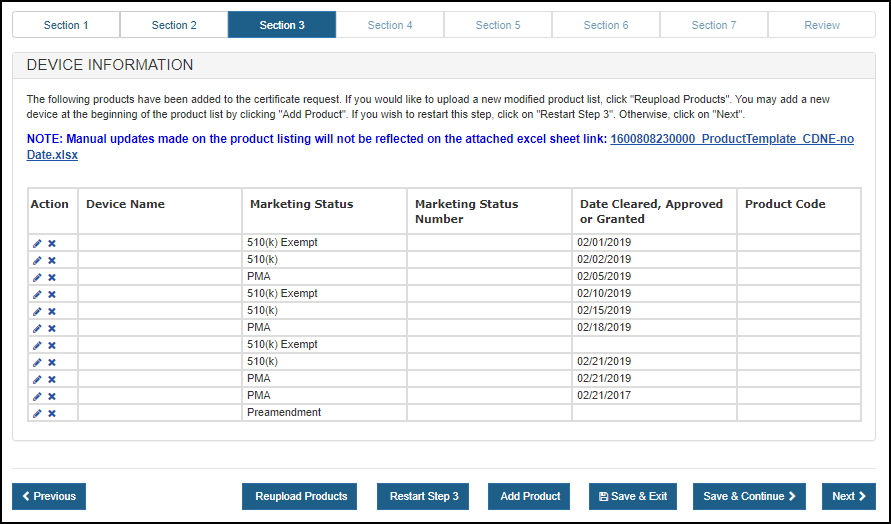
"Reupload Products" button: If changes to the device list are required after the initial device list upload, click "Reupload Products" and all devices will be removed. A warning message will appear prior to clearing the device list. Once confirmed, upload new device list.
"Restart Step 3" button: If for any reason you need to restart Section 3, click "Restart Step 3".
Warning: All product information will be deleted if you click on the "Restart Step 3" button.
Once all products have been added, click "Next" to proceed.
6 Section 4 – Country for Which the Certificates are Requested
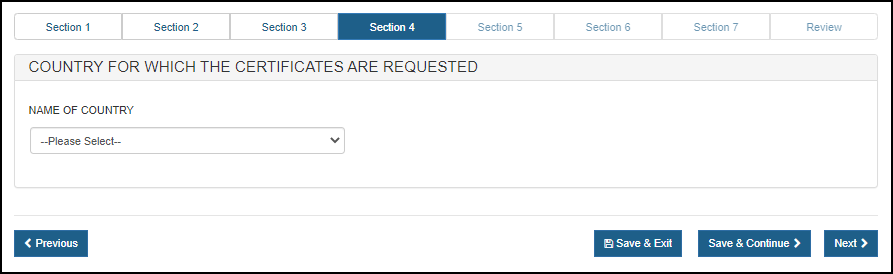
Select one country, the "European Union" or "European Economic Area" to indicate the device(s) country of destination (Figure 21).
Figure 21: Name of Country
Click "Next" to proceed.
7 Section 5 – Indicate What Device Information Should Appear on the Certificate
The manufacturer will appear on the certificate(s) under the header "Name of Manufacturer" (Figure 22).
Owner Operator: *This field is optional
The Owner Operator is a facility (Corporate Headquarters) which owns the registered foreign manufacturer in DRLM.
NOTE: Choosing to include the owner operator on the certificates is optional. Most certificates do not include the owner operator.
Figure 22: Manufacturer
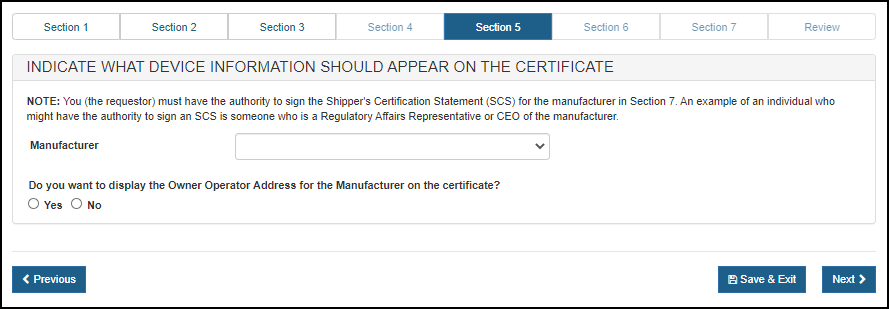
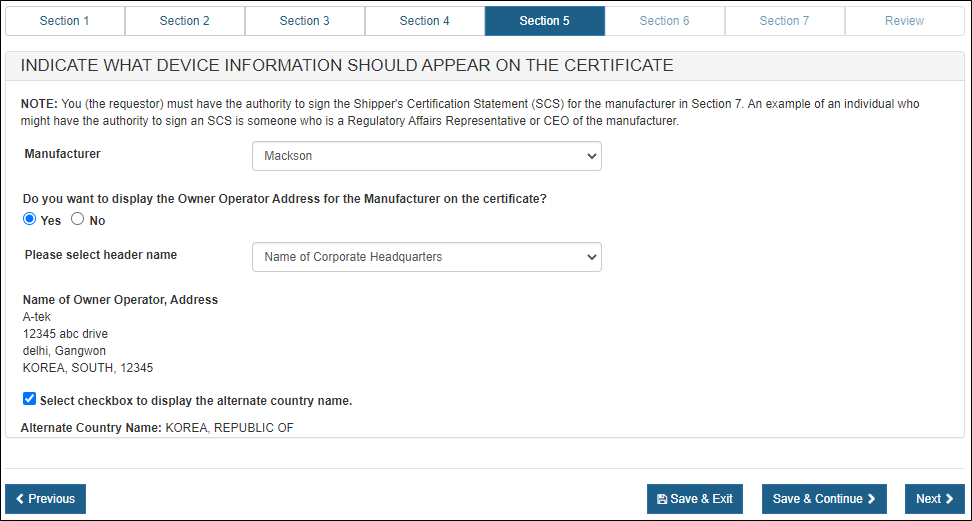
To display the manufacturer's owner operator name and address on the certificate(s), click "Yes" and click "Next" (Figure 23). Select the preferred header from the dropdown list - either "Name of Owner Operator" or "Name of Corporate Headquarters".
If the Owner Operator has a foreign address, a checkbox is displayed "Select checkbox to display the alternate country name". If this checkbox is selected, the "Alternate Country Name" is displayed.
Figure 23: Display Owner Operator Address on the Certificate
Click "Next" to proceed
NOTE: If the owner operator name or address is incorrect, return to Section 2. Delete the manufacturer and re-enter the application in CDNE. This will pull any updated information from FURLS/DRLM.
If the address is still incorrect, it needs to be updated in FURLS/DRLM. Click "Save & Exit" on the application page and update the address information in Online Administration Account (OAA) from the FURLS "Home" page. When you reenter CDNE to complete the draft application, remove the primary facility from Section 2 and re-add it for the updated information to be retrieved from DRLM.
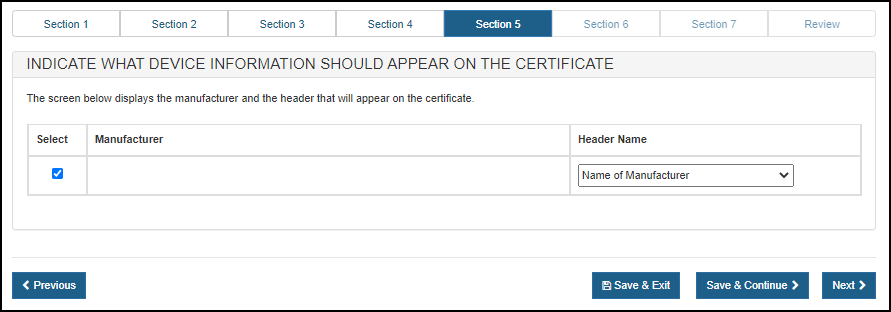
The facility to be printed on the certificate: The foreign manufacturer entered in section 2 will appear (Figure 24) and must appear on the certificate. The "Name of Manufacturer" header will appear above the facility’s name and address.
Figure 24: Display Owner Operator Address on the Certificate
Click "Next" to proceed
8 Section 6 – Number of Certificates and Country of Destination
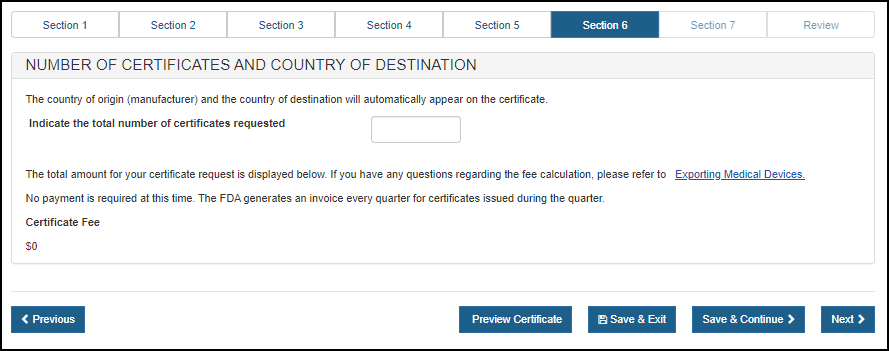
Enter the total number of certificates requested (Figure 25).
The total "Certificate Fee" will be displayed below.
NOTE: The FDA will invoice your firm quarterly for all certificates issued during the quarter.
Figure 25: Number of Certificates Requested
9 Section 7 – Shipper's Certification Statement (SCS)
The Shipper's Certification Statement (SCS) acknowledges that you, the responsible official or designee, certify various statements to be true.
In this section, the name of the manufacturer will be auto-populated in this section. Select the "I Agree" button located at the bottom of this section and enter your name and title (Figure 26). You will not be able to continue with the application until these fields have been completed.
Figure 26: Shipper's Certification Statement (SCS)

Click "Next" to proceed.
Select the carrier (e.g., FedEx, UPS, or DHL) and upload a return shipping label (Figure 27).
The label should be created by accessing the carrier’s website. The label should be self-addressed.
NOTE: For FedEx, please utilize Express or International. FedEx Home or Ground delivery cannot be accepted.
Figure 27: Method of Delivery 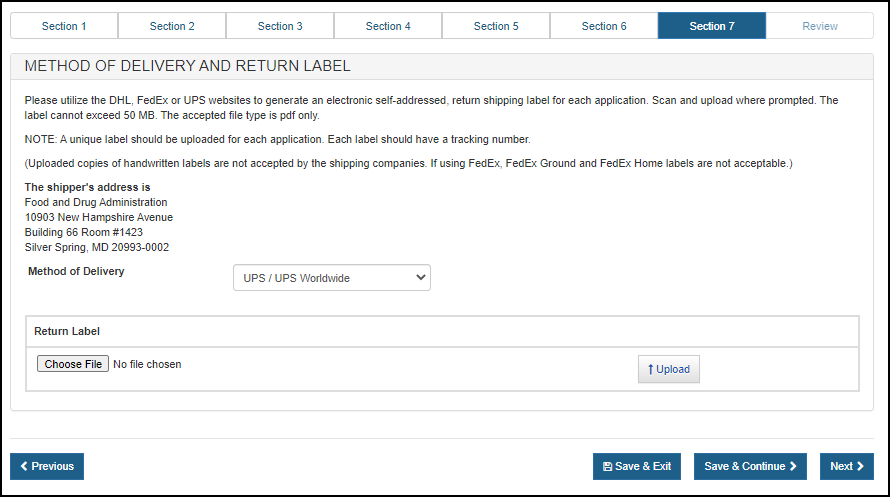
Once these fields are completed, click "Next" to navigate to the Final Review screen.
10 Final Review Screen
The entire application broken out by section will be displayed (Figure 28). You may choose to modify a section by selecting the "Edit" button next to the section to be updated. The data entered in the chosen section will be displayed and changes may be made, as needed.
NOTE: Section 3 will display only one device. If you entered multiple devices in a section 3, click the  icon to expand
the list.
icon to expand
the list.
Figure 28: Final Review Page
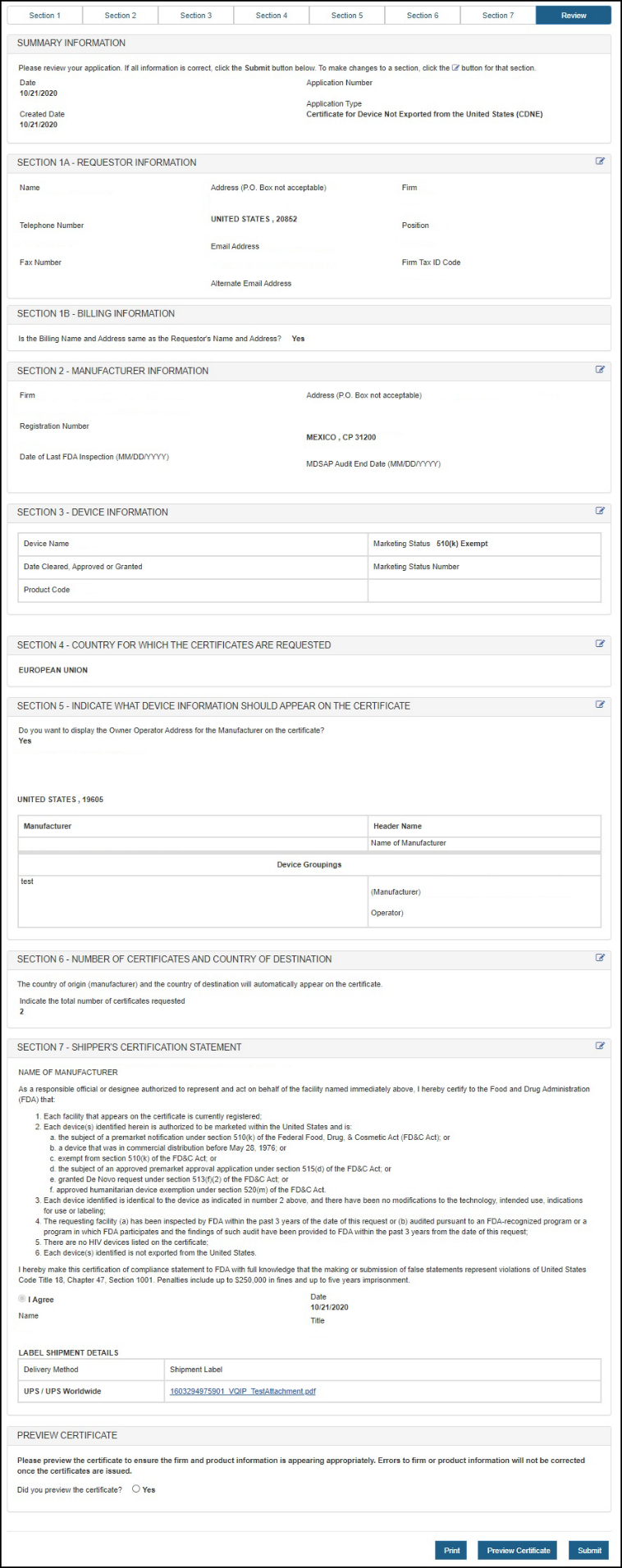
PREVIEW THE CERTIFICATE!!!
Click "Preview Certificate". This will be your final opportunity to ensure the facility
name and address is appropriate, that the owner operator is appearing if chosen, and that the device(s)
appear as preferred. If any changes are required, return to the appropriate section, click the  (Edit) icon and make your updates accordingly (Figure 28).
NOTE: Your submission is not complete until you click "Submit".
Print Application: You may choose to print your application prior to submission using the "Print" button at the bottom of the page. Unless you have previously saved the application however, the application number will not appear on the printed application.
NOTE: There is another opportunity to print the application with the assigned application number after it is submitted.
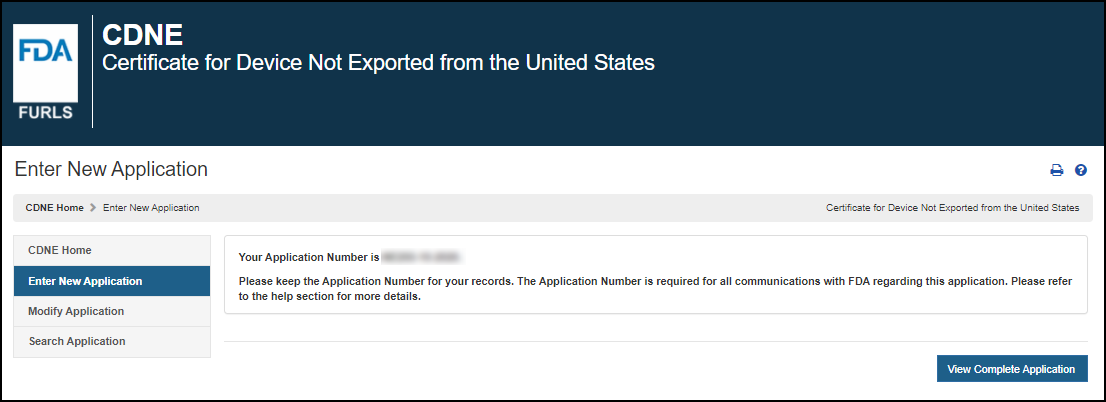
Submission: When your application is ready for submission, click "Submit". A message that your application was successfully submitted will appear (Figure 29) . An application number will be displayed and the opportunity to print a copy of the application is available.
NOTE: Please save the application number for future reference. The application number will be required to check the status of your application. You will also receive an email confirmation that your application has been successfully received along with the application number.
Figure 29: Submission Success Page