Create a Certificate to Foreign Government for Device Not Exported from the United States (CFG-NE) Application
April 2025
Return to Online Registration1
Table of Contents
- Create a Medical Device Certificate Application
- Navigation
- Section 1 Requestor Information
- Section 2 Manufacturer Information
- Section 3 Product Information
- Section 4 Was the device(s) recalled in the past 10 years?
- Section 5 List country(ies) for which the Certificates are requested
- Section 6 Indicate what product information should appear on the certificate
- Section 7 Should the country destination be listed on the certificate?
- Section 8 Shipper's Certification Statement
- Review Screen
Create a CFG-NE Application
Log into the FDA Industry Systems (FIS) https://www.access.fda.gov and select "CDRH Export Certification Application & Tracking System" from the list of systems available on the FURLS Home Page as shown in Figure 1.
Figure
1: FDA Industry Systems Page

Select “No” in response to the question “Will the devices be exported from the United States?”. Select “Continue” and the system will open the CFG-NE Home Page. The CFG-NE Main Menu page is shown in Figure 2 below:
Figure
2: CECATS Main Menu
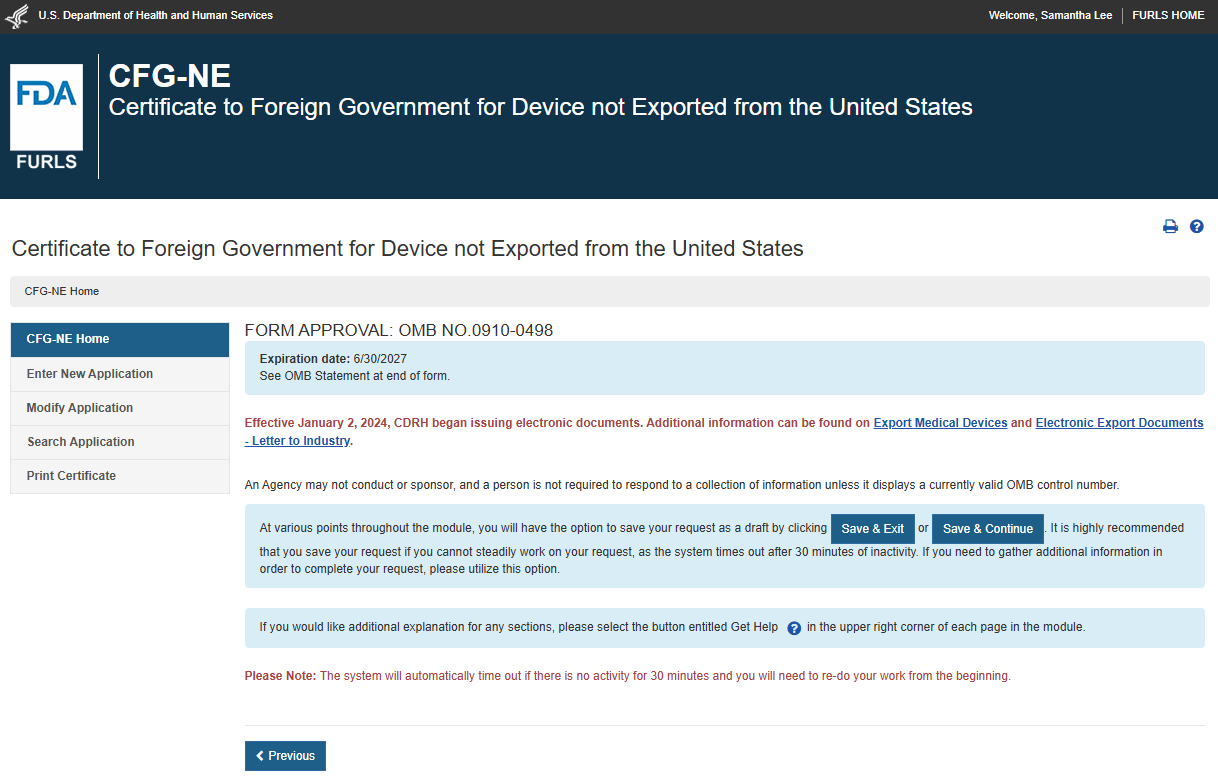
To create a new application, click "Enter New Application". All of the applications you have saved or submitted will be displayed, as shown in Figure 3 below. Applications that were saved, but not submitted will be in "Draft" status until you submit them.
- To create a new application, click "Enter New Application" from the main Menu Page and then Click on "Enter New Application" again.
- To continue working on a draft
application,
click on pencil (Edit)
 icon associated with the desired application.
 - To clone a
previous application, click on the double book (Clone)
 icon associated with the desired application.
 - Verify the information on each page is still correct and continue through all screens.
Click Search Application to search using the application number. This option may be used to continue working on a draft, clone a previous application, or make corrections to an application that is in “Return for Action” status.
NOTE: For all applications in a “Draft” status, if you do not perform any activity within 30 days, the status will automatically change to “Not Submitted”. Please clone the application to continue.
Figure
3: Submitted and Draft Application View

Certificate to Foreign Government for Device Not Exported from the United States (CFG-NE)
A Certificate to Foreign Government for Device Not Exported from the United States is issued for devices authorized for marketing in the United States that are in compliance with the requirements of the Federal Food, Drug, and Cosmetic Act (FD&C).
Eligibility Notes:
- Each device is manufactured in an establishment located outside of the United States which is registered with FDA.
- Each device is authorized for marketing in the United States and has a listing with FDA.
- Device may be Class I, II, or III.
- Each device must be imported or offered for import into the United States.
Acceptable CFG-NE Marketing Statuses: 510(k), PMA, Enforcement Discretion, Exempt, Pre-amendment, Humanitarian Device Exemption (HDE), or Product Development Protocol (PDP) and DeNovo.
A status bar at
the top of every page will track your progress through each step of the
application process as shown in Figure 4 below. Figure 4: Navigation Bar A "Get Help" icon, located at
the top right of each page, will provide page specific help. For an overview of
all help files available, please refer to the FDA Industry Systems Index of
Help Pages at https://www.access.fda.gov/cecats/help/template.html.
Also located in the top right corner of
each page, is a "FURLS HOME" link that will navigate you to the FURLS Home
Page. The "CFG-NE HOME" link will take you to the CFG-NE Home Page
(Refer to Figure 2). To log out of the system, select "FURLS
HOME" and click on "Logout". At the top and bottom of each screen are
navigation buttons as shown in Figure 5 below. Figure 5: Navigation ButtonsNavigation


NOTE: All Fields are mandatory except those marked as "Optional" in parenthesis. You will NOT be able to proceed to the next step or click "Save & Exit" until all mandatory fields have been properly entered on the current screen.
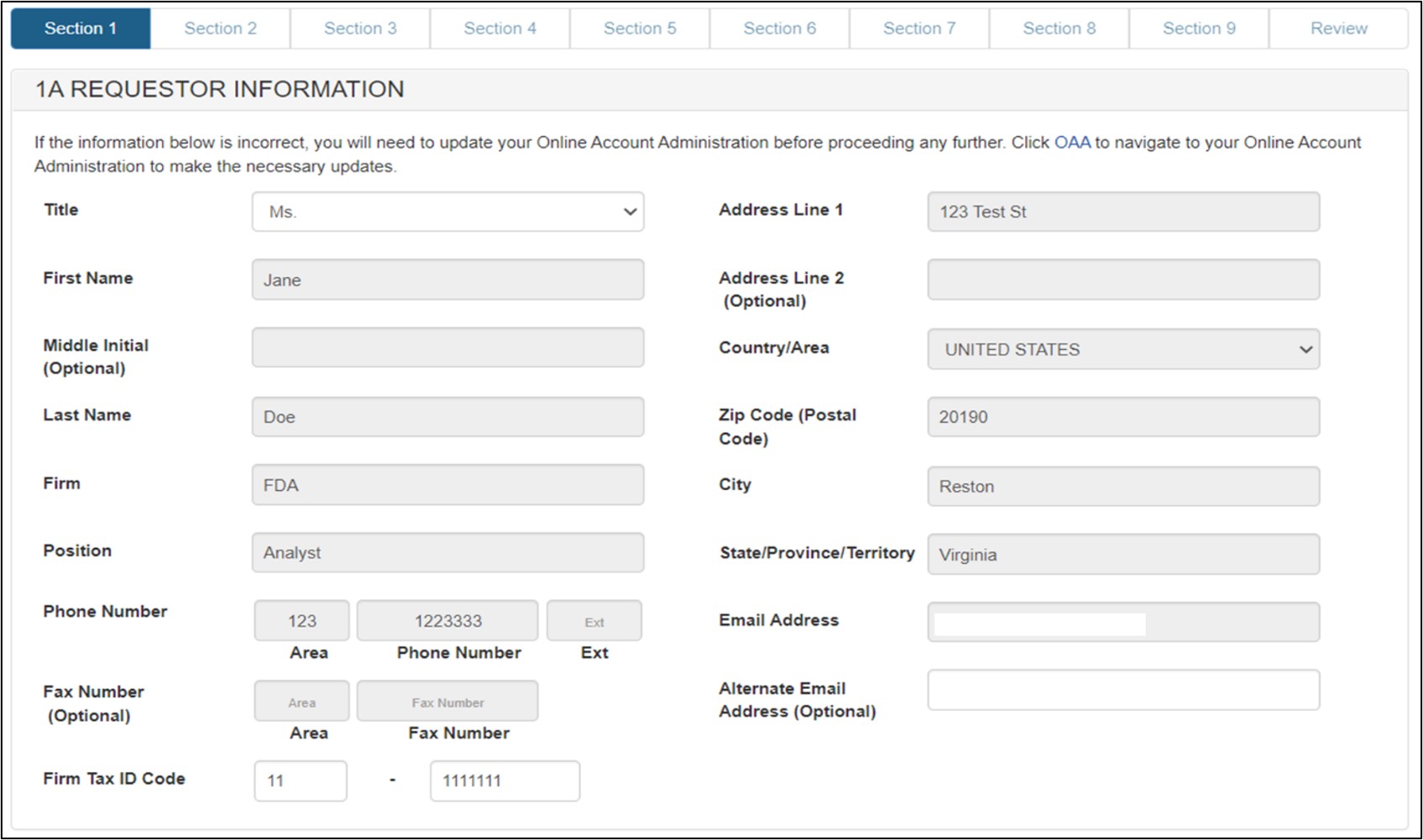
Section 1 - Requestor Information
The system auto-populates specific information from your Online Account Administration (OAA) into section 1 (Requestor Information) of the application. These fields cannot be edited in CFG-NE.
If the information is incorrect, click the "FURLS Home" link in the upper right of the page. Then click the "Edit Account Profile" on the left-hand side and update your account profile accordingly.
The following two fields are required in section 1:
- Title
- Firm Tax ID Code (also referred to as the Employer Identification Number or EIN – a nine-digit numeric value) – Displayed if the requestor has a US address. This number is assigned by the Internal Revenue Service (IRS).
- DUNS Number – Displayed if the requestor has a foreign-(non-US) address.
Click "Next". See Figure 6 below:
Figure 6: Section 1A - Requestor
Information
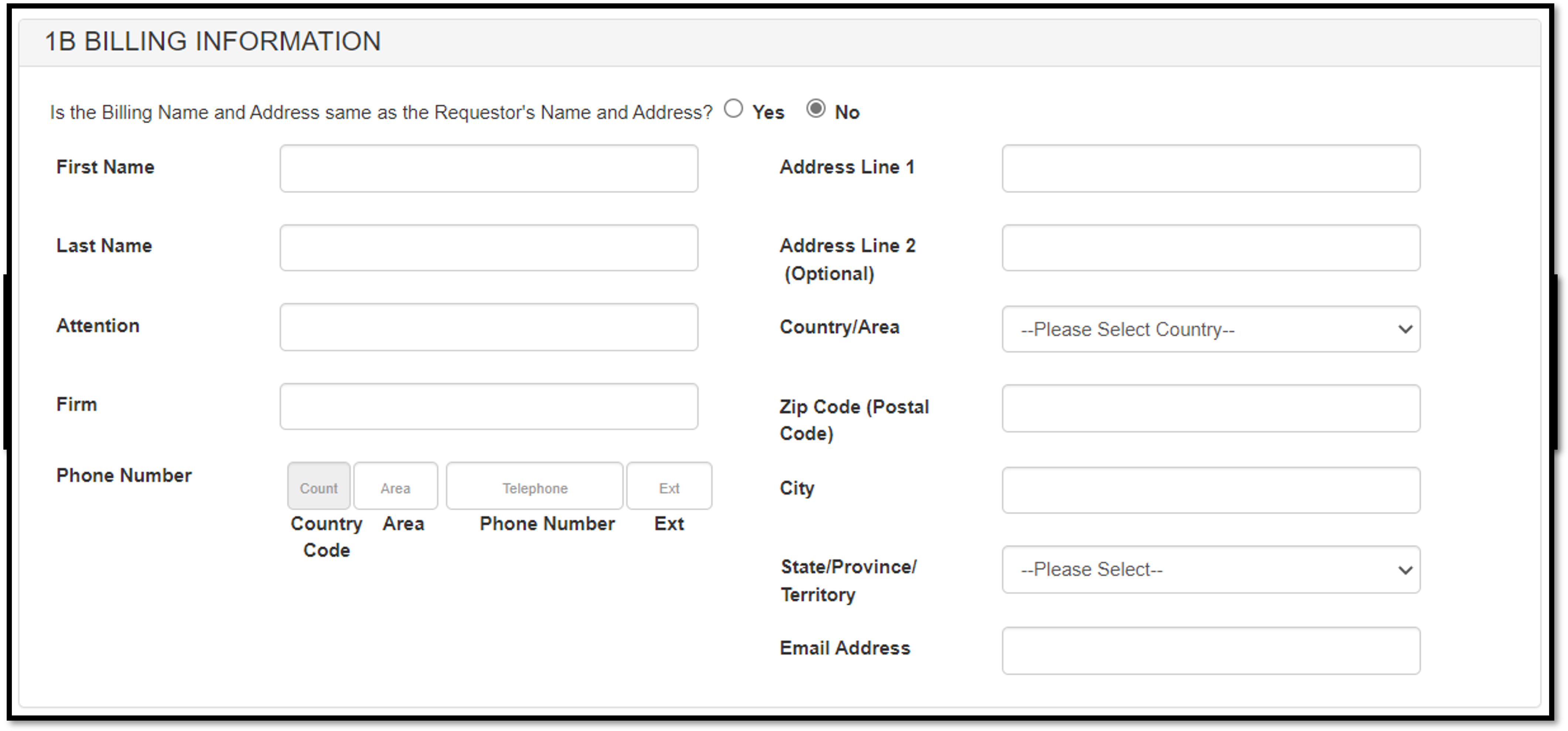
In section 1B: "Is the Billing Name and Address same as the Requestor's Name and Address?" If you select "Yes", you have the option to enter an alternate addressee in the "Attention" field. If you select "No", you may enter an alternate billing address in the fields provided. See Figure 7 and 8.
Figure 7: Section 1B - Billing Information

Figure 8: Section 1B - Billing Information
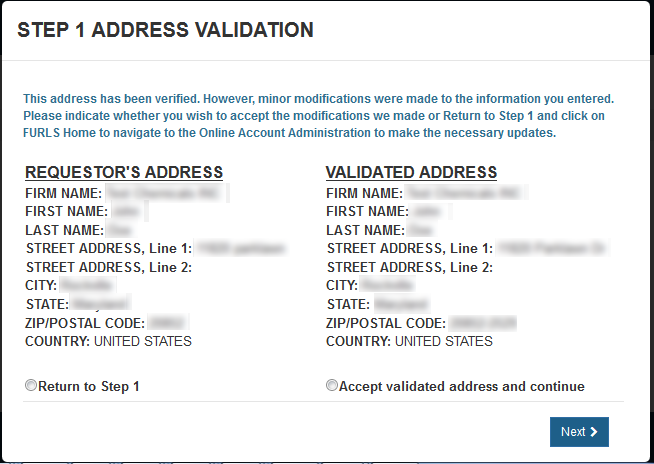
Address Validation screen, please click "Accept validated address and continue"
to indicate you (the requestor) are still located at the location identified. You will identify
the manufacturing facility's address, later in the process. Click "Next" to proceed. See Figure 9
below.
Figure 9: Address Validation
Section 2 - Manufacturer Information
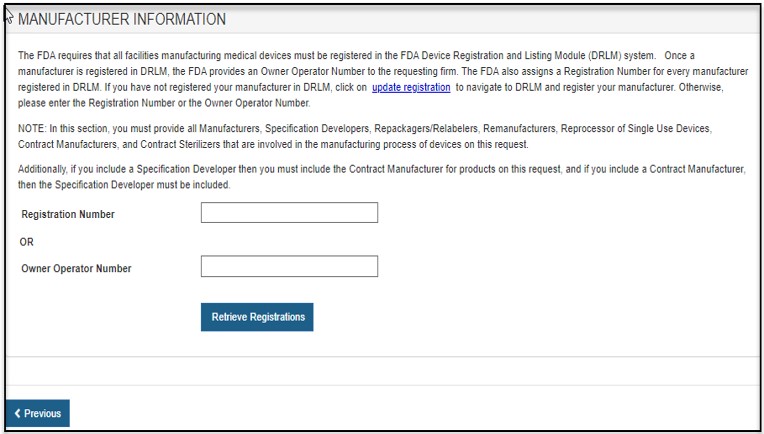
FDA requires that all facilities manufacturing medical devices must be registered in the FDA Device, Registration and Listing Module (DRLM). Once a manufacturer is registered in DRLM, FDA provides an Owner Operator Number (OON) to the requesting firm. FDA also assigns a Registration Number for every manufacturer registered in DRLM. If you have not registered your manufacturer in DRLM, return to the FURLS home page and register your manufacturer in DRLM. Otherwise, please enter the Registration Number or the OON.
NOTE: In this section, you must identify all Manufacturers, Specification Developers, Repackagers/Relabelers, Remanufacturers, Reprocessor of Single Use Devices, Contract Manufacturers, and Contract Sterilizers that are involved in the manufacturing process of devices on this request.
Additionally, if you include a Specification Developer then you must include the Contract Manufacturer for products on this request. Conversely, if you include a Contract Manufacturer, the Specification Developer must also be included.
Enter the Registration Number or the Owner Operator Number (OON) and click on the "Retrieve Registration" button. See Figure 10.
Figure 10: Registration Number or OON for
Manufacturer
Registration number entered:
Only the single facility associated with that number will be displayed.
Owner Operator number (OON) entered:
As long as the OON is active, all facilities associated with the OON will be
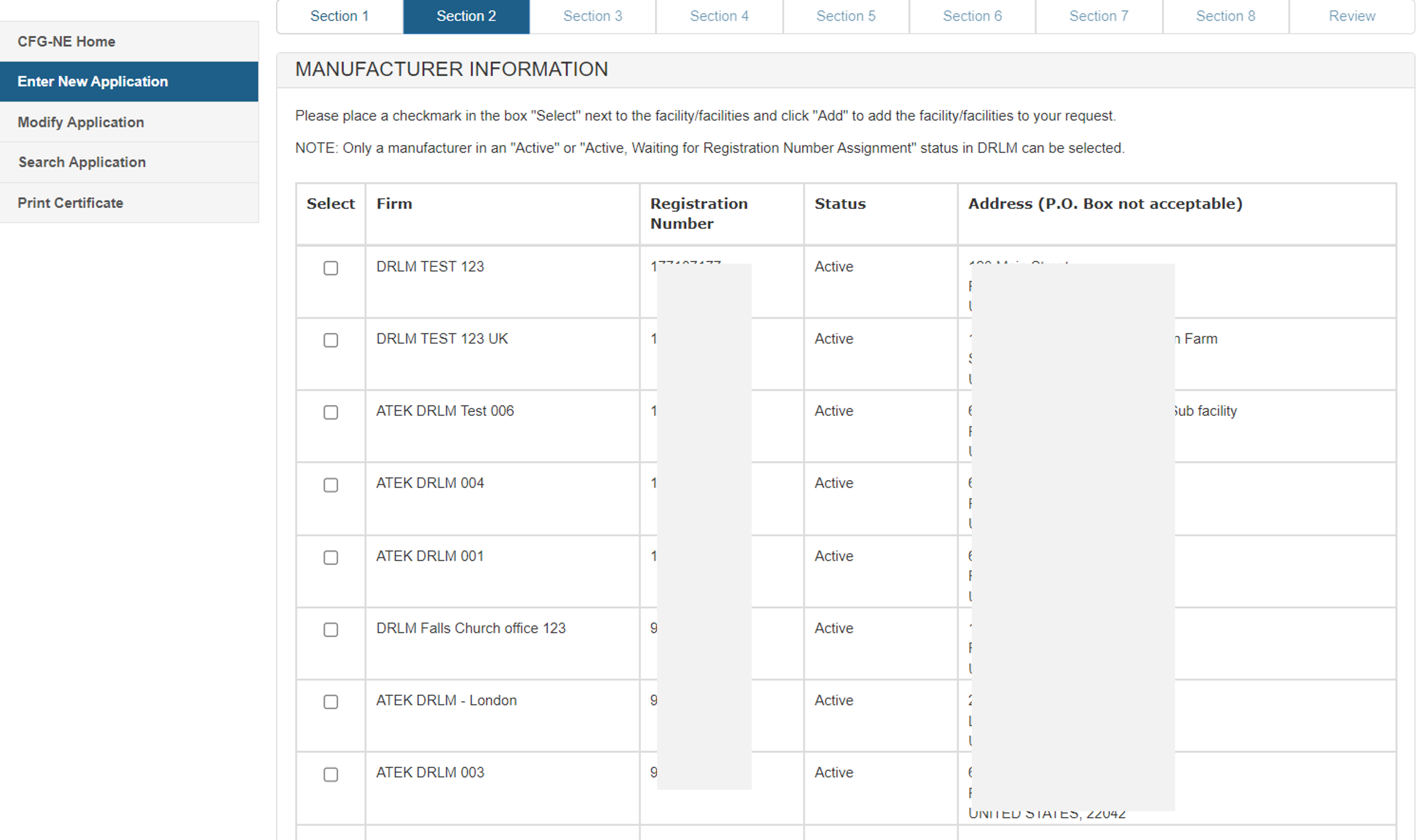
displayed. Select one or more facilities (if applicable) from the list of
manufacturers that are in active status as shown in Figure 11 below. Inactive
facilities will be grayed out and cannot be selected.
Figure 11: List of Manufacturers
A facility may be entered only one time in section 2. At least one foreign manufacturer must be added.
After selecting the manufacturer(s), a review page for all manufacturers selected as shown in Figure 12.
Figure 12: Review Manufacturer List

Select the radio button to answer the question "Has this firm been inspected by FDA or been audited by MDSAP?"
Optional: If you select “Yes” in response to the question “Has this firm been inspected by FDA or audited by MDSAP?”. You may enter the “Date of Last FDA inspection”.
Select the radio button to answer the question "Is this the location from where the devices will be shipped?". This question is only displayed for foreign manufacturers and the response must be "Yes" for only one foreign manufacturer.
To add additional manufacturer(s), click "Add Manufacturer".
To remove a manufacturer from the list, select the facility, click on the "X" icon and verify by selecting the "OK" button.
Once you have completed selecting all manufacturers, click "Next".
Section 3 – Product Information
In this section, you will be able to select one or more products from each manufacturer identified in sections 2.
- Class III products may be included only if all of the manufacturing facility(ies) have been inspected by FDA.
- Refurbished or remanufactured product may be listed on this application if the facility you represent is the original manufacturer as shown in Figure 13. Additionally, the products must be identified as refurbished or remanufactured on the certificate.
Figure 13: Product Information
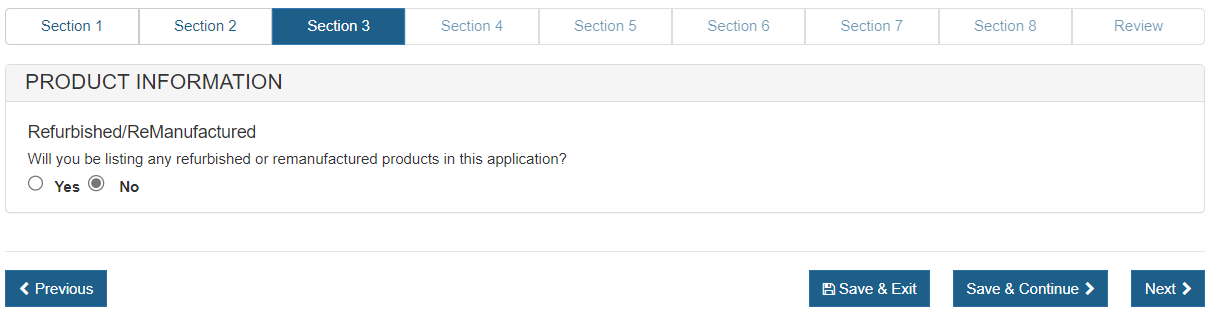
Select "Yes" or "No" to the question(s) regarding refurbished or remanufactured products.
A list of the manufacturers will be displayed as shown in Figure 14 below.
Figure 14: Added Manufacturers
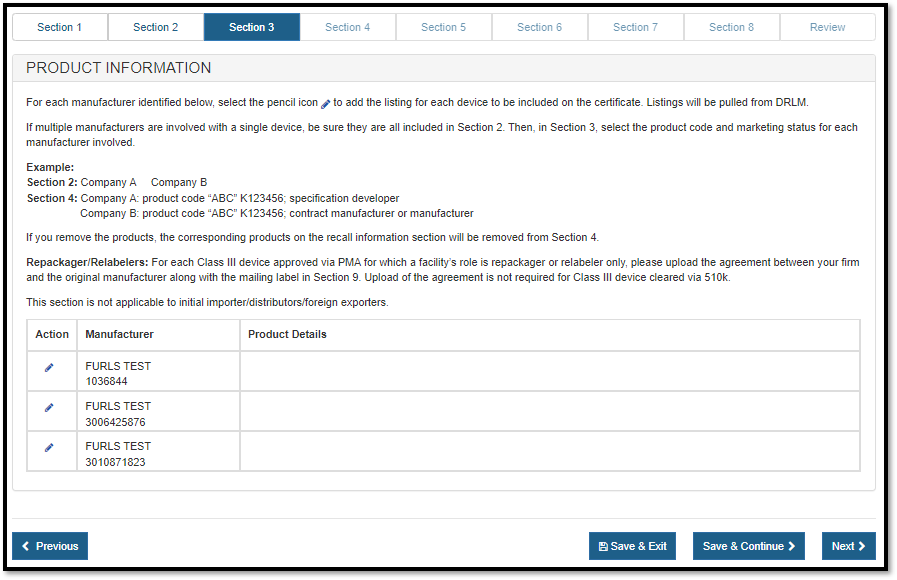
Add Products
To add a product, first click on the pencil icon associated to the manufacturer. The product listings (from DRLM) for that manufacturer will be displayed as shown in Figure 15 Select all the products for this facility that will be included on the certificate.
Figure 15: Selecting the Product
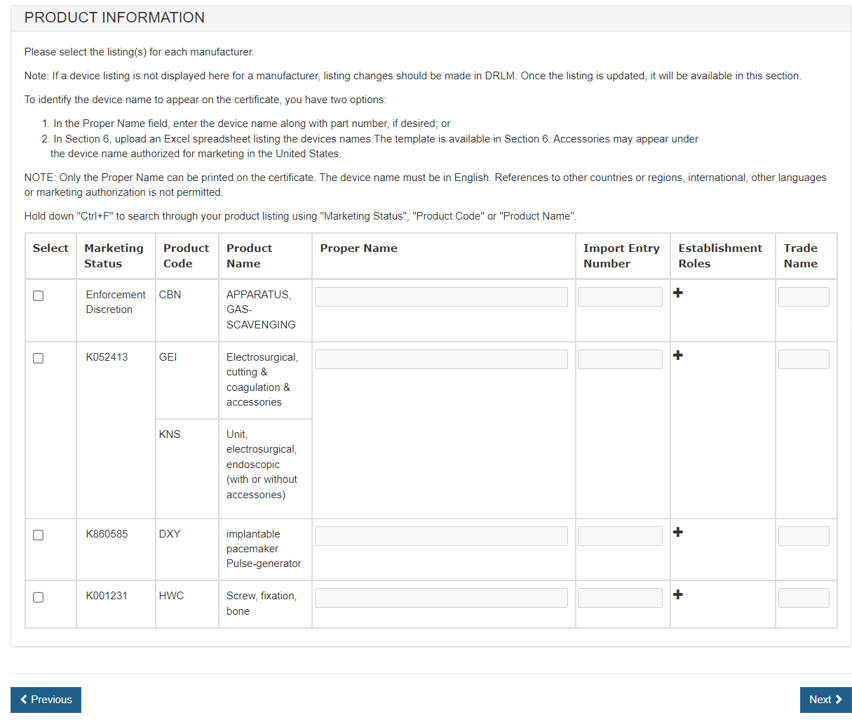
To view the establishment roles click on the "+". The establishment roles are the manufacturing roles the facility has identified for that device per the listing in their establishment registration.
- In instances where a device being included on the certificate has more than one facility involved in manufacturing of the device, all of the manufacturers should be identified in section 2 and section 4, the listing for the device should be chosen for each manufacturer.
- The establishment roles should correspond to each other. For example:
- A device designed by a Specification Developer, which is also produced by a contract manufacturer and sterilized at another facility, should have a facility with the role of Specification Developer, in addition to a facility with the role of contract manufacturer.
- It should have a facility with the role of contract sterilizer (if applicable) in Section 2; all three manufacturing roles should also be reflected in Section 3. NOTE: If a role is missing or appears inaccurate, contact the facility to modify its registration to reflect the appropriate role.
- if a role is missing, an error message identifying the device's information (i.e.,product code, the establishment role included for a facility, and the role that is still needed) will be generated.
- To correct the error:
- Add the facility that plays the missing role to section 2 and then select the listing in section 3.
- If the facility is already on the application, select the appropriate device and role in section 3. If the available options in section 3 do not reflect the correct role or the listing is missing, contact the facility to modify its registration in the Registration and Listing module. Then return to CECATS to complete the application.
- CECATS will prevent access to section 4 until all errors in section 3 have been corrected.
IMPORTANT: If any product is not listed on the facility's establishment registration, the facility will need to update their DRLM registration before you continue.
At this point, you have an option regarding the addition of the product name. You can either enter the name of the devices exactly as you wish for them to appear on the certificate in the "Proper Name" block (as shown in Figure 16 below) OR you can proceed through the application to Section 6 and upload a Product List. If you would like to include product codes or parts/accessories to the product listing, do not indicate a "Proper Name" in this section. Instead (in section 6), upload the product information using the formatting outlined in that section.
Figure 16: Add Proper Name
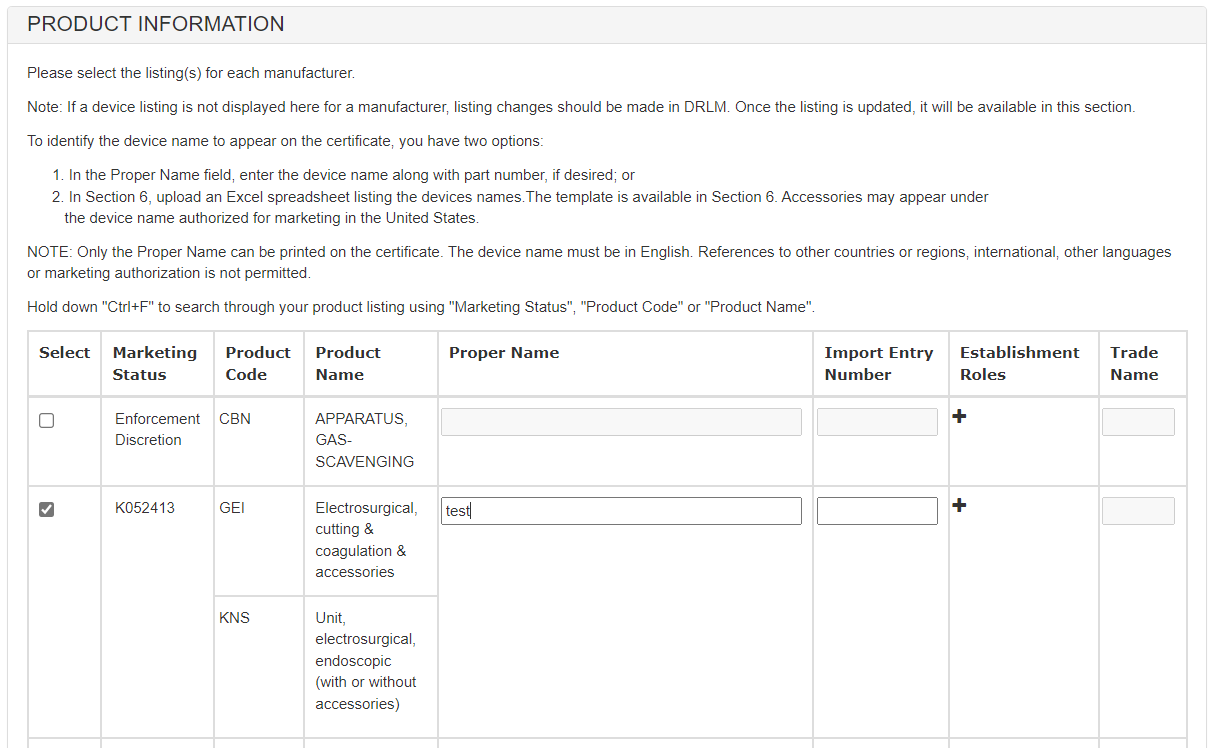
To avoid the device name appearing on the certificate more than once, list the "Proper Name" of each device only once - even if multiple firms have listings for the same device.
Once all products have been selected, click "Next". The added product(s) for each manufacturer are displayed, as shown in Figure 17.
If an added product is a Class III device approved via PMA for which a facility's role is repackager or relabeler only, upload the agreement between your firm and the original manufacturer. The only accepted file is pdf.
Figure 17: Product Information Listing
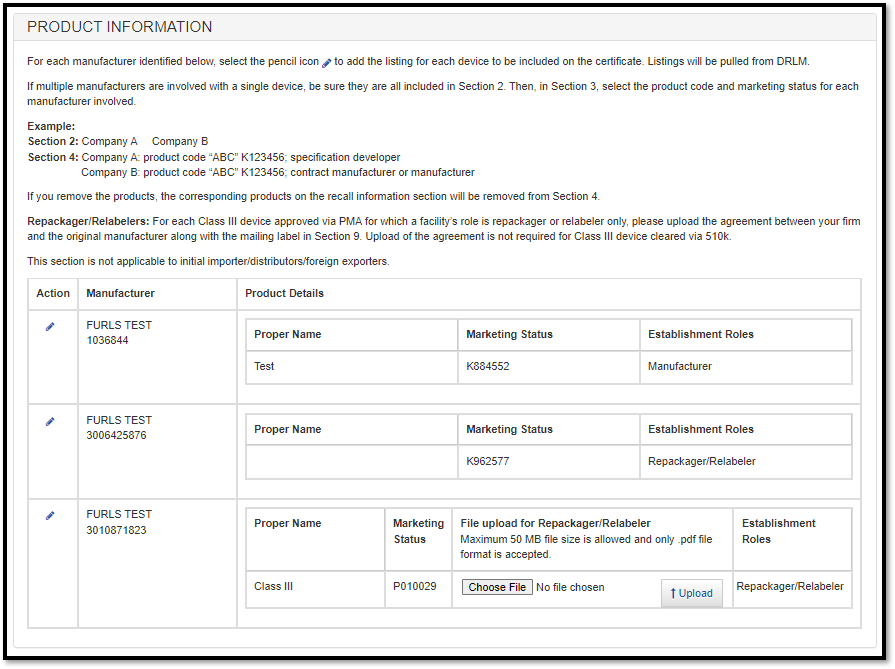
To remove a selected product from a facility, click on the pencil icon associated with the facility and deselect the box associated with the product and click "Next".
NOTE:You must add at least one product for each manufacturer.
Section 4 – Was the device(s) recalled in the past 10 years?
Section 4A
All recalls (both open and closed) that have occurred within the past ten years for any product on the application must be identified.
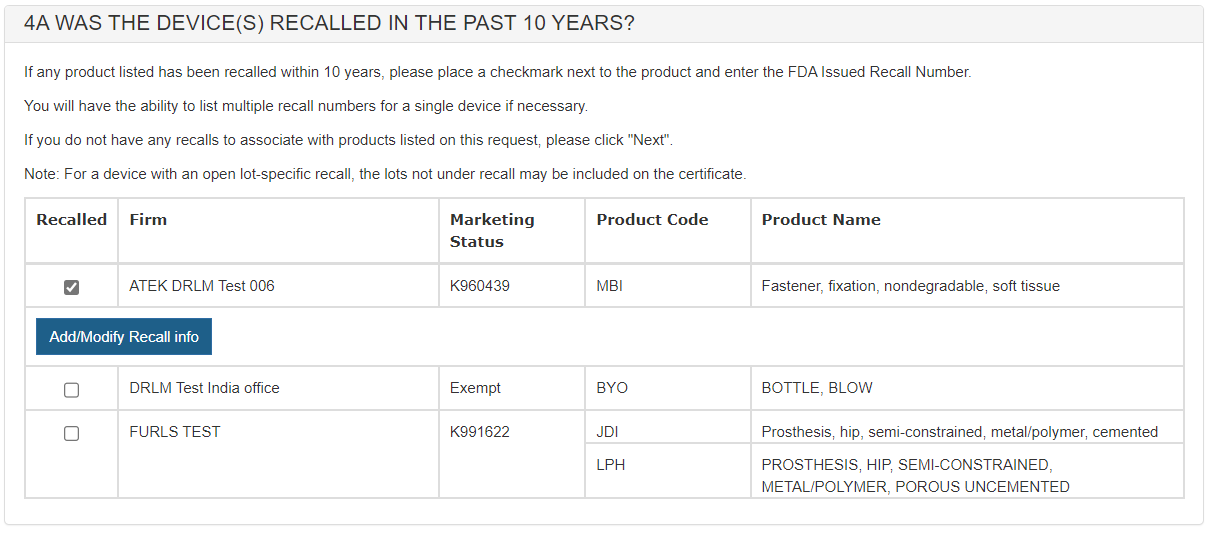
After selecting the checkbox next to the product, a new button will appear. Click on the "Add/ Modify Recall Info" button as shown in Figure 18.
Figure 18: Selecting a Device that has
been recalled
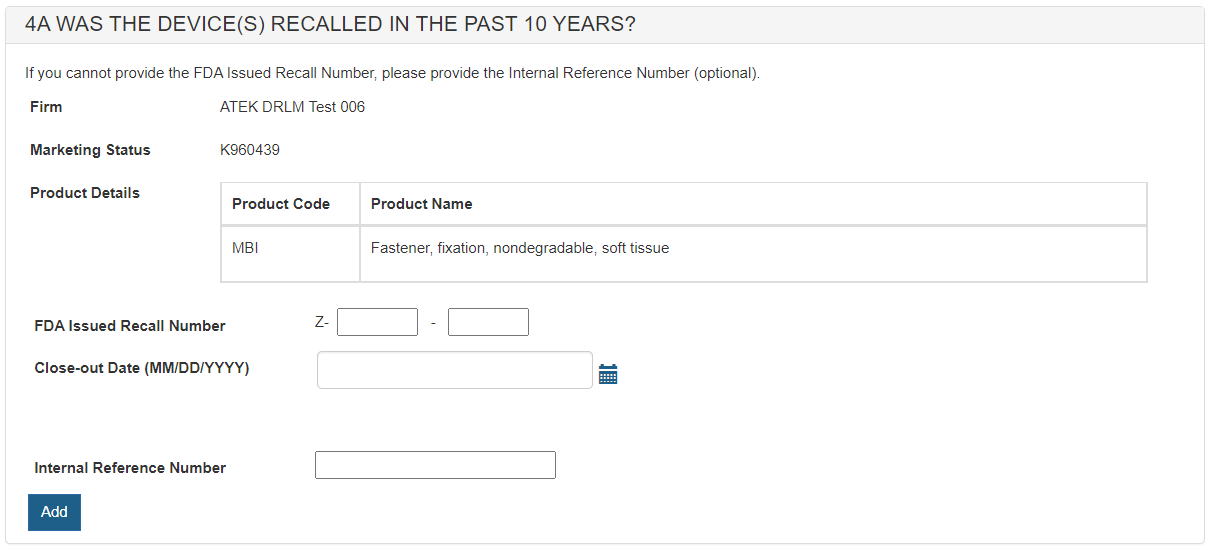
Enter the following Recall Number information:
- FDA Issued Recall Number
- Close-out Date
- Internal Reference Number, if no FDA recall number has been issued yet.
NOTE: The format of the recall number is Z-XXXX-YYYY. Please enter the eight-digit number as shown in Figure 19 below.
Figure 19: Selecting a Device that has been recalled
Click "Next" and the system will validate the recall number. If the number is valid, the Close-out Date field may get auto-populated.
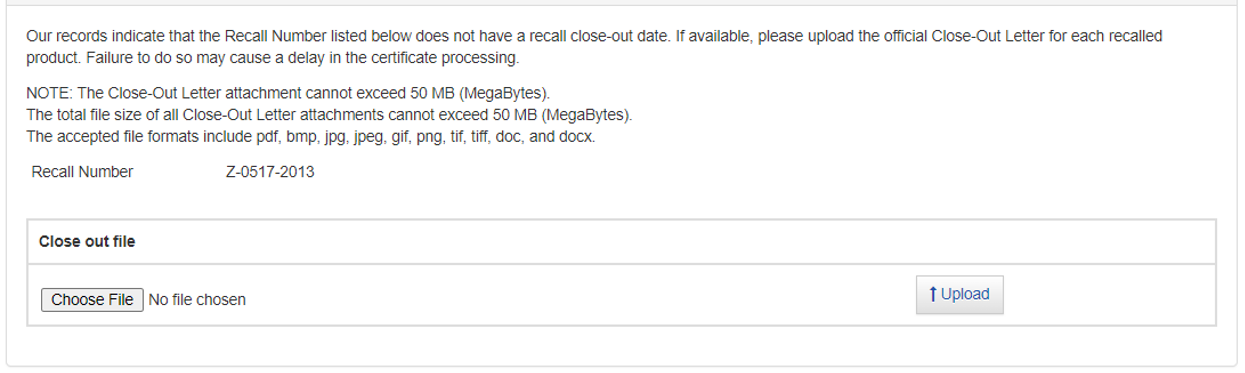
If no Close-out Date was found for the recalled product, an option to upload the official Close-out Letter (from the FDA) will be provided. Please do not upload your firm's letter to the FDA. The accepted file formats include the following: pdf, bmp, jpeg, gif, pang, tiff, doc, and docx.
To upload the FDA Close-out letter, click "Browse…" and navigate to the file on your computer as shown in Figure 20 below.
Figure 20: Upload FDA Close-out Letter
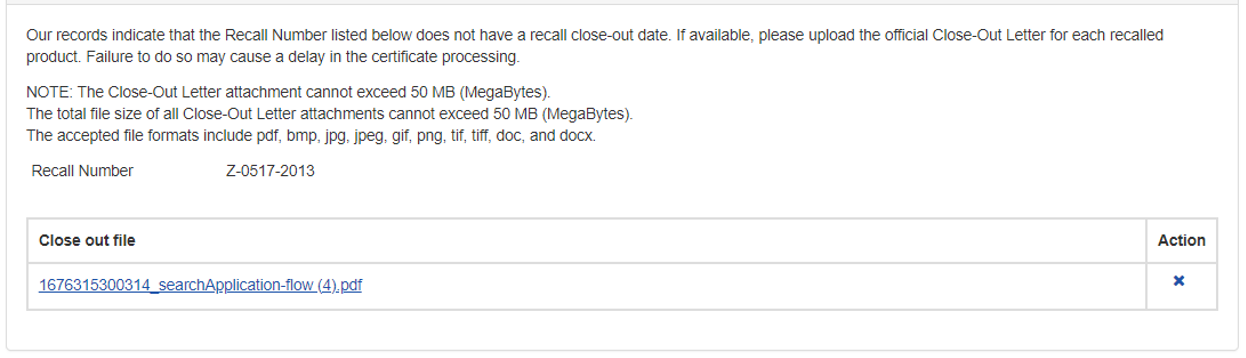
Select the file and click "Upload". The uploaded file link will be displayed as shown in Figure 21 below. To remove the attachment, simply click "X" icon.
Figure 21: FDA Close-Out Letter Link
Section 4B – INJUNCTION
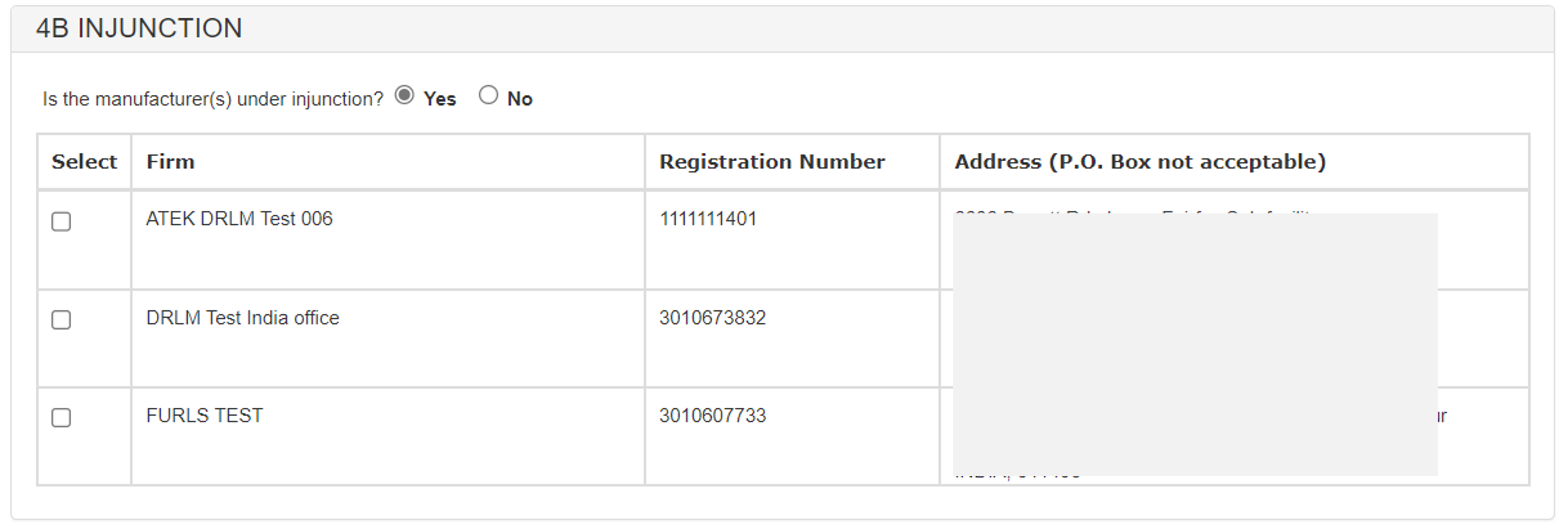
In section 4B, you will have to select the response for "Is the manufacturer(s) under injunction?".
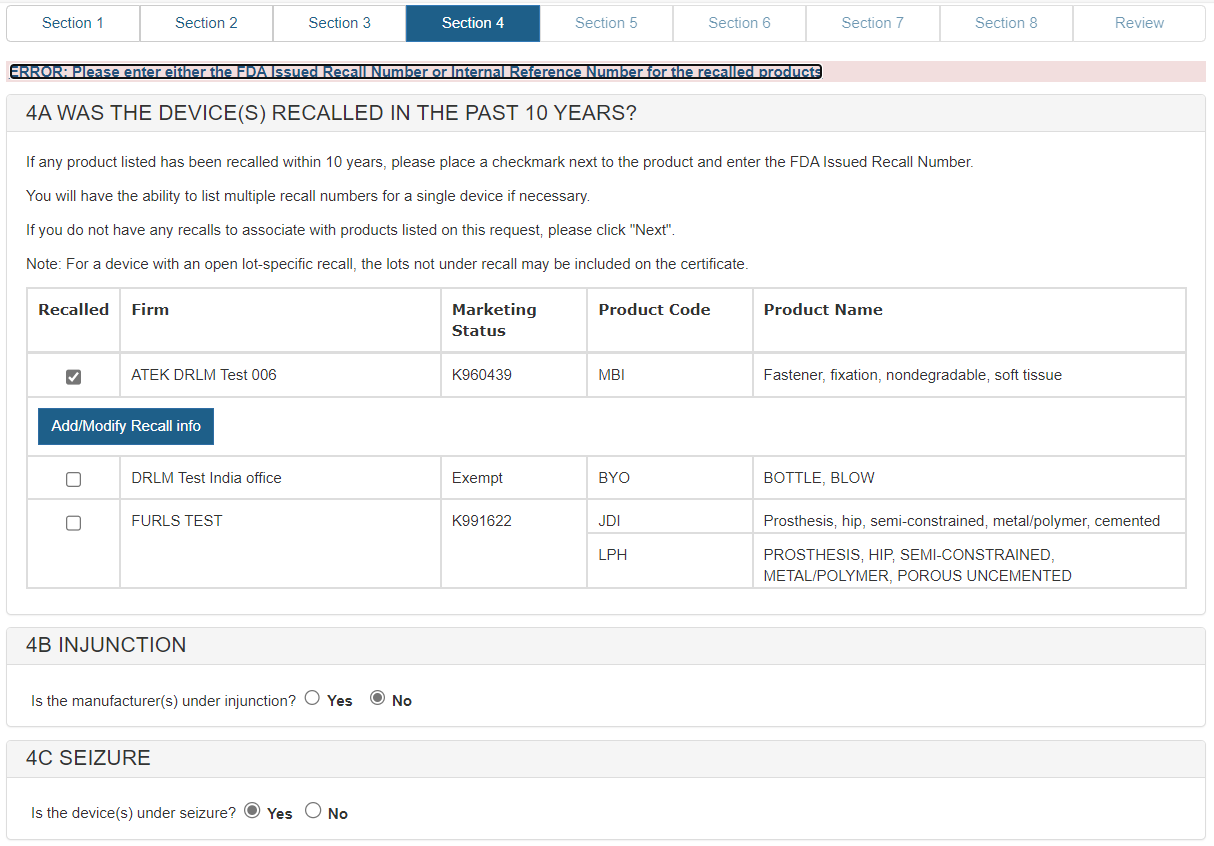
If you have selected the response as "No" then navigate to section 4C. If you have selected the response as "Yes" then the system will display the list of Firms as show below in Figure 22 Figure 22: Section 4B - Injunction You will have to select the firms under "Injunction" and navigate to section 4C. In section 4C you will have to select the response for the question: "Is the device(s) under seizure?" as shown below on Figure 23. Figure 23: Section 4C - Seizure If you respond "Yes" to the question, the system will display the error and you will not be able to continue with the application process as shown in
Figure 24. Figure 24: Section 4C Validation If you click "No" you will have to select the checbox to agree that no
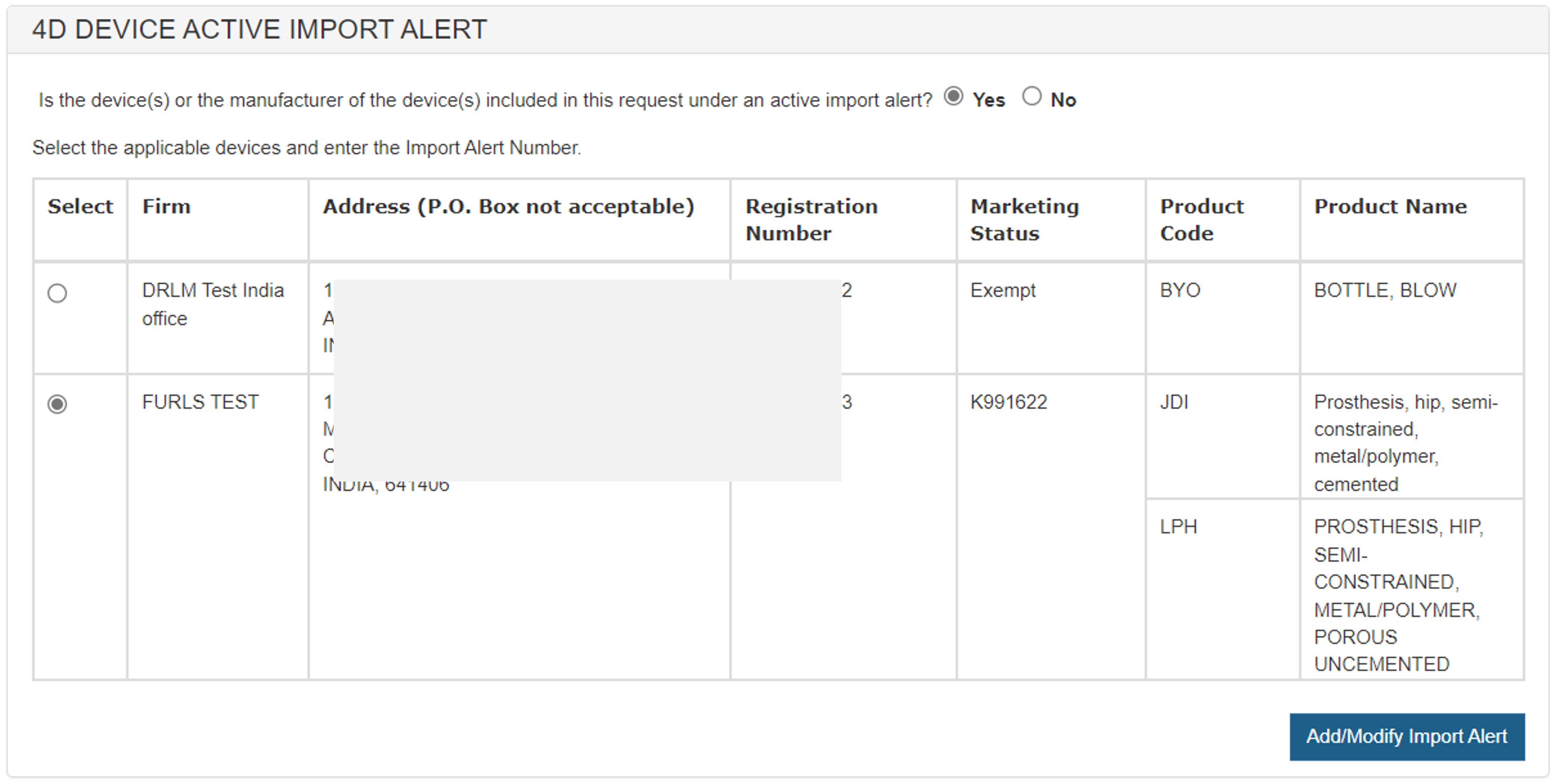
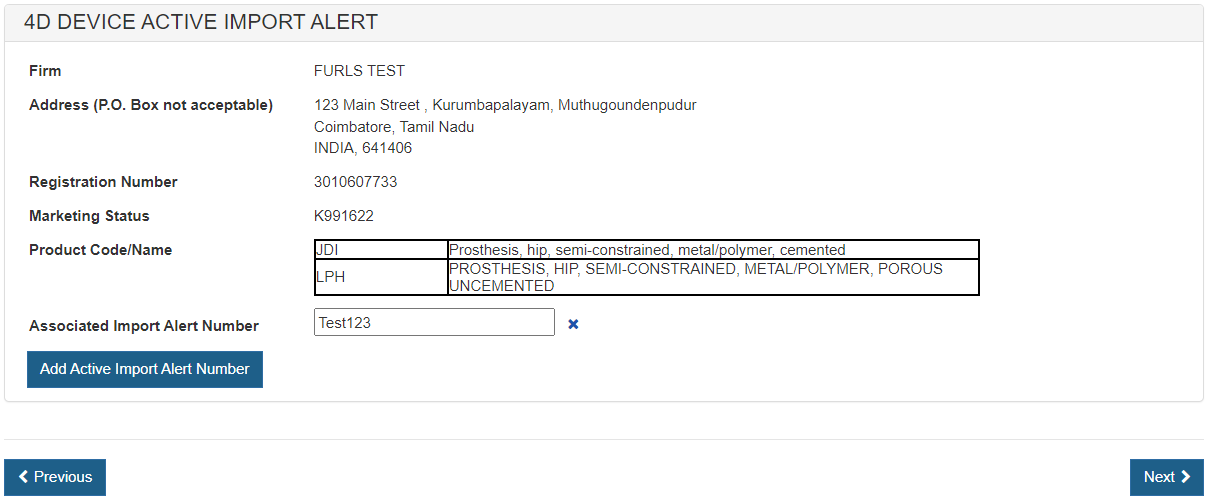
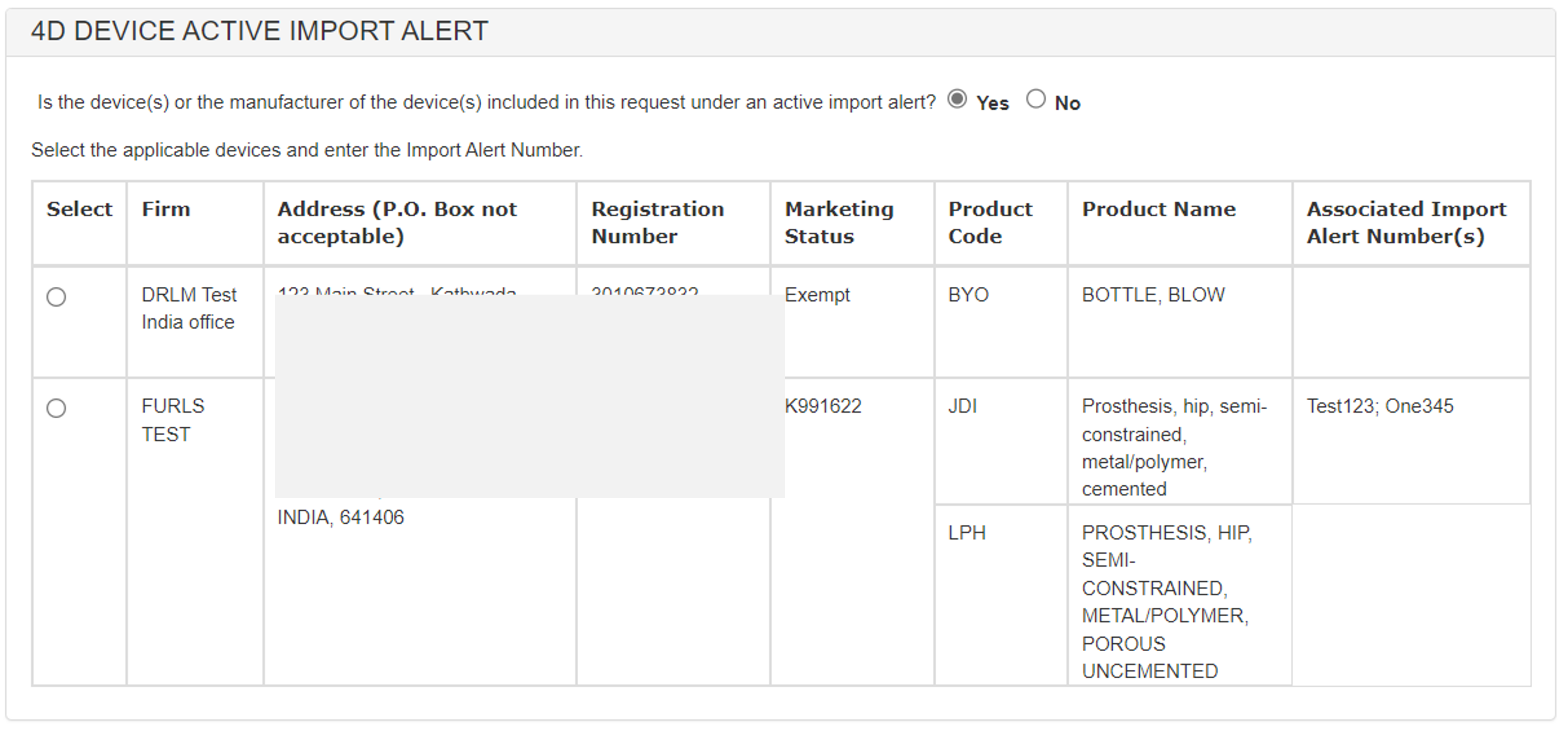
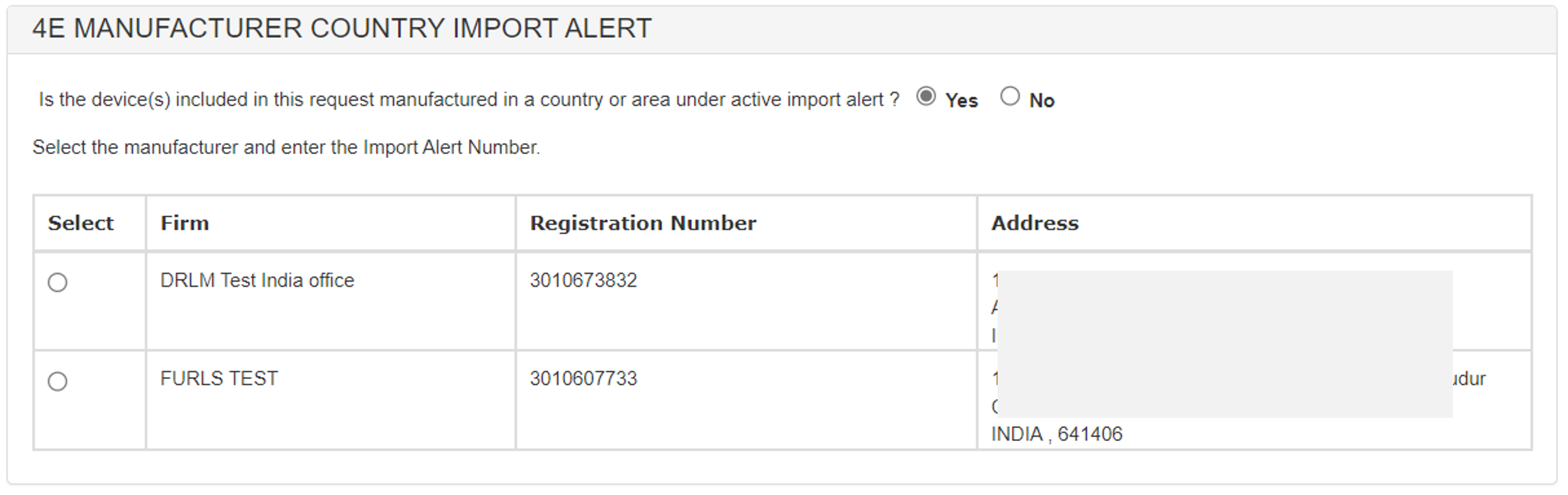
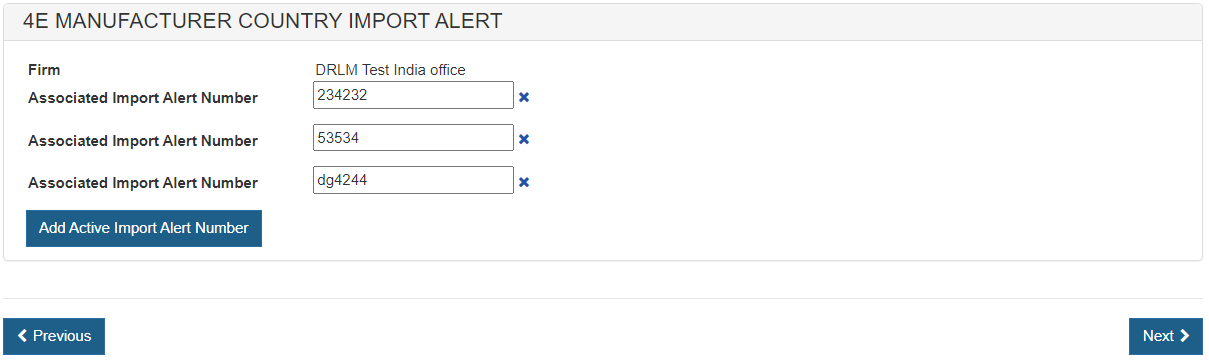
seized devices were included on this application as shown below in Figure 25. Figure 25: Section 4C - Seizure In Section 4D, you will have to select the response for "Is the device(s) or the manufacturer of the device(s) included in this request under an active import alert?" If you have selected the response as "No", navigate to Section 4E. If you have selected the response as "Yes" then the system will display the list of added devices as shown below in Figure 26. Figure 26: Section 4D - Device Active Import Alert To add an import alert for a device, select the device and click the "Add/Modify Import Alert" button. The firm and product details are displayed, along with an "Add Active Import Alert Number" button as shown below in Figure 27. Select the button to display a field to add an import alert number(s). To add any additional import alert numbers, click the "Add Active Import Alert Number" button. Click the “x” to remove an import alert number. Figure 27: Section 4D - Add Import Alert Number The table in 4D is updated with any added import alert number(s) as shown below in Figure 28. If you selected "Yes" to the question, you must add at least one import alert number Figure 28: Section 4D - Add Import Alert Number In Section 4E, you will have to select the response for "Is the device(s) included in this request manufactured in a country or area under active import alert? If you have selected the response as "No", navigate to next section. If you have selected the response as "Yes" then the system will display the list of added foreign manufacturers as shown below in Figure 29. Figure 29: Section 4E - Manufacturer Country Import Alert To add an import alert for a device manufactured in a country or area under active import alert, select the manufacturer and click the "Add/Modify Import Alert" button. The firm details are displayed, along with an “Add Active Import Alert Number” button as shown below in Figure 30. Select the button to display a field to add an import alert number(s). To add any additional import alert numbers, click the "Add Active Import Alert Number" button. Click the "x" to remove an import alert number. Figure 30: Section 4E - Add Import Alert Number The table in 4E is updated with any added import alert number(s) as shown below in Figure 31. If you selected "Yes" to the question, you must add at least one import alert number. Figure 31: Section 4E - Add Import Alert Number Select one or more countries to indicate
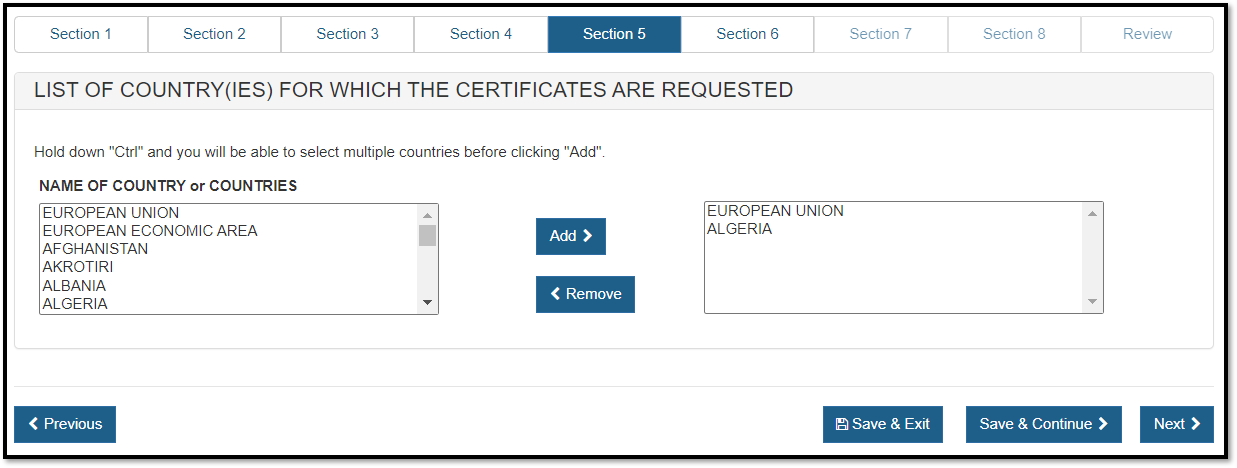
the product destination, click "Add" and repeat for additional countries
as shown in Figure 32. NOTE: Another method to select a
country (other than scrolling down the list) is to first click on a country
from the country list and then type in the first few letters of the desired
country name. The system will jump to the country that begins with the letters
typed. Figure 32: List of Countries NOTE: The standard format of the
electronic certificate will not display an individual country name, but will state
"foreign countries". To display a specific country on the certificate, select
only one country in section 5 AND indicate that country destination should be
listed on the certificate in section 7. Click "Next". Primary Facility: The primary
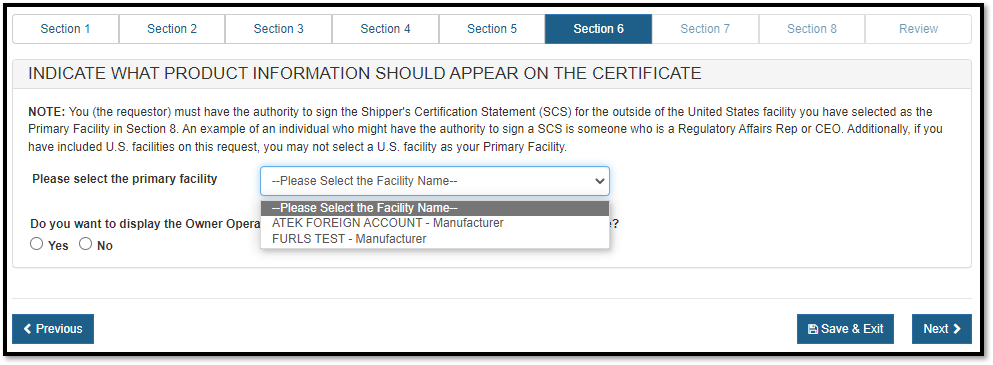
facility is the facility which you represent. The primary facility must be a
foreign establishment and will appear on the certificate. Click NOTE: By selecting the facility that you
represent, CFG-NE will pre-populate the facility name in the Exporter's
Certification Statement which you will sign towards the end of the application. Figure 33: Primary Facility and OON
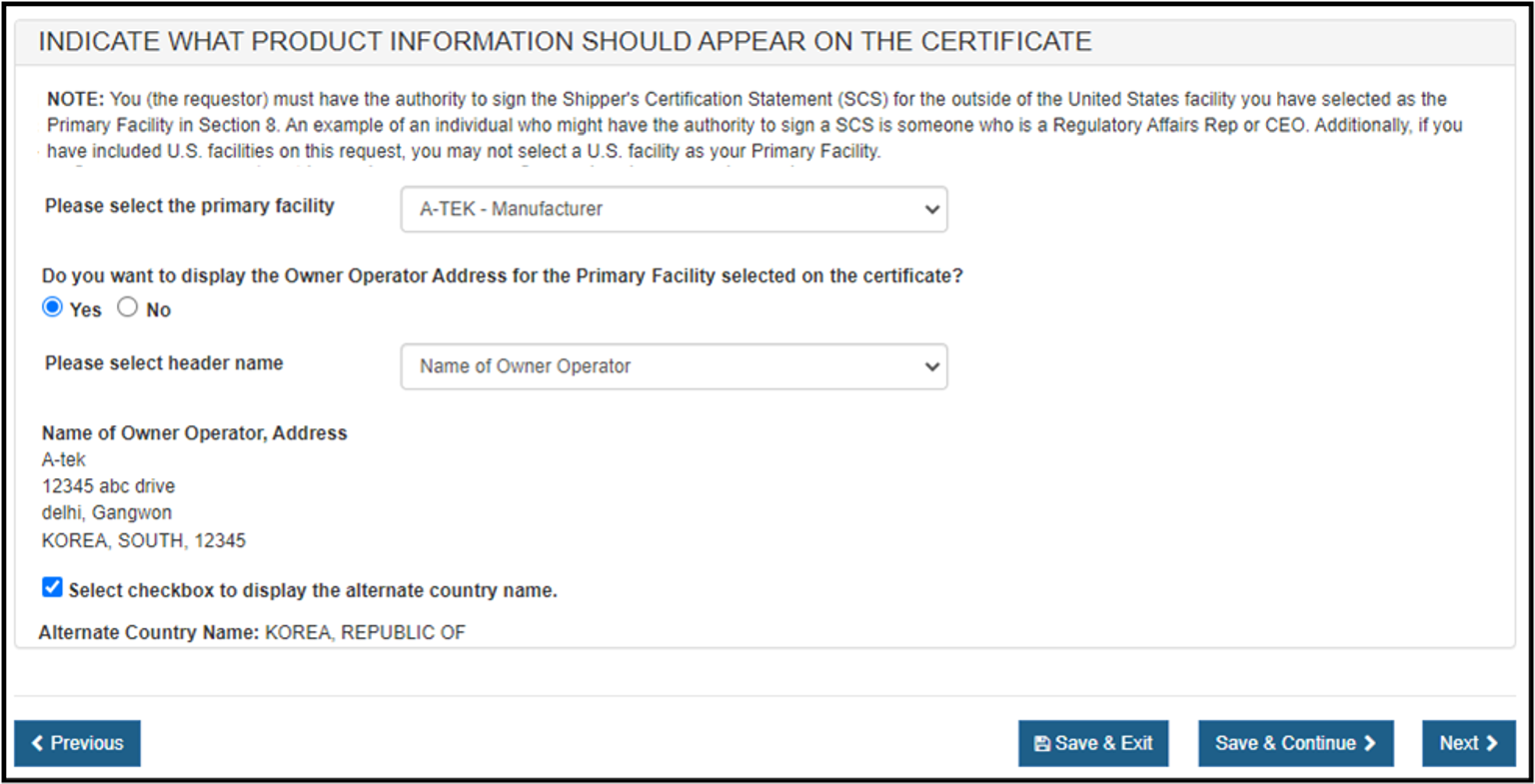
Address Owner Operator: For CDRH certificates, the Owner
Operator is a facility (Corporate Headquarters) that owns one or more
registered manufacturer(s) or distributor(s) in DRLM. The owner operator can only be
identified as Owner Operator or Corporate Headquarters. The vast majority of export
certificates do not include the owner operator. NOTE: Only the Owner Operator of the
primary facility may be included on the certificate. To display the owner operator name and
address for the primary facility, click "Yes" as shown in Figure 34
below. Select the appropriate Header Name from the dropdown list and click on "Next". If the Owner Operator has a foreign address, a checkbox is displayed "Select checkbox to display the alternate country name". If this checkbox is selected, the "Alternate Country Name" is displayed. Figure 34: Display Owner Operator
Address on the Certificate NOTE: If the owner operator name or
address is incorrect, Save & Exit the application and update the address
information in the Online Administration Account (OAA) from the FURLS homepage.
When you reenter CFG-NE to complete the draft application, you may need to
remove the primary facility from section 2 and then re-add it for the updated
information to be retrieved from DRLM. SELECTING THE FACILITY TO BE DISPLAYED ON
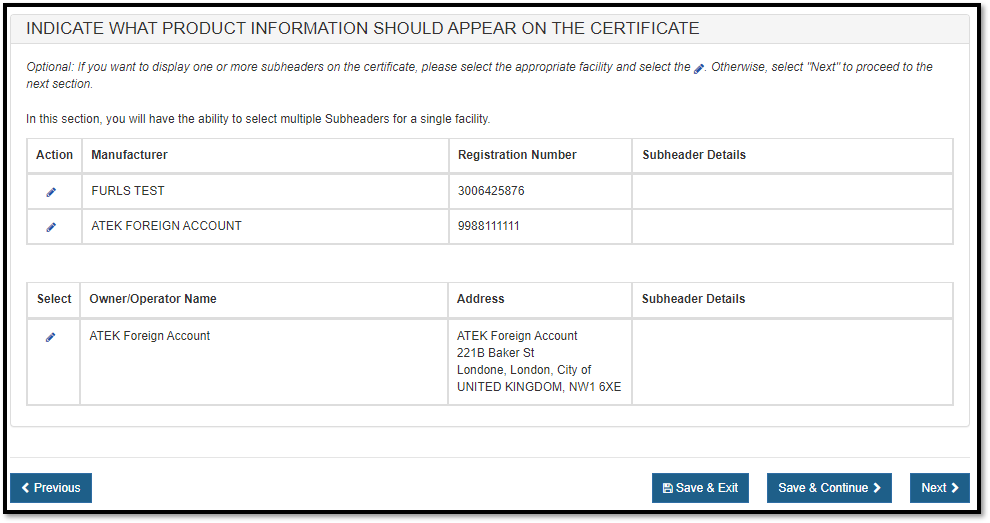
THE CERTIFICATE A list of all manufacturers entered in section 2 and 3 will appear as shown in Figure 35. Select
each facility that you want to appear on the certificate. NOTE: At least one facility must appear on the certificate. Headers: The only header available for the CFG-NE is Name of Manufacturer. Subheaders: An
option to identify the specific role an establishment plays in regard to the products is provided. Select the pencil icon beside the establishment and then select the appropriate subheader(s) (up to 3) to be displayed on the certificate. If the Owner Operator name is selected to display on the certificate, there is also an option to add a subheader. Optional: Select the
facility and click pencil icon as shown in Figure 35. Figure 35: Subheader Information Select the appropriate Subheader from
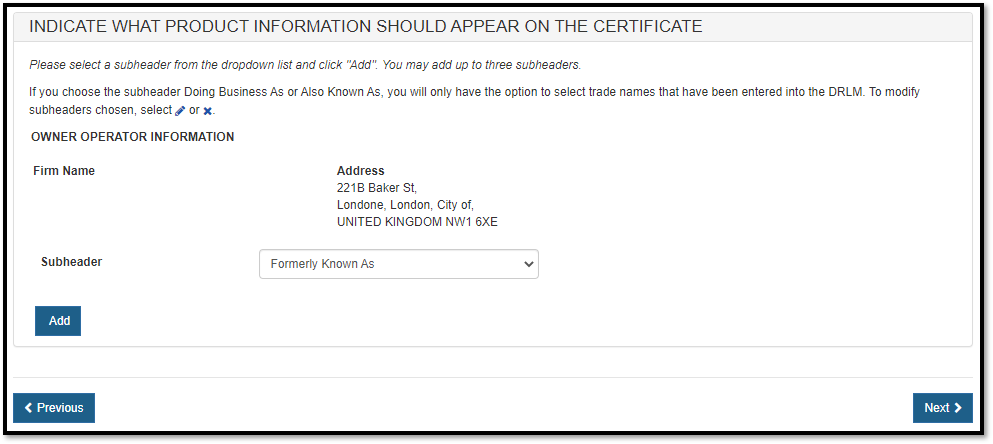
the dropdown list and then click "Add" as shown in Figure 36
below. Subheaders are optional. If no subheader
is desired, leave as "—Please select—". NOTE:For the Owner Operator Name, the only subheader available is “Formerly Known As” Figure 36: Subheader Dropdown List To remove the Subheader, click "X" icon. Subheader Rules
The following describes the Subheader
rules: NOTE: If CFG-NE does not show any DBA or trade names for the facility, the
establishment registration must be updated to add a DBA name for the facility.
Section 4C – SEIZURE


Section 4D – Device Active Import Alert
Section 4E – Manufacturer Country Import Alert

Section 5 – List Country(ies) for which the Certificates are requested
Section 6 – Indicate what product information should appear on the certificate.
 to view a
list of all foreign facilities entered in sections 2 and 3 as shown in Figure
33 below. Select the name of the facility that you represent.
to view a
list of all foreign facilities entered in sections 2 and 3 as shown in Figure
33 below. Select the name of the facility that you represent.
- Formatting: The AKA information will appear after the establishment name.
- Formatting: The AAKA information will appear after the establishment address.
- Formatting: This information will appear after the establishment name and after any DBA or AKA chosen, but before the address.
- Formatting: Firm name(s) only - This information will appear below the establishment name and if applicable, below rule #2 and #4
Once the sub header details are entered, the system will display sub header details for each manufacturer as shown in Figure 37 and Figure 38 below.
Figure 37: Subheader Information
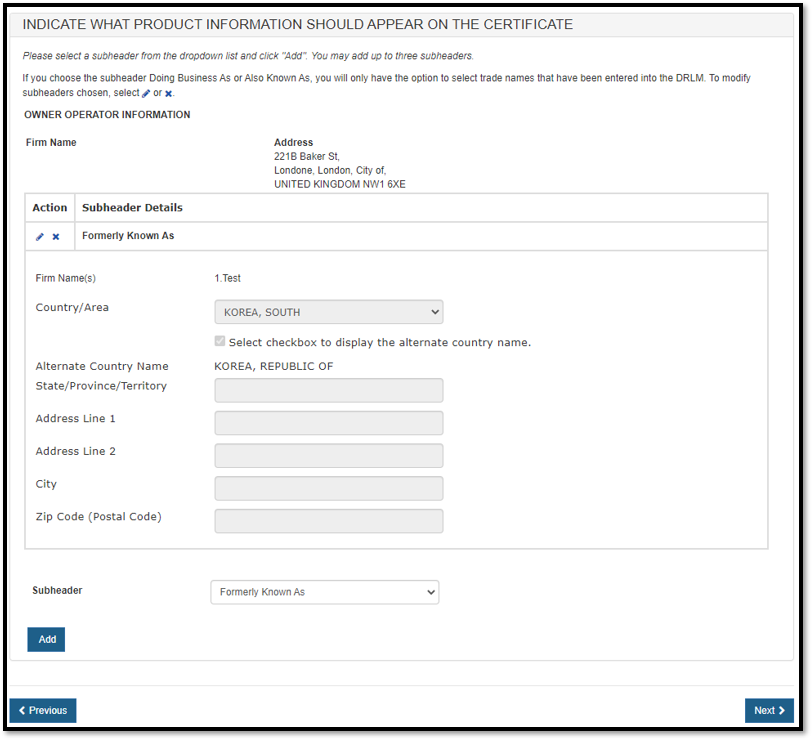
Figure 38: Subheader Information
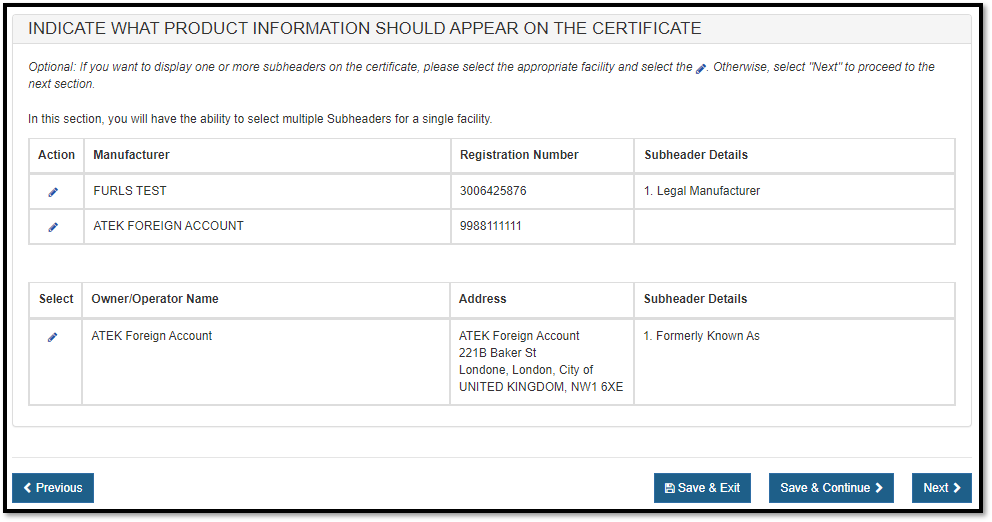
Indicate What Product Information Should Appear on the Certificate
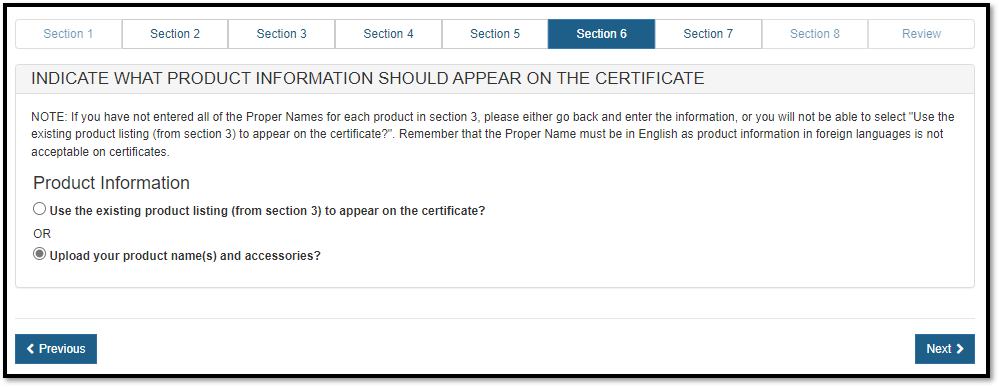
There are two ways to identify the names of the products to be included on the certificate (see Figure 39):
- Select "Use
Existing Product Listing (from section 3) to appear on the certificate" to
utilize the product's proper name as entered in section 3. NOTE: If a proper name
was not entered, please go back to section 3 and enter the proper name or
choose to upload a product list. This option is best if there are only a
couple devices with short names.
OR - Select "Upload your product name(s) and accessories". This option is best if there are many devices or models with long names.
Figure 39: Existing Product Listing or
Upload
Upload Product List (File)
To upload your product list (File), click on the "product worksheet" hyperlink (as shown in Figure 40) to download a template which is in a format that must be used to upload your products.
Figure 40: Upload Hyperlink and Browse
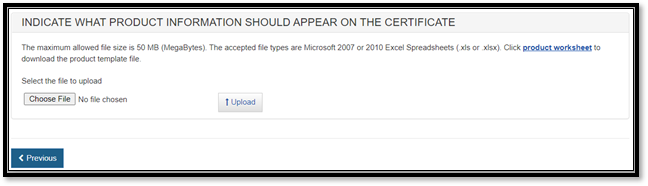
Type or copy your product list onto the template. Please read the Tips below first.
Tips for uploading products
Please adhere to the following rules or the system will not accept the upload:
- Rows 1 and 2 must not be deleted. (Product names typed on rows 1 and 2 will not appear on the certificate.)
- Please do not separate products with any blank rows. CFG-NE will automatically delete these blank rows on the certificate. Grouping of products can be achieved by entering a dot or dash on the line in between the group. This dot or dash will appear on the certificate.
- Please do not exceed the maximum character limit of 150 per cell.
- Once uploaded, the characters are displayed in Arial font with a size of 8.
- There is a single cell (column A) available for each product name in the CFG-NE template allowing each cell to be up to 150 characters. If you would like the appearance of multiple columns within the one column format, a process called concatenation can be utilized. This can be accomplished using spreadsheet software such as (Microsoft Excel or Libre Office Calc) by concatenating multiple fields into a single field. Information on how to do this in Excel can be found in the Excel help. Basic concatenation instructions are provided below. For additional assistance, please contact FDA at cdrhcecats@fda.hhs.gov.
Concatenation – creating the appearance of multiple columns within a one column format.
For example, a company may store product information in a spreadsheet like this:
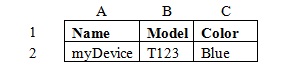
Using concatenation functions a company
might use a function in another column such as
=A2&" - "&B2&" - "&C2
This takes the values found in the cells A2, B2, and C2 and puts them together
in a single cell with dashes (which can be changed to any type of separating
text desired). The quotes around the dashes indicate that the text (and spaces)
between the quotes are actual text to be displayed rather than a reference to a
cell or function in the spreadsheet. This is the result of adding the function
to cell D2:

Now that the cells with various product information have been concatenated, the concatenated information needs to be moved into a spreadsheet conforming to the CFG-NE template spreadsheet which only uses column A. Though the concatenation function displays the concatenated text, if this cell is copied to another spreadsheet the result will likely be an error displayed in the cell. This error occurs because the displayed concatenated text is still a function which requires the cells referenced in it to exist in the proper locations.
Once the function is moved to a location where those referenced cells no longer exist, the function will not behave as expected. To copy the displayed concatenated text to the CFG-NE template spreadsheet, copy the text but when pasting the text, the option to paste only values should be used. In Microsoft Excel, the option to paste only the values that are a result of a function is found in the Paste or Paste Special options. Pasting only values will allow concatenated text to appear correctly in the CFG-NE template spreadsheet:
When the product list is ready and saved to your computer, click "Browse…" and navigate to the location of your file and click "Upload". The uploaded products and accessories will be ready for grouping.
NOTE: The order of the products displayed on the certificate will be the same order of the products entered in Section 3 or on the uploaded product template file.
Grouping a Product(s) to a Facility(ies)
Products can be grouped to one, some or all of the facilities to be displayed on
the certificate.
NOTE: The associations you create will impact the format of your certificate.
NOTE: There is a checkbox located at the top-left section of the Products table. If this box is checked, all products will be selected for that particular page.
"Group All Products to All Facilities" button
The "Group All Products to All Facilities" button provides a quick and
easy way to group all products to all facilities with a single click.
Figure 41: Group All Products
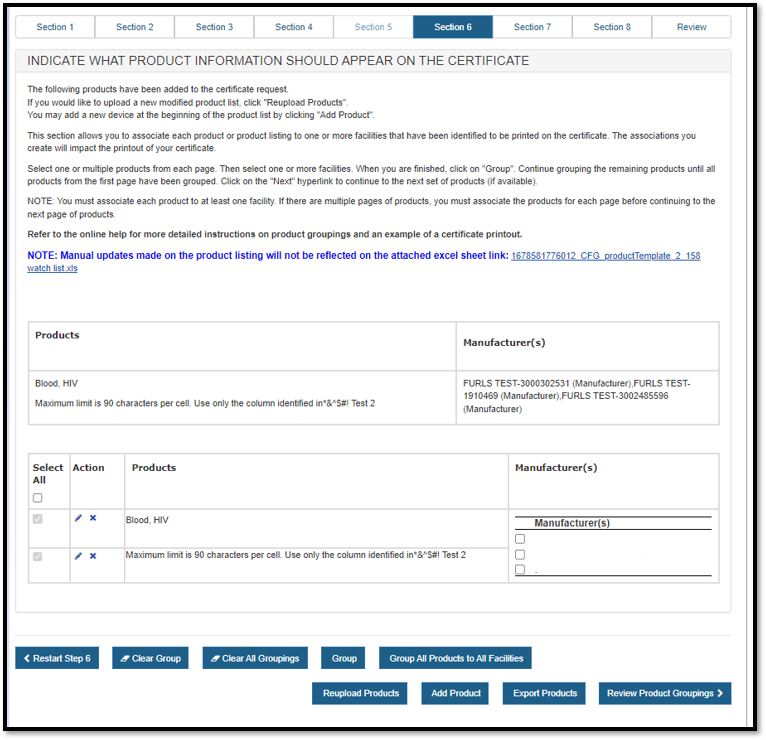
"Group" Button
Select one or multiple products from the list of products. Then select one or
more facilities located to the right of the product listing. When finished,
click on the "Group" button.
The grouping just created will be displayed as shown in Figure 42 below.
The system continues to display the product listing (below the grouping). Products that have been "grouped" will now be grayed out. Continue grouping the remaining products until all products on the page have been grouped.
"Add Product" button
You may add a new device at the beginning of the product list by clicking
"Add Product". Click on "Add product", enter the Product
Name and select "Next". The new product will be displayed at the
beginning of the product list.
Figure 42: Grouping
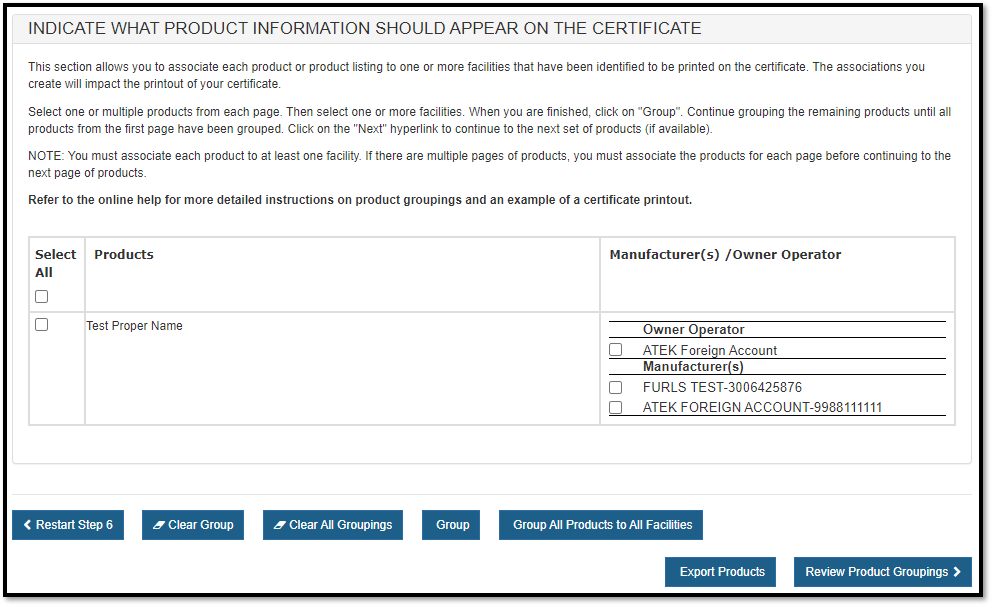
NOTE: All products on the page must be grouped before moving to the next
page of products.
Once you have grouped all products on that page, click on the "Next" button to continue grouping additional products. Continue until all products on all pages have been grouped.
"Clear Group"
If an error was
made when grouping, select "Clear Group" to restart grouping for that
particular page.
NOTE: The "Clear Group" button will NOT affect any other pages (if more
than 30 products).
"Clear All Groupings": will remove ALL groupings from all pages. A warning message will appear prior to clearing all groupings. Once confirmed, you will have to restart the grouping process.
"Reupload Products" if changes to the product list are required after the initial product upload, click "Reupload Products" and all products and groupings will be removed. A warning message will appear prior to clearing the product listing. Once confirmed, upload a new product list. See Upload Product List (File) above.
"Restart Step 6" If for any reason you need to restart section 6, click on The "Restart Step 6". A warning message will appear prior to restarting step 6. Once confirmed, the system will navigate back to the start of step 6.
Warning: All information will be deleted from Section 6 if you click on the "Restart Step 6" including the Primary Manufacturer, Owner Operator Address, and all identified facilities to be displayed on the certificate, Header and SubHeader selections, and the product listing.
Once all products have been grouped to a facility or facilities, the product groupings will be displayed for review as shown in Figure 43 below
Figure 43: Grouping Review Page
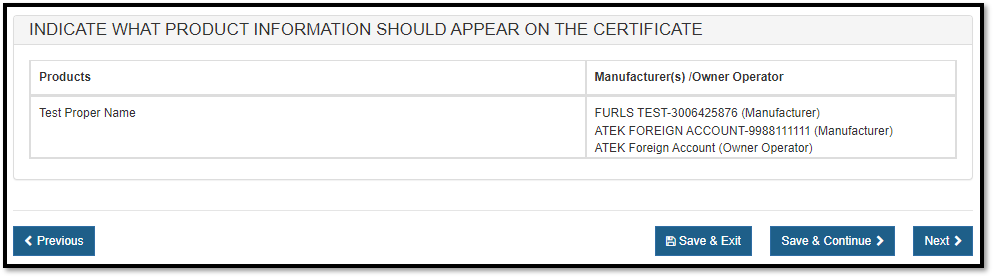
Click "Next".
Section 7 – Should the country destination be listed on the certificate?
Unless otherwise indicated in this section, the certificate will be state "into foreign countries." Sometimes a specific destination country name is desired. To have a specific country appear:
- Identify only the specific country in section 5.
- Select "Yes" to the "Should the country destination be listed on the certificate" in section 7.
NOTE: If this option is greyed out and cannot be chose, most often it is due to more than one country selected in section 6.
Enter the total number of certificates requested. See Figure 44 below.
Figure 44: Number of Certificates
Requested
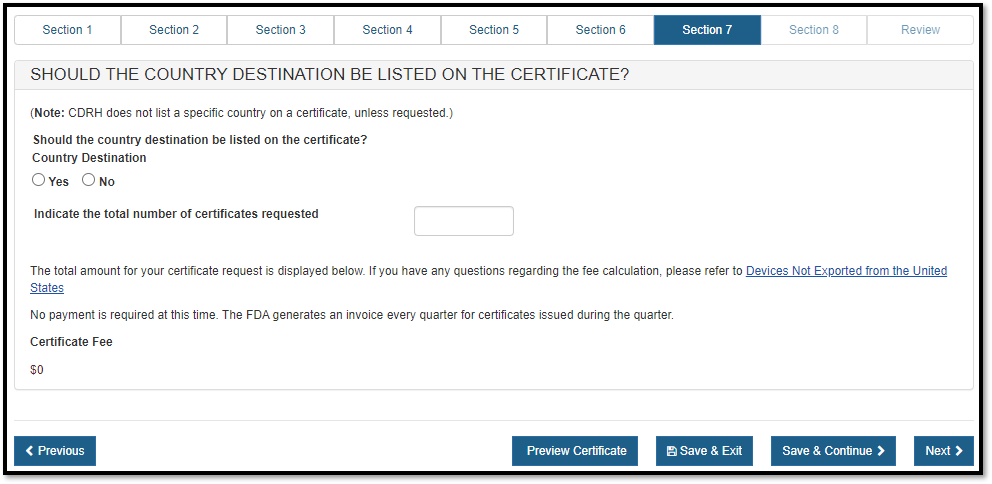
The total fee will be displayed as shown in Figure 45.
NOTE: The FDA will invoice your firm at the end of each quarter for all certificates issued during the quarter.
Figure 45: Total Fee

Section 8 – Shipper’s Certification Statement (SCS)
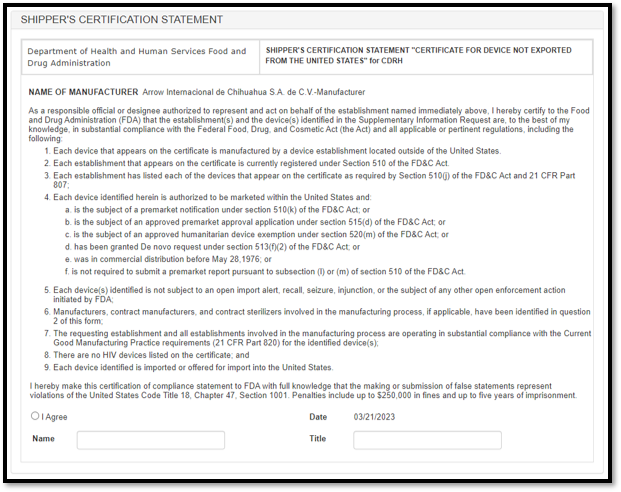
The Shipper’s Certification Statement (SCS) acknowledges that you, the responsible official or designee, certify that the facility(s) and the products identified on the Supplemental Information are, to the best of your knowledge, in substantial compliance with the Federal Food, Drug, and Cosmetic Act (FD&C Act) – as well as all applicable or pertinent regulations.
In this section, the primary facility field will be auto-populated based on the selection you made in section 6. You must select the "I Agree" button located at the bottom of this section and enter your name and title. You will not be able to continue with the application until these fields have been completed. See Figure 46 below:
Figure 46: The Shipper’s Certification Statement
Once these fields are completed, click "Next" to navigate to the next page.
Supporting Documentation
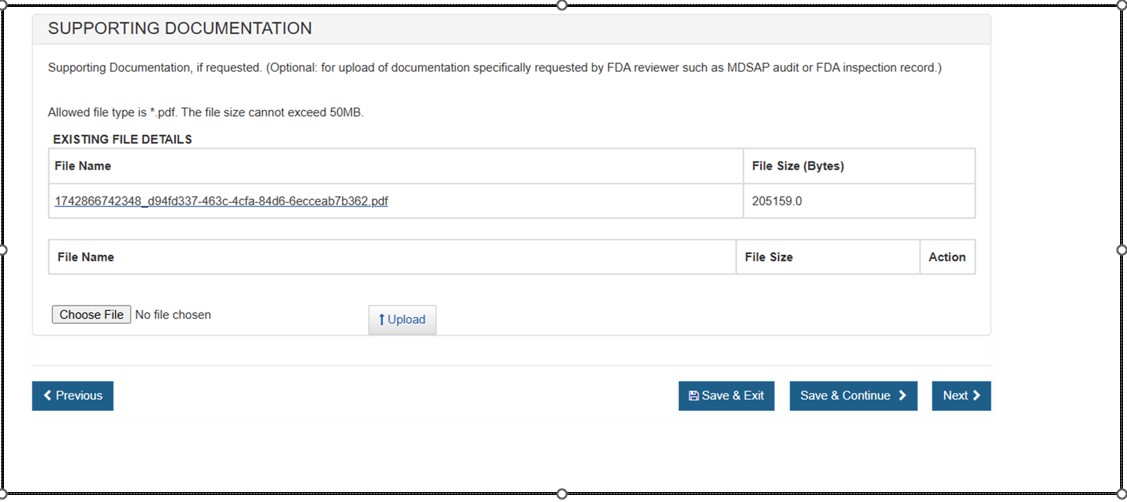
Use this section to upload any documents specifically requested by an FDA reviewer (e.g. MDSAP audit or FDA inspection record). See Figure 47 below.
NOTE: This section is not required. Only PDF files less than 50MB will be accepted.Figure 47: Supporting Documentation
Final Review Screen
The entire application broken out by section will be displayed as shown in Figure 48 below. You may choose to modify a section by selecting the "Edit" button next to the section to be updated. The data entered in the chosen section will be displayed and changes may be made as needed.
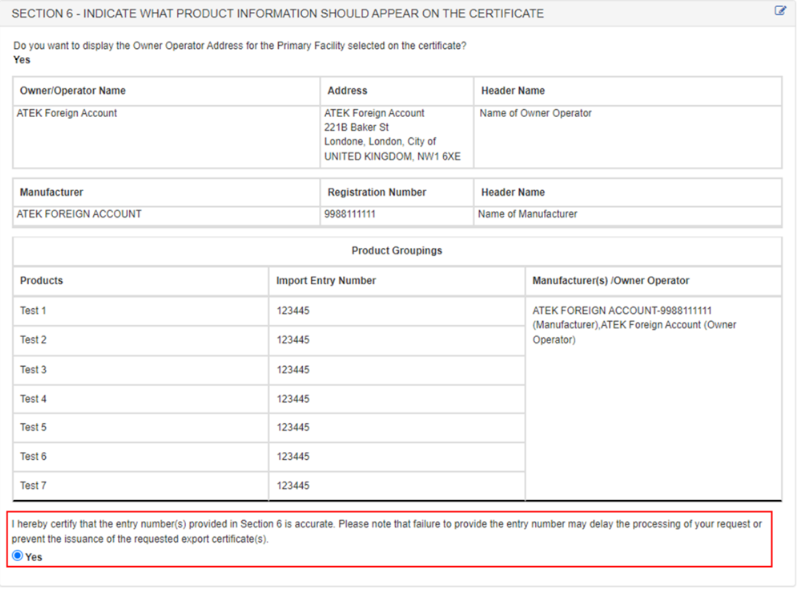
In Section 6, you must certify that the Import Entry Numbers provided are accurate. Select the “Yes” radio button under the text “I hereby certify that the entry number(s) provided in Section 6 is accurate. Please note that failure to provide the entry number may delay the processing of your request or prevent the issuance of the requested export certificate(s)." as shown in Figure 49.
NOTE: The system displays one entry in
each section. If you entered multiple entries in a section, (i.e. Multiple
manufacturers in section 2), Click  to expand
the list for that section.
to expand
the list for that section.
Figure 48: Final Review Page
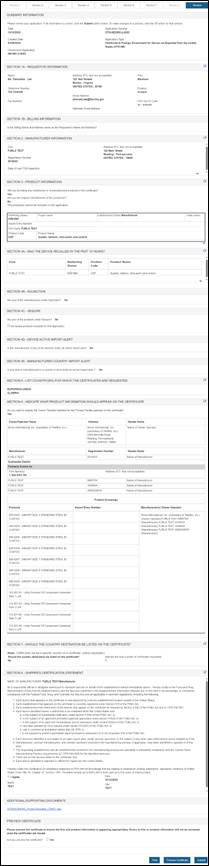
Figure 49: Import Entry Number Certification
PREVIEW THE CERTIFICATE!!! To ensure that the facility name and address is appropriate, subheaders, product list and groupings appear as preferred, click "Preview Certificate". If any changes are required, return to the appropriate section and update prior to continuing onto Section 8 to submit. Please see Figure 49 above.
This will be your final opportunity to make edits, so please review your completed application carefully.
NOTE: Your submission is not complete until you click "Submit".
Print Application: You may choose to print your application prior to submission using the "Print" button at the bottom of the page, however, unless you have previously saved the application, the application number will not appear on the printed application. There will another opportunity to print the application after it is submitted and has an application number assigned.
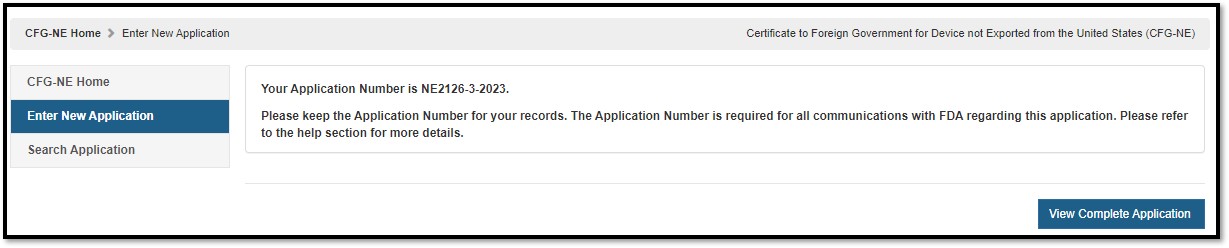
Submission: When your application is ready for submission, click "Submit". A message that your application was successfully submitted will appear as shown in Figure 50 below. An application number will be displayed and the opportunity to print a copy of the application is available. Please save the application number for future reference. The application number will be required to check the status of your application. You will also receive an email confirmation that your application has been successfully received along with the application number.
Figure 50: Submission Success Page