Print and Validate a CDRH-Issued Export Certificate/Letter
January 2024
Table of Contents
Print Electronic Certificate or Approval Letter
When the Exports Team has approved issuance of the requested document, you will receive an “Export Certificate Application Approved” or “EPL Application Approval” email notification with instructions on how to access the document. You should print or download the document within 45 days of issuance, as the document will not be available to print or download after this period.
Log into the FDA Industry Systems (FIS) https://www.access.fda.gov and select "CDRH Export Certification Application & Tracking System (CECATS)" from the list of systems available on the FURLS Home page as shown in (Figure 1).
Figure 1: FDA Industry
Systems Page

Select Option 1: For devices exported from the United States,Select “Yes” in response to the question “Will the devices be exported from the United States?”. Select “Continue” and the system will open the CECATS “Home” page. The CECATS “Main Menu” page is shown in Figure 2 below
Figure 2: CECATS Main Menu
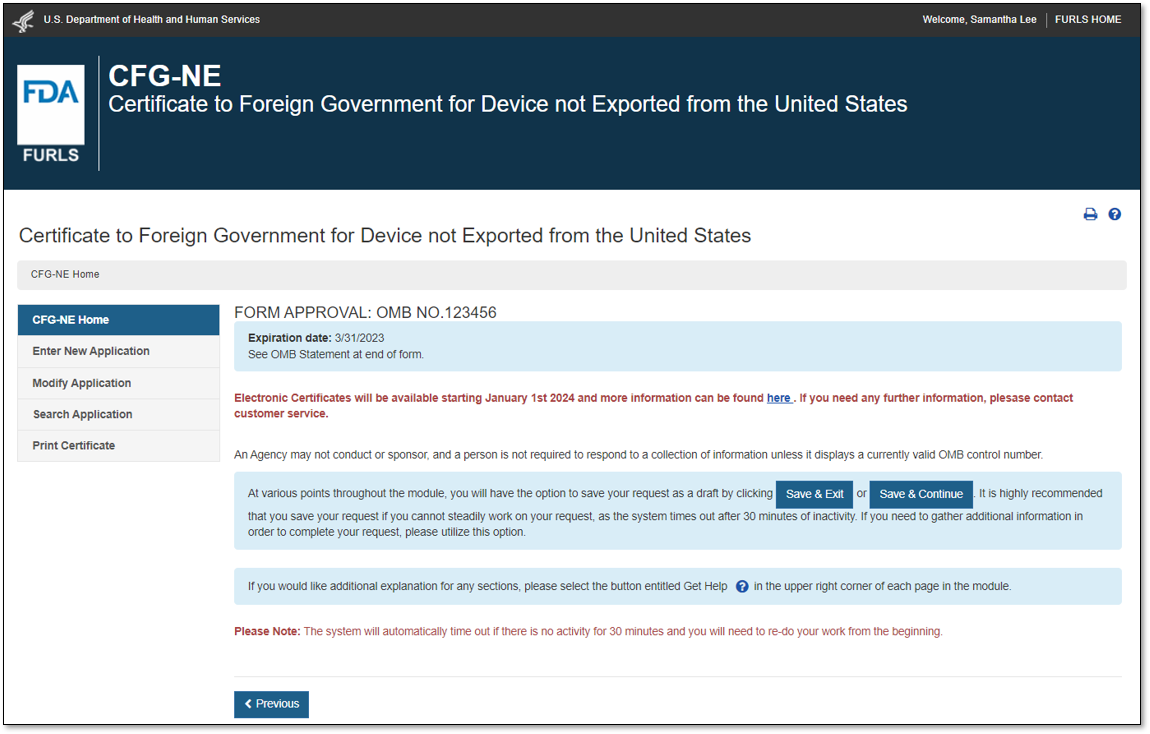
Option 2: For devices not exported from the United States,Select “No” in response to the question “Will the devices be exported from the United States?”. Select “Continue” and the system will open the CFG-NE “Home” page, as shown in Figure 3.
Figure 3: CFG-NE Main Menu
Select the “Print Certificate” menu option. All the applications you submitted and have been approved will be displayed, as shown in as shown in Figure 4 below.
Figure 4: Print Certificate Menu
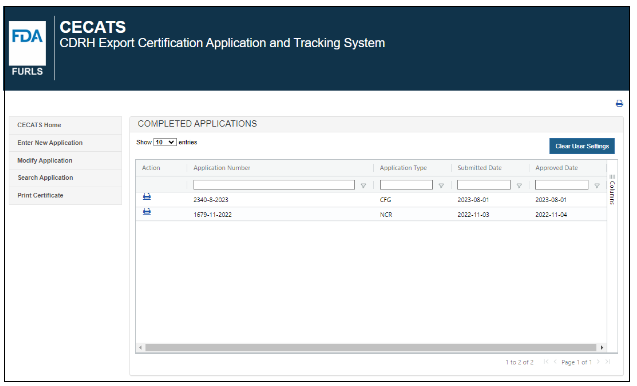
To print or download the electronic certificate/approval letter,click on the Print (printer) icon next to the application number
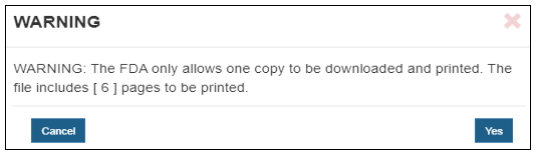
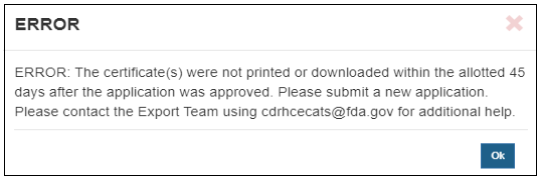
A warning message is displayed as shown in Figure 5 Select “Cancel” to close the warning without printing or downloading the electronic certificate/approval letter. Click “Yes” to continue with printing or downloading. Figure 5: Print Certificate Menu Once this action has been taken, a PDF is displayed/downloaded for printing and the application is removed from the “Print Certificate – Competed Applications” list, as show in (Figure 6). Figure 6: Print Certificate Menu after Printing The certificate will display a URL address in the footer and a QR Code (see Validating the Authenticity of CDRH-Issued Export Certificate) on the first page that can be used to validate the authenticity of the certificate. A gold seal is displayed on each page of the certificate, as shown in Figure 7. Print or download the document within 45 days of issuance. If you click on the Print icon after this period, an error message is displayed, as shown in Figure 8. Figure 8: Printing Error after 45 Days
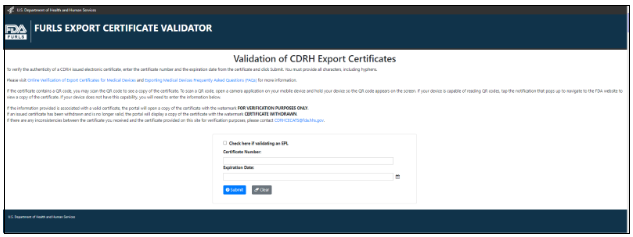
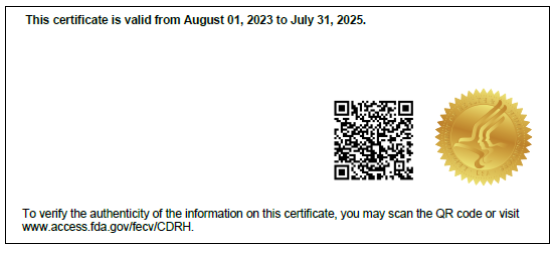
Once you click “OK” for the warning message, the application will no longer be displayed in the “Print Certificate – Competed Applications” list. Please clone and submit a new application. Please contact the Exports Team using CDRHCECATS@fda.hhs.gov for additional help. Validating the Authenticity of CDRH-Issued Export Documents Certificates and export permit letters may be validated by foreign governments and others using the FDA’s FURLS Export Certificate Validator (FECV) database for the period they are in effect. The FECV can be accessed using the URL address or QR code displayed at the bottom of each document. There are two ways to access this online portal: Online Portal If accessing the online portal, the foreign governments and others must have the Certificate Number and Expiration Date of the certificate to verify it. If validating an approval letter for an Export Permit List, select the checkbox “Check here if validating an EPL”. Enter the information, and click the “Submit” button, as shown in Figure 9. Figure 9 - FDA Online Portal for Verification of Export Certificates for Drugs QR Code Use a QR Reader to scan the QR Code displayed on FDA’s issued electronic certificates, as shown in Figure 10. Figure 10: QR Code on Electronic Certificate

 .
.
The certificate holder will enter the Certificate Number and click the “Submit” button, as shown in Figure 11.
Figure 11: Certificate Authentication using QR Code
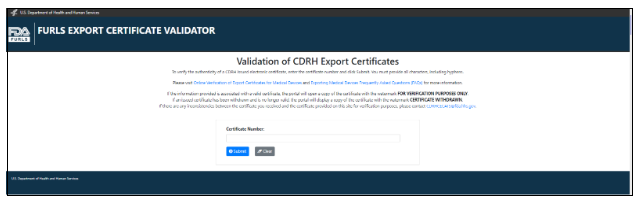
If a certificate is not found, (i.e., the certificate expired or is no longer valid) an error message will be displayed.
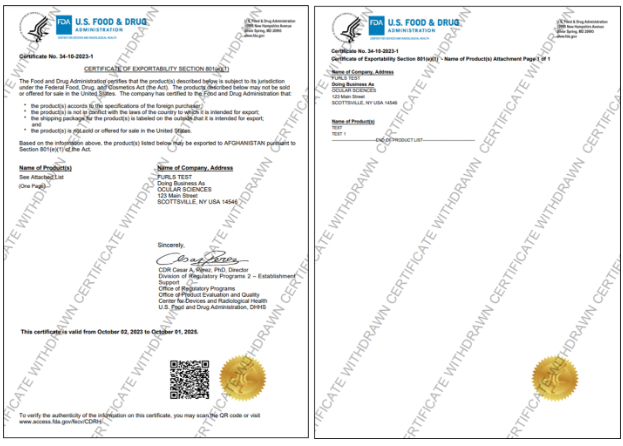
If the provided information is correct, a PDF will be generated, as shown in Figure 12 (below). The certificate will display a “For Verification Purposes Only” watermark. The certificate will display a “Withdrawn” watermark if the certificate has been withdrawn, as shown in Figure 13.
Using the data displayed in the PDF, you can verify the information based on the certificate a U.S. Exporter has provided.
Figure 12: Electronic Certificate – For Verification Purposes
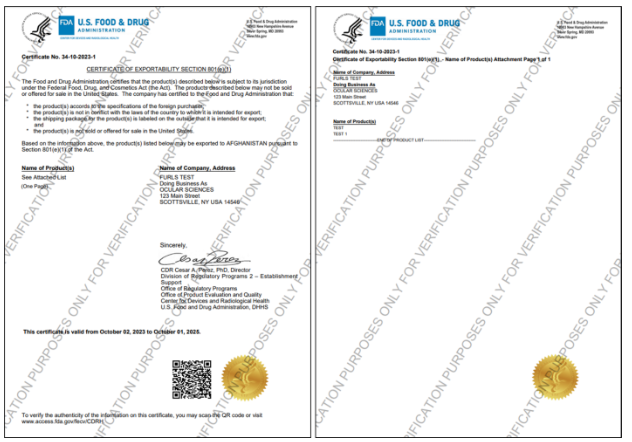
Figure 13: Certificate Withdrawn