 U.S. Department of Health and Human Services

Change, Deactivate or Reactivate Listings for Medical Device Products
May, 2025
Change a Listing
Select Listing Screen
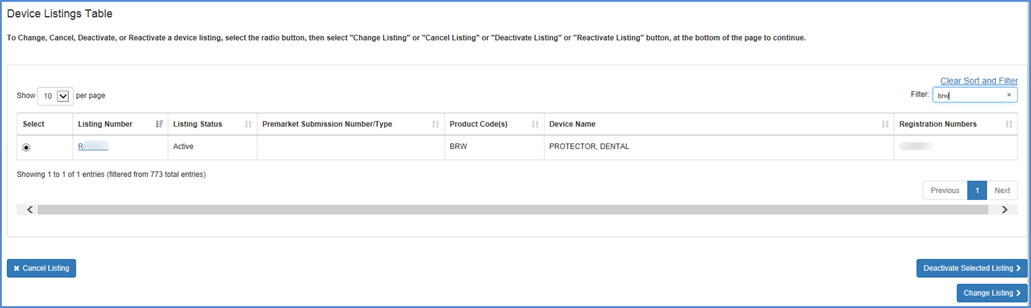
Select the listing that you wish to change. After clicking "Change Listing", details about the device listing will be displayed. Carefully review this information to verify this is the device you intended to select.
If not, you may continue to navigate through the listings or use the numeric page number options to reach a specific page of listings if multiple are present.
You may also filter Listings by
Listing Number. This can be done by entering a Listing Number into the system
and selecting the Filter button.
Note: Only one Listing Number may be filtered at a time.
Select Facilities Screen
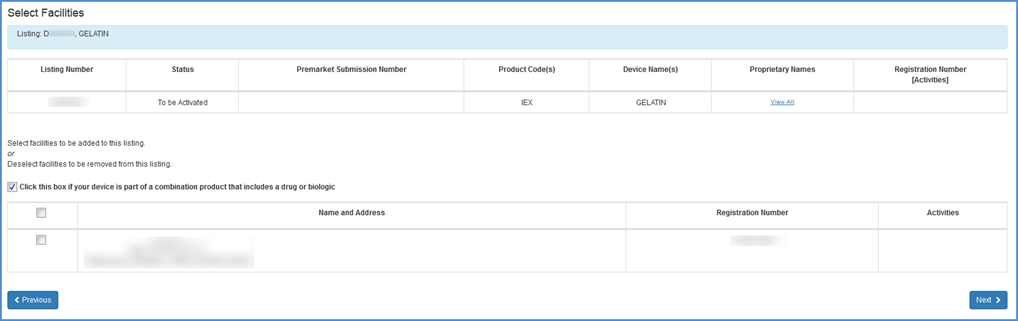
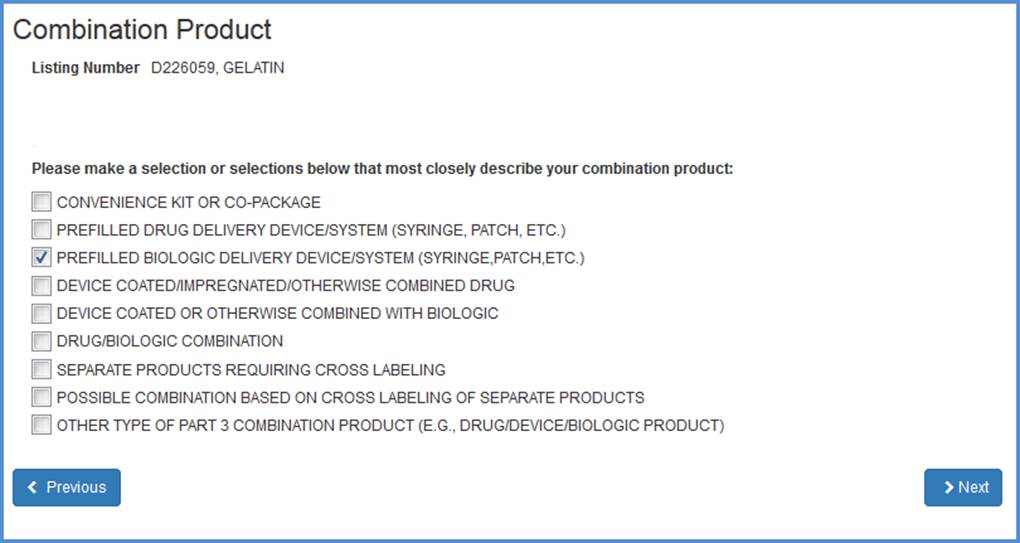
If you identify the listing as a Combination Product, you must identify the types of combination products that this device is a part of. If the listing has already been identified as a Combination Product, then you may update the types of combination products that are already selected with your listing.
Note: You can always change your combination products to non-combination products by following the same steps and simply checking or unchecking the combination product checkbox.
Combination Products
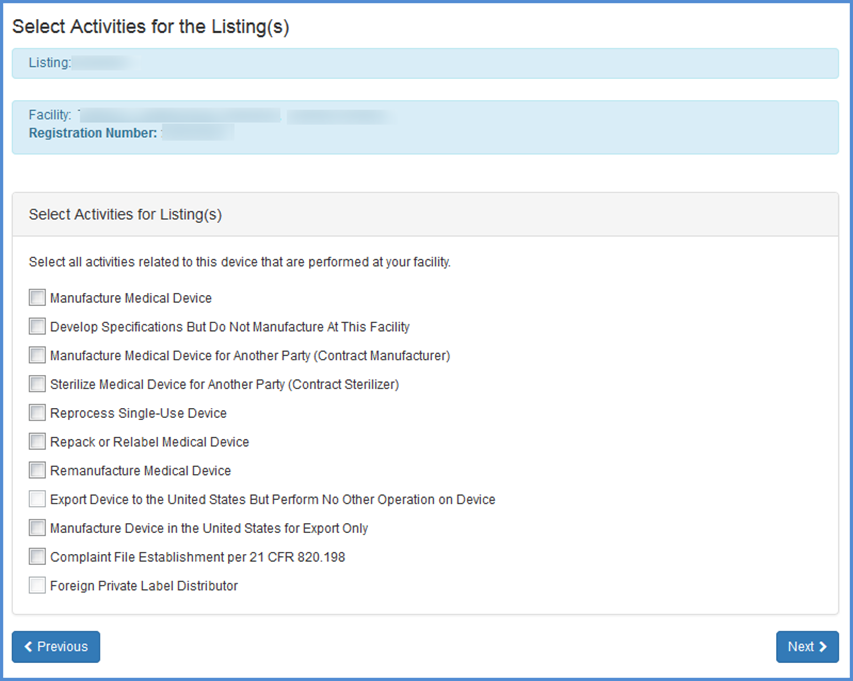
Select any and all activities related to this device for each of the facilities added.
Enter any proprietary names that the device is distributed under for each of
the facilities.
Select Product Activities
This screen allows you to list activities related to each of the products associated with the facility. Check all activities that are performed at this facility and click "Next".
Note: You must select at least one activity for each product.
Select Activities for Listing(s)
Enter Proprietary Name(s)
Each listing must have at least one proprietary name or brand name that your product is marketed under.
Enter Proprietary Name(s)
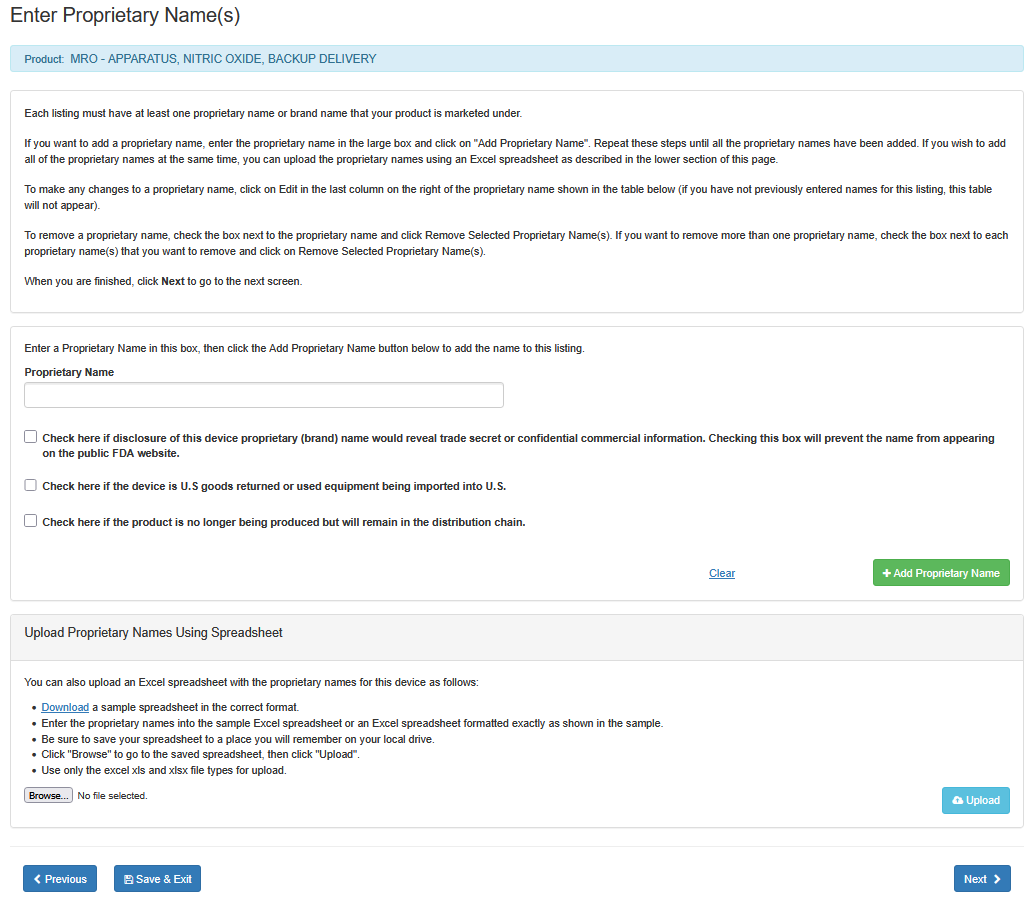
i. Enter the proprietary name in the large box.
ii. If disclosure of this device proprietary (brand) name would reveal a trade secret or confidential information, check the box below the 'Proprietary Name' field. This will prevent the name from appearing on the public FDA website.
iii. Check the box, if the device is U.S goods returned or used equipment being imported to U.S.
iv. Check the box, if the product is no longer being produced but will remain in the distribution chain.
vi. Click on "Add Proprietary Name".
Repeat these steps until all the proprietary names have been added. If you wish to add all of the proprietary names at the same time, you can upload the proprietary names using an Excel spreadsheet as described in the lower section of this screen entitled "Upload Proprietary Names Using Spreadsheet".
To make any changes to a proprietary name, click on Edit in the last column on the right of the proprietary name shown in the table below (if you have not previously entered names for this listing, this table will not appear).
To remove a proprietary name, check the box next to the proprietary name and click "Remove Selected Proprietary Name(s)". If you want to remove more than one proprietary name, check the box next to each proprietary name that you want to remove and click on "Remove Selected Proprietary Name(s)".
When you are finished, click "Next" to go to the next screen.
Confirmation
Details about the listing change are displayed, including all facilities associated with the listing, all activities performed at the facilities as they relate to the device, and all proprietary names associated with the facility.
Verify that the information is as you intended before clicking the box by the Certification Statement and "Submit" to complete the change process. A confirmation of your changes will be displayed.
Confirmation Screen

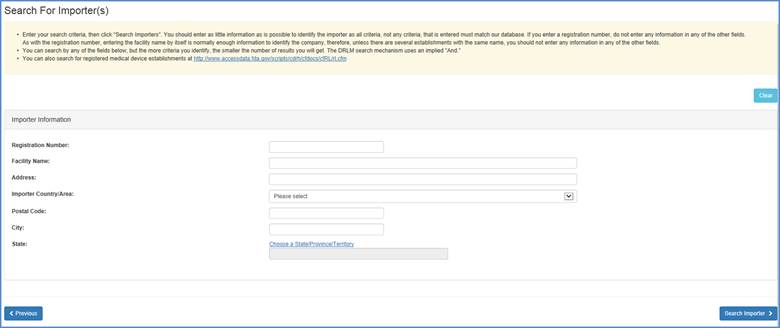
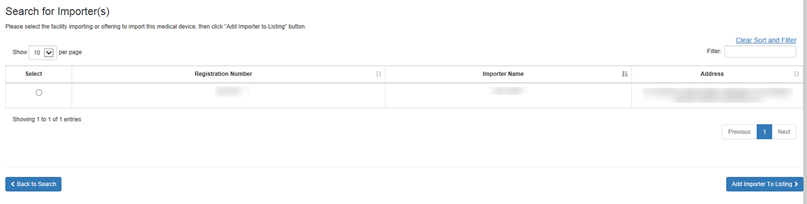
Note: If this is a listing for a foreign facility, the United States Federal Bioterrorism Act of 2002 requires that the U.S. importer for each of the devices exported to the U.S. be provided. Provide at least one search criteria to find an Importer. The steps may be taken as follows:
Initial Importer Search Options Screen
Initial Importer Search Results Screen
Deactivate a Listing
While it is not possible to cancel a medical device listing, you may deactivate the listing so that it is no longer associated with any of the facilities under your account.
Select the listing that you wish to deactivate.
Select Listing Screen
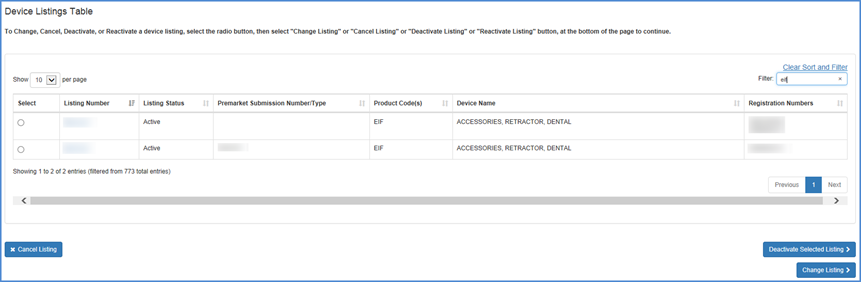
Carefully review the information to verify that this is the device that you intended to deactivate. Please remember to check the Certification Statement check box.
Listing Review and Certification
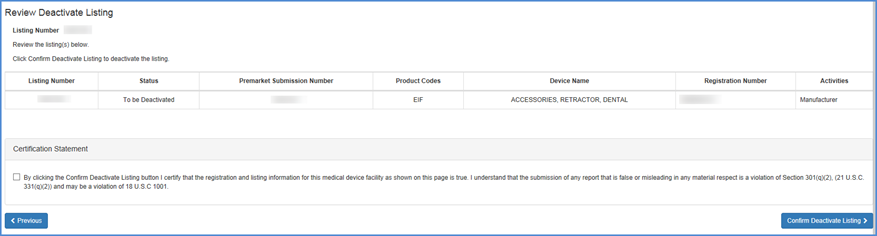
A confirmation of the listing deactivation will be displayed.
You can reactivate the listing and re-associate it with any of the facilities
under your account at any time.
Confirmation Screen

Reactivate a Listing
Select Listing Screen
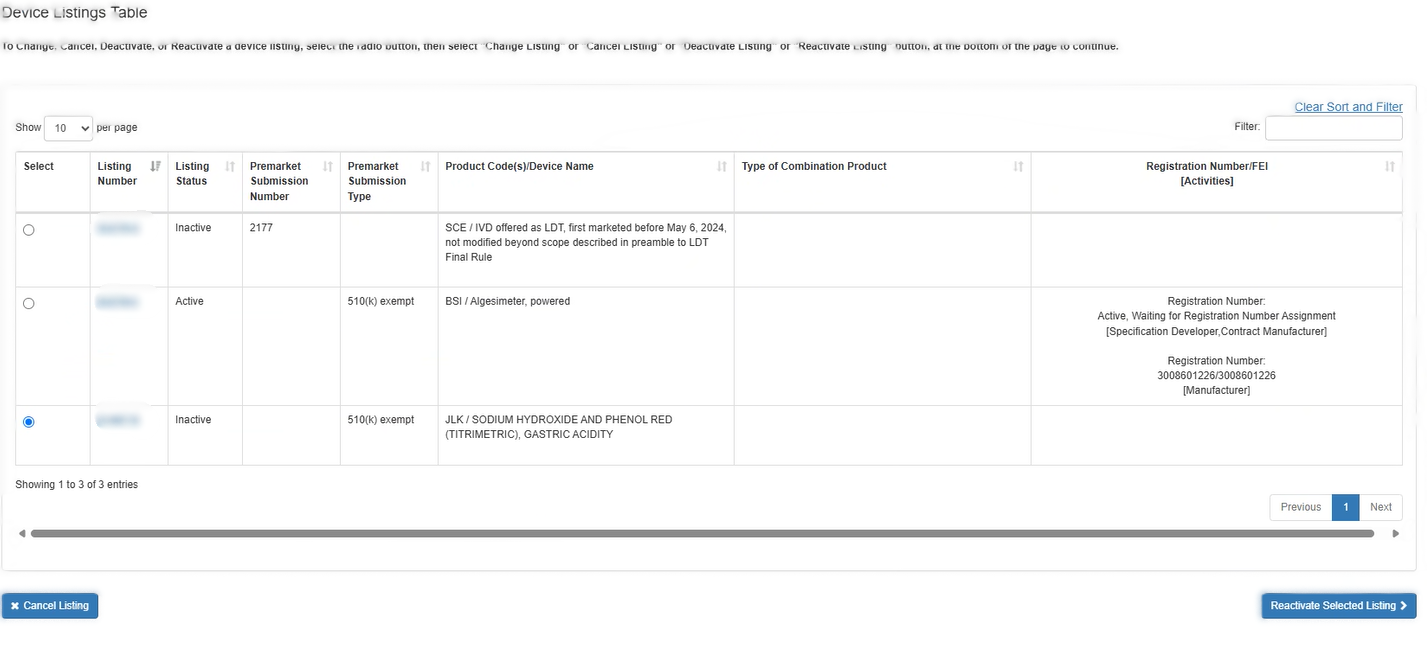
Select the listing that you wish to reactivate. After clicking "Reactivate Selected Listing", details about the device listing will be displayed. Carefully review this information to verify this is the device you intended to select.
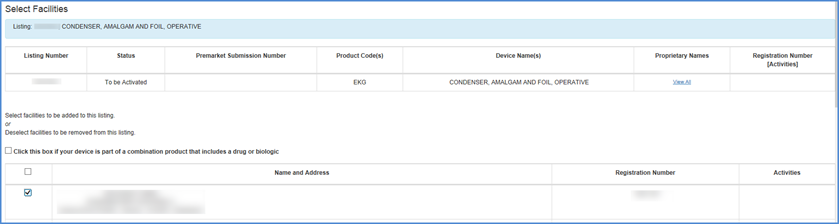
Scroll down the page and select facilities that you want to associate with this device (i.e., facilities where the device is processed in some way) or deselect facilities that no longer process the device.
Select Facilities Screen
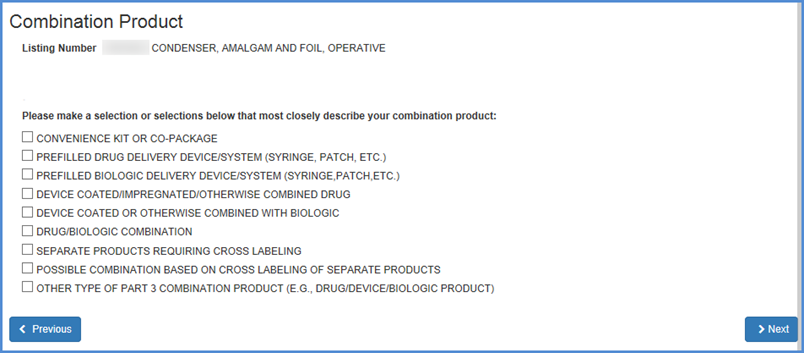
If you identify the listing as a Combination Product, you must identify the types of combination products that this device is a part of. If the listing has already been identified as a Combination Product, then you may update the types of combination products that are already selected with your listing.
Note: You can always change your combination products to non-combination products by following the same steps and simply checking or unchecking the combination product checkbox.
Combination Products
Select any and all activities
related to this device for each of the facilities added.
Enter any proprietary names that the device is distributed under for each of
the facilities.
Select Product Activities
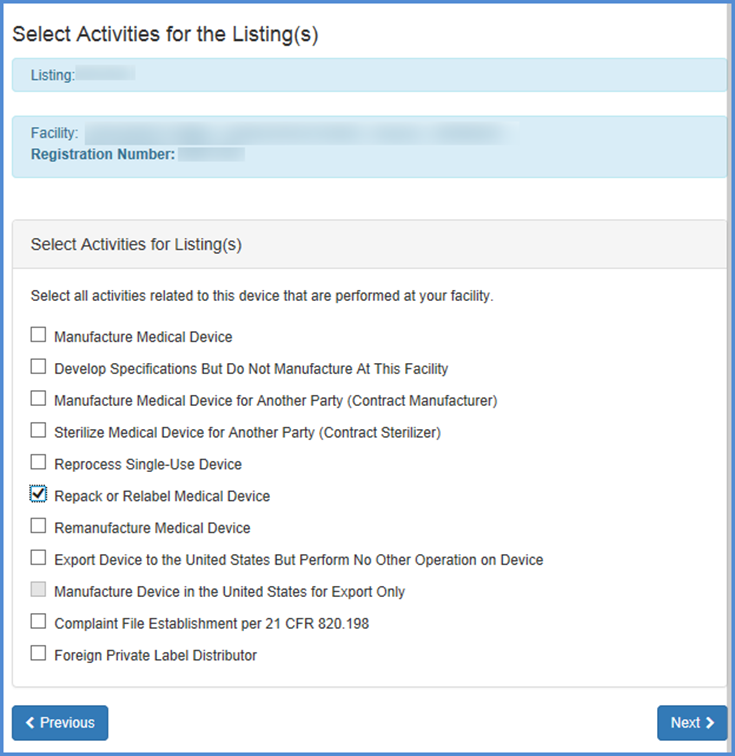
This screen allows you to list
activities related to each of the products associated with the facility. Check
all activities that are performed at this facility and click Continue
Note: You must select at least one activity for each product.
Select Activities for Listing(s)
Enter Proprietary Name(s)
Each listing must have at least one proprietary name or brand name that your product is marketed under.
Enter Proprietary Name(s)
i. Enter the proprietary name in the large box.
ii. If disclosure of this device proprietary (brand) name would reveal a trade secret or confidential information, check the box below the 'Proprietary Name' field. This will prevent the name from appearing on the public FDA website.
iii. Check the box, if the device is U.S goods returned or used equipment being imported to U.S.
iv. Check the box, if the product is no longer being produced but will remain in the distribution chain.
vi. Click on "Add Proprietary Name".
Repeat these steps until all the proprietary names have been added. If you wish to add all of the proprietary names at the same time, you can upload the proprietary names using an Excel spreadsheet as described in the lower section of this screen entitled "Upload Proprietary Names Using Spreadsheet".
To make any changes to a proprietary name, click on Edit in the last column on the right of the proprietary name shown in the table below (if you have not previously entered names for this listing, this table will not appear).
To remove a proprietary name, check the box next to the proprietary name and click "Remove Selected Proprietary Name(s)". If you want to remove more than one proprietary name, check the box next to each proprietary name that you want to remove and click on "Remove Selected Proprietary Name(s)".
When you are finished, click Continue to go to the next screen.
Listing Review and Certification Screen
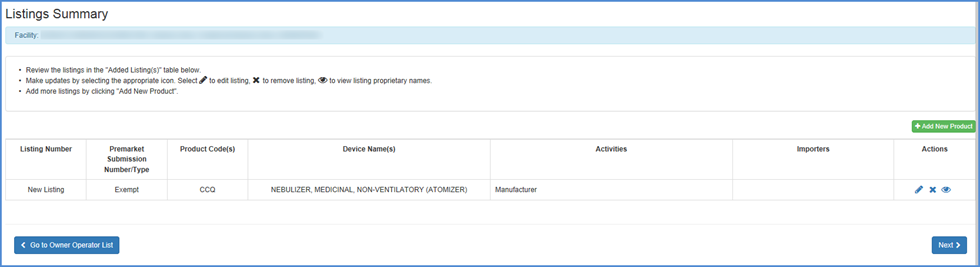
- Review all your listings in the "Listings Summary" table
- To Edit, Remove or View the product from the listing
summary - Select the
 icon to edit
listing, the
icon to edit
listing, the  icon to remove
listing, the
icon to remove
listing, the  icon to view
listing proprietary names
icon to view
listing proprietary names - Add a new product - Add more listings by clicking "Add New Product".
- Go to Owner/Operator Product List - Add a product associated with your account that was listed in the Owner/Operator Product List Screen.
- Finished Identifying Products - Click Next button once you are satisfied that the appropriate products are associated with the facility and that all activities and proprietary names are accurate and complete.
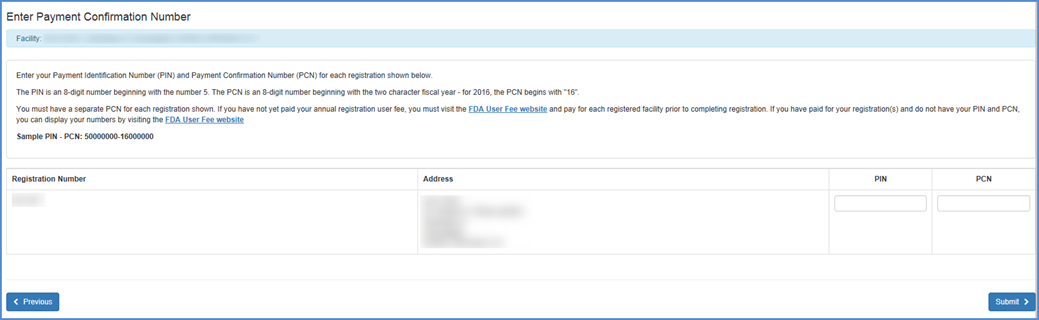
The system will prompt for the Payment Identification Number and Payment Confirmation Number (PIN/PCN).
A confirmation of the reactivated listing will be displayed.
PIN/PCN Entry Screen
Confirmation Screen
