U.S. Department of Health and Human Services

Create Listings for Medical Device Products
May, 2025
This process should take no longer than 10 minutes. However, you are free to take as much time as you like.
Be sure that you have planned enough time to finish this process during one sitting.
Note: Please remember that the system will time-out after 30 minutes and all partially completed steps will be lost.
If an existing listing is in "draft" status, the user can select the listing and click on the "COMPLETE DRAFT LISTING" button.

Add an Exempt Product
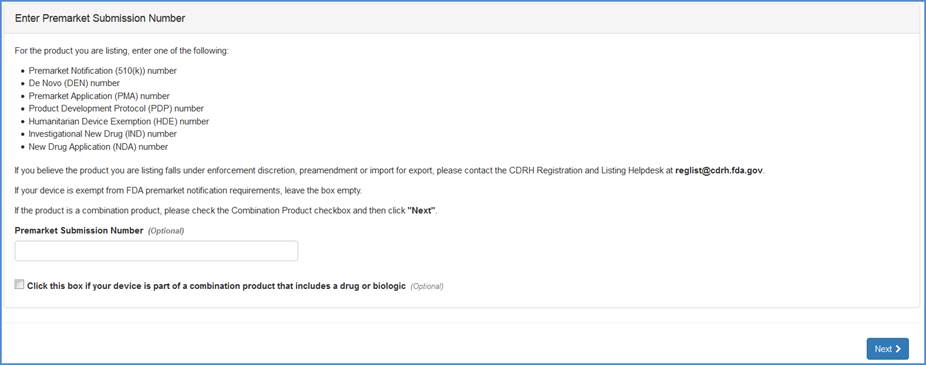
Premarket Submission Number Input Screen
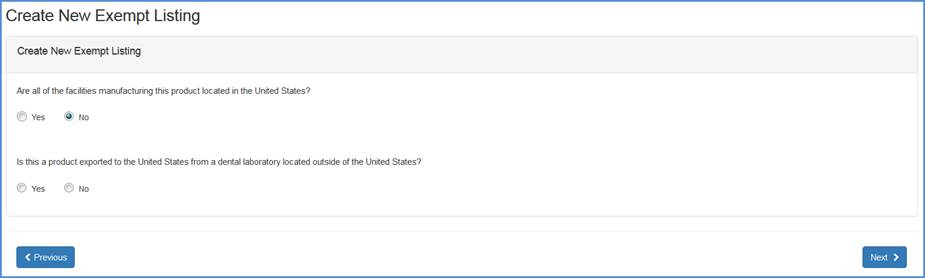
Facility Location Question Screen
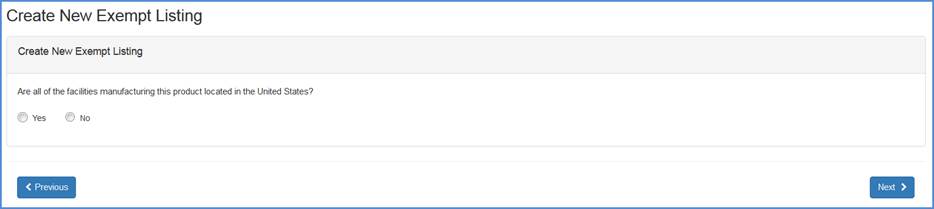
Record whether all the facilities manufacturing this product is located in the United States.
If "Yes", then respond to the question whether this device is being manufactured solely for export to a foreign country.
Export to a foreign country question screen
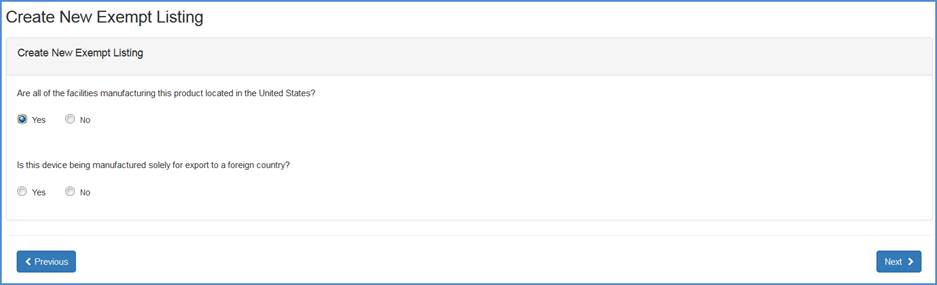
If "No", then respond to the question whether this product is exported to the United States from a dental laboratory located outside of the United States.
Dental laboratory question screen
Add New Product Type (or Number)
Select Product Codes
Select a product code for the new
device listing. A listing of all device product codes associated with your
account will be displayed.
Because the listing of products can be quite long, you can use the
"Filter" option on the right corner of the screen to shorten your
search.
Type in a word or words to describe the device and the filter will return a list of product/device names that best match the description. You may also enter the product code itself, if known, and select the "Filter" option for the exempt listings.
Product Selection Screen

Note: If you are unable to find an appropriate product code, carefully perform a second review of all product code listings.
Click "Next" at the bottom of the screen to continue to the next page.
Save & Exit - If the user chooses to exit the listing and save the information entered, click the "SAVE & EXIT" button to save a draft.
- The system displays a message saying "The system will save your listing in a draft status and exit the listing. Do you wish to continue?" "OK" or "CANCEL".
- If the user clicks on "CANCEL", the user stays on the same page and no draft listing is created.
- If the user chooses "OK", the system will create a draft and displays the draft listing confirmation page.

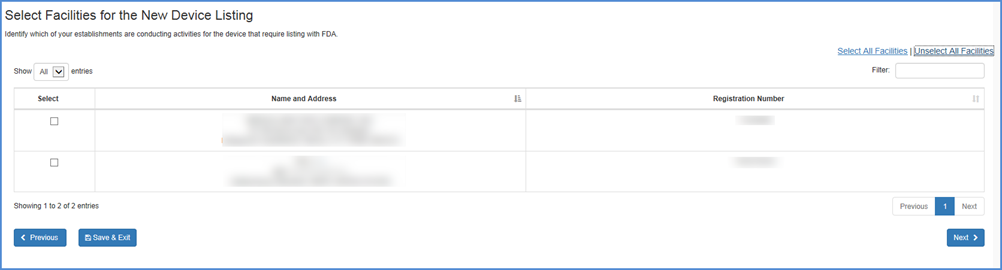
Select Facilities
Select the facilities that perform activities related to the device.
Facility Selection Screen
Save & Exit - If the user chooses to exit the listing and save the information entered, click the "SAVE & EXIT" button to save a draft.
- The system displays a message saying "The system will save your listing in a draft status and exit the listing. Do you wish to continue?" "OK" or "CANCEL".
- If the user clicks on "CANCEL", the user stays on the same page and no draft listing is created.
- If the user chooses "OK", the system will create a draft and displays the draft listing confirmation page
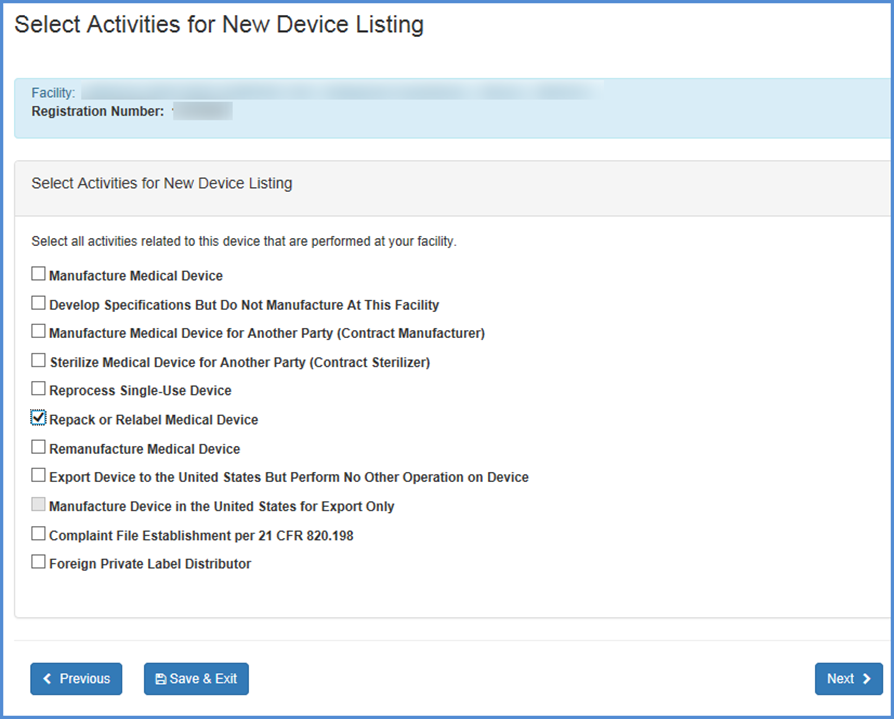
Select Activities
Select activities related to the new device listing for each of the facilities you have selected.
Note: These screens appear for all exempt and non-exempt, products.
This screen allows you to list
activities related to the new device listing for each of the facilities you
have selected. Check all activities that are performed at this facility and
click Continue.
Note: You must select at least one activity for each product
Note: Foreign Facilities should select any and all activities that are performed at each facility. The United States Bioterrorism Act of 2002 requires that the registration numbers for U.S. importers of all products be recorded. Be sure to complete this portion of the form.
Select Activities for Listing(s)
Save & Exit - If the user chooses to exit the application and save the information entered, click the "SAVE & EXIT" button to save a draft.
- The system displays a message saying "The system
will save your listing in a draft status and exit the listing. Do you wish
to continue?" "OK" or "CANCEL".
- If the user clicks on "CANCEL", the user
stays on the same page and no draft listing is created.
- If the user chooses "OK", the system will
create a draft and displays the draft listing confirmation page
Enter Proprietary Name(s)
Each listing must have at least one proprietary name or brand name that your product is marketed under.
Enter Proprietary Name(s)
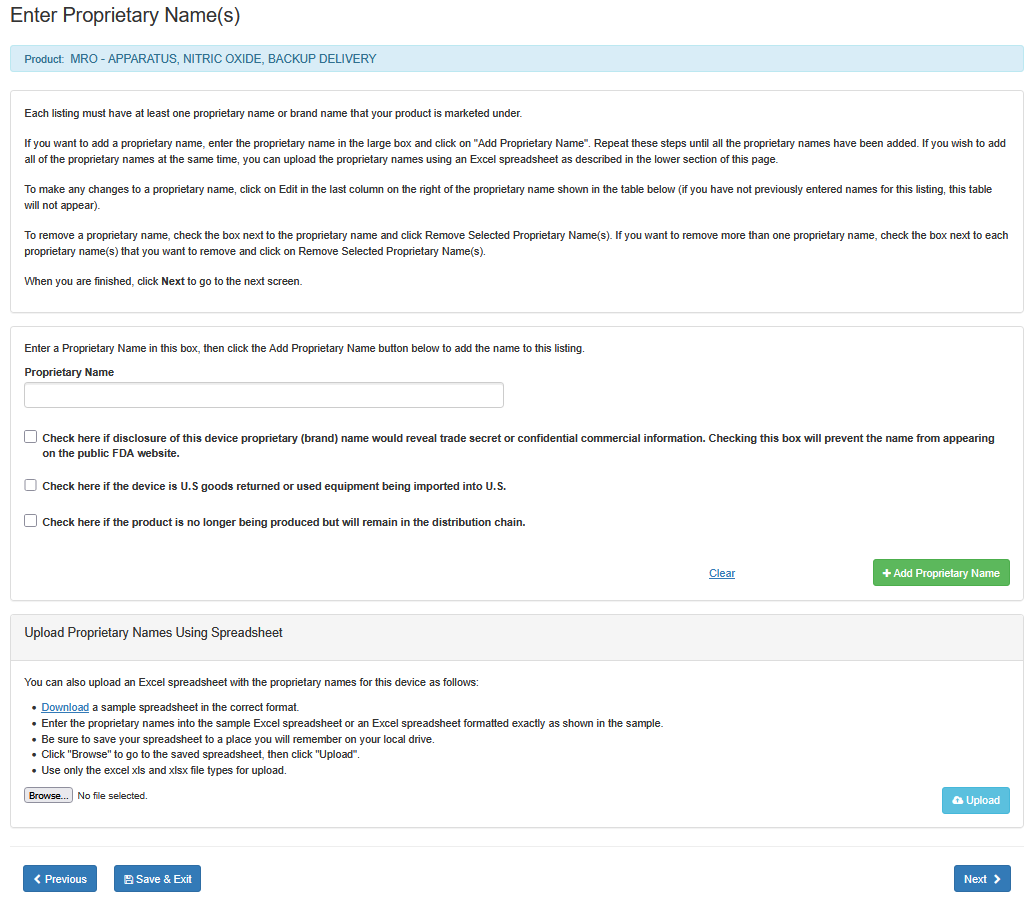
i. Enter the proprietary name in the large box.
ii. If disclosure of this device proprietary (brand) name would reveal a trade
secret or confidential information, check the box below the 'Proprietary Name'
field. This will prevent the name from appearing on the public FDA website.
iii. Check the box, if the device is U.S. goods returned or used equipment being imported to U.S.
iv. Check the box, if the product is no longer being produced but will remain in the distribution
chain.
vi. Click on "Add Proprietary Name".
Repeat these steps until all the proprietary names have been added. If you wish to add all of the proprietary names at the same time, you can upload the proprietary names using an Excel spreadsheet as described in the lower section of this screen entitled "Upload Proprietary Names Using Spreadsheet".
To make any changes to a proprietary
name, click on  in the "Actions" column on the right of the proprietary
name shown in the table below (if you have not previously entered names for
this listing, this table will not appear).
in the "Actions" column on the right of the proprietary
name shown in the table below (if you have not previously entered names for
this listing, this table will not appear).
Proprietary Name Table

To remove a proprietary name, click
on the  the proprietary name. If you want to remove all the proprietary names, click on the box "Delete all Proprietary Names" on the top
right corner of the table.
the proprietary name. If you want to remove all the proprietary names, click on the box "Delete all Proprietary Names" on the top
right corner of the table.
When you are finished, click "Next" to go continue.
Save & Exit - If the user chooses to exit the listing and save the information entered, click the "SAVE & EXIT" button to save a draft.
- The system displays a message saying "The system will save your listing in a draft status and exit the listing. Do you wish to continue?" "OK" or "CANCEL".
- If the user clicks on "CANCEL", the user stays on the same page and no draft listing is created.
- If the user chooses "OK", the system will create a draft and displays the draft listing confirmation page
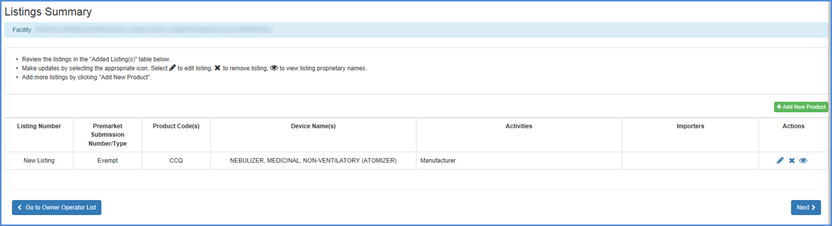
New Listing Summary
A summary of information pertinent to the new listing will be displayed. The summary includes the following:
- Submission Type.
- Product Code(s).
- Device Name(s).
- Proprietary Name(s).
- The facility registration number and the activities performed at that facility.
Carefully review this information and select "Edit" to make any changes.
Once you are satisfied with the associated information for this new listing, click the box by the certification statement at the bottom of the screen and "Finish."
New Listings Review Screen
Save & Exit - If the user chooses to exit the listing and save the information entered, click the "SAVE & EXIT" button to save a draft.
- The system displays a message saying "The system will save your listing in a draft status and exit the listing. Do you wish to continue?" "OK" or "CANCEL".
- If the user clicks on "CANCEL", the user stays on the same page and no draft listing is created.
- If the user chooses "OK", the system will create a draft and displays the draft listing confirmation page.
New Listing Confirmation
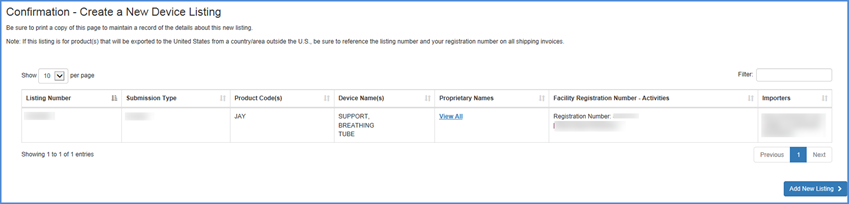
A confirmation of your new listing is displayed with all of the information displayed in the New Listing Summary.
Be sure to print and retain a copy of this added listing confirmation for your records.
Confirmation Screen